How the Home Screen Is Organized
Every icon on the Home screen sits inside a labeled card. Each card represents one category of work — Project Management, Time Tracking, Customers, and so on — and each icon inside it launches one specific grid, calendar, chart, or wizard. Clicking an icon is the fastest way to get from the Home screen to the exact view you need, without hunting through menus.
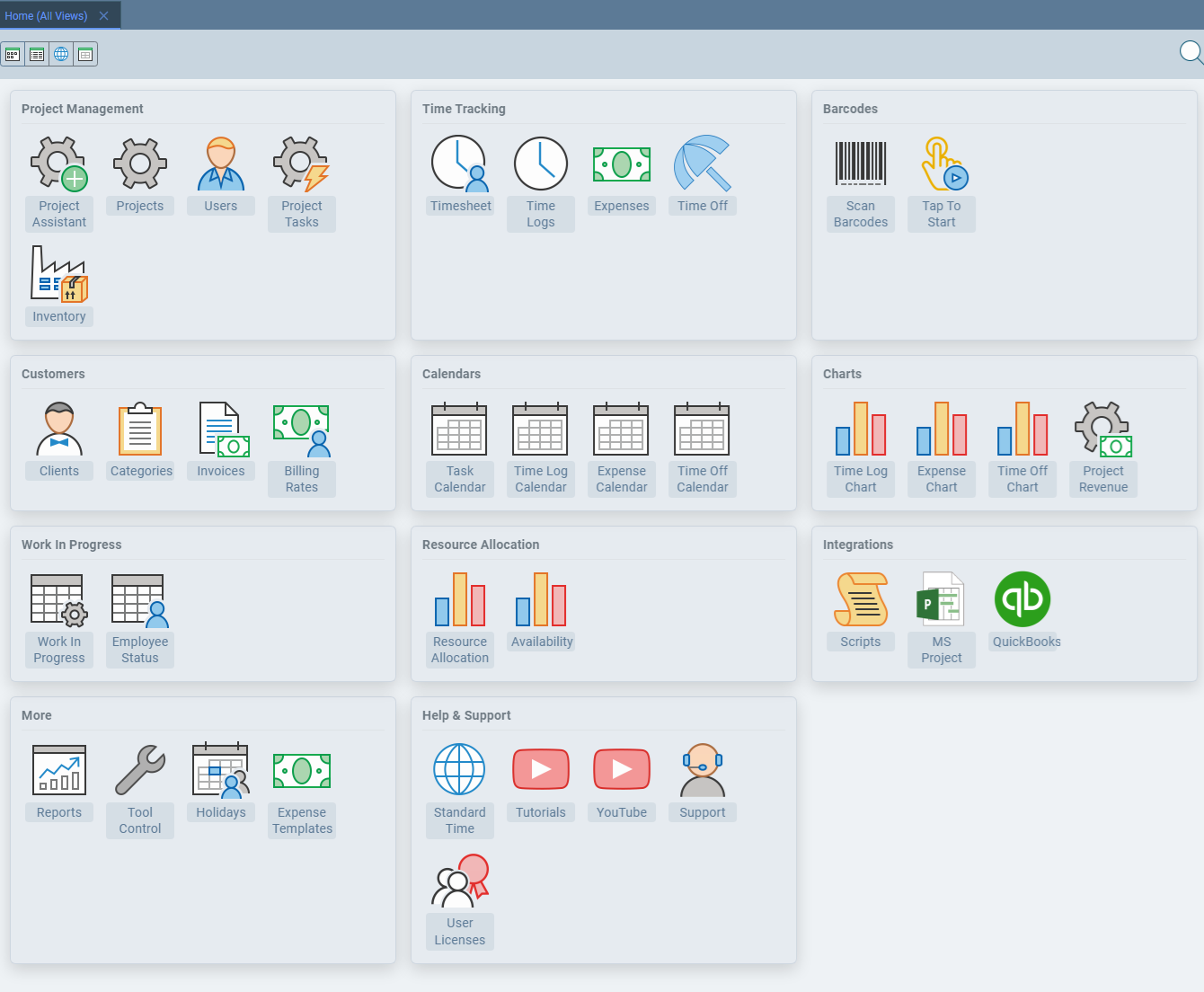
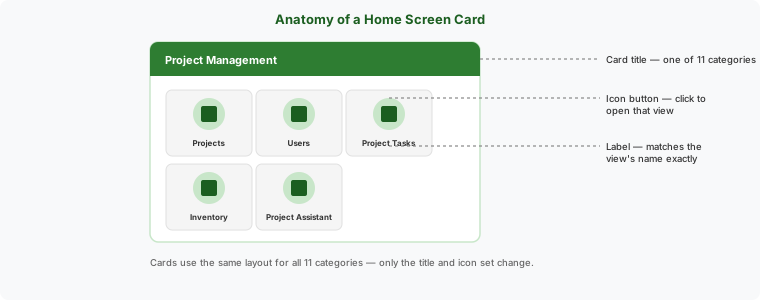
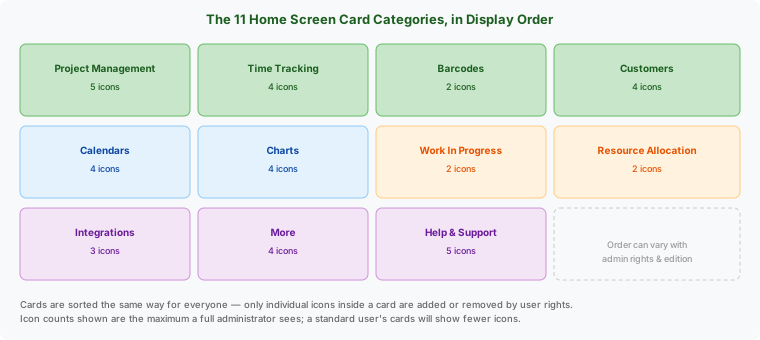
There are 11 categories in total. They always appear in the same order, so once you know where a card lives, it stays put:
The core records behind every job — the work orders you track time and materials to, the tasks that make them up, the people who work them, and the materials they consume.
| Icon | Required Rights | Admin Only | What It Opens |
|---|---|---|---|
| Project Assistant | Administrator account | Admin | A guided, 5-step wizard (Start → Project → Tasks → Client → Finish) for creating a brand-new project, work order, or job — the fastest way to get a new job ready to log time against. |
| Projects | Administer projects, clients, etc. | Admin | The grid of every work order, job, and project in the system, with Folder, Status, Client, and Rate columns. This is the master list everything else — time logs, expenses, tasks, invoices — ties back to. |
| Users | Administer users | Admin | Employees and workgroups who log time, scan barcodes, or administer the system. Opens the same grid used to set up new hires and assign user rights — see the User Setup guide. |
| Project Tasks | Access to Project Tasks | — | Individual activities performed on a job — far more than a checklist. Each task carries duration, dependencies, critical-path fields (Early/Late Start & Finish, Total Float), baselines for planned-vs-actual comparisons, cost estimates, and per-user assignment percentages. See the Gantt Chart guide. |
| Inventory | Access to Inventory | Admin | Materials and Bills of Materials (BOMs) consumed on jobs — stock levels, reorder points, dual internal/billable pricing, and multi-location quantities. See the Inventory Barcode Scanning guide. |
Every hour, dollar, and day off logged against a job or an employee — the raw data that reports, invoices, and payroll exports are built from.
| Icon | Required Rights | Admin Only | What It Opens |
|---|---|---|---|
| Timesheet | Access to Timesheet | — | A weekly view of one employee's hours across their assigned projects, with Monday–Sunday columns — the familiar timesheet format for review and approval. |
| Time Logs | Access to Time Logs | — | The main grid of every logged hour, whatever the source — barcode scan, Tap To Start, or manual entry. This is where corrections happen. See Time Logs: The Results of Barcode Scans. |
| Expenses | Access to Expenses | — | Material and cost entries tied to a job — the automatic record created whenever an inventory item or BOM is scanned. Combined with Time Logs, Expenses gives you complete job cost: labor plus materials in one view. |
| Time Off | Access to Time Off | — | Vacation, PTO, and other approved leave. These entries subtract directly from an employee's available capacity on the Resource Allocation chart. |
The two ways shop floor workers start and stop job timers without touching a keyboard.
| Icon | Required Rights | Admin Only | What It Opens |
|---|---|---|---|
| Scan Barcodes | None — always available | — | The scan station: scan an employee badge, then a work order and task barcode, to start a timer, and scan STOP to close it. Works with any USB/Bluetooth scanner or a phone camera. See the Shop Floor Barcode Scanning guide. |
| Tap To Start | None — always available | — | A touchscreen alternative to scanning — start and stop the same job timers by tapping, useful at stations without a barcode scanner attached. |
See Things to Scan on the Shop Floor for the complete list of scannable items, and How to Use Barcode Rules for automating what happens on each scan.
The client-facing side of the system — who you bill, what rate you bill them, and the invoices that result.
| Icon | Required Rights | Admin Only | What It Opens |
|---|---|---|---|
| Clients | Administer projects, clients, etc. | Admin | Your customer records — the companies and contacts you perform work for. |
| Categories | Administer projects, clients, etc. | Admin | The kinds of work you perform on jobs (labor categories), used to classify time entries and apply the correct billing rate. |
| Invoices | Administer projects, clients, etc. | Admin | Bill clients for logged time and expenses. Invoices can also be exported to QuickBooks Online for payment processing — see the QuickBooks Online guide. |
| Billing Rates | Administer users | Admin | Per-client, per-category rate tables used to bill time and materials — the numbers that turn logged hours into invoice line items. |
The same underlying data as their grid counterparts, laid out on a monthly calendar instead of a spreadsheet — useful when you think in dates rather than rows.
| Icon | Required Rights | Admin Only | What It Opens |
|---|---|---|---|
| Task Calendar | Access to Project Tasks | — | Project Tasks plotted on a calendar by scheduled date, a quick companion view to the full Gantt chart. |
| Time Log Calendar | Access to Time Logs | — | Logged employee hours shown day by day on a calendar grid. |
| Expense Calendar | Access to Expenses | — | Logged expenses shown day by day on a calendar grid. |
| Time Off Calendar | Access to Time Off | — | Approved time off shown on a calendar, so you can see who's out on any given day at a glance. |
The same time, expense, and time-off data again — this time trended over time, for spotting patterns a grid or calendar won't show.
| Icon | Required Rights | Admin Only | What It Opens |
|---|---|---|---|
| Time Log Chart | Access to Time Logs | — | Logged hours charted over a date range, useful for spotting overtime trends or a slowdown on a specific job. |
| Expense Chart | Access to Expenses | — | Logged expenses charted over time — a quick visual for material spend trends. |
| Time Off Chart | Access to Time Off | — | Time off charted over a date range, handy for spotting seasonal leave patterns. |
| Project Revenue | Administer projects, clients, etc. | Admin | Projected revenue from projects and jobs, charted over time — a forward-looking view built from quoted and billed amounts rather than historical actuals. |
Real-time dashboards of what's happening on the shop floor right now — which jobs are active and who's working on them.
| Icon | Required Rights | Admin Only | What It Opens |
|---|---|---|---|
| Work In Progress | Administer users | Admin | Every job currently in production — a live snapshot of what's actually running on the shop floor at this moment. |
| Employee Status | Administer users | Admin | What every employee is working on right now, based on their currently running timer. |
Three additional WIP views — Employees On Jobs, Top Jobs, and Assy Lines — are available from the WIP dashboard's menu but aren't separate Home screen icons.
Forward-looking capacity planning — who's booked, who's free, and where a scheduling conflict is about to happen.
| Icon | Required Rights | Admin Only | What It Opens |
|---|---|---|---|
| Resource Allocation | Administer projects, clients, etc. | Admin | The color-coded bar chart of jobs and tasks assigned to employees in the future — green for correctly allocated, yellow for spare capacity, red for over-allocated. See the full Resource Allocation guide. |
| Availability | Administer projects, clients, etc. | Admin | How much time each employee has available for new work in the future, netted down from their calendar, company holidays, and approved time off. |
Additional views — a Requirements chart, Task Grid, Resource Grid, Requirements Grid, and over-allocation Alerts grid — live inside the Resource Allocation dashboard's menu rather than as separate Home screen icons.
Connections to tools your shop already uses.
| Icon | Required Rights | Admin Only | What It Opens |
|---|---|---|---|
| Scripts | Administer projects, clients, etc. | Admin | Custom scripts that run additional logic when a barcode is scanned or an icon is clicked — SQL, JavaScript, or C#. See How to Use Barcode Rules. |
| MS Project | Administer projects, clients, etc. | Admin | Two-way integration with Microsoft Project, mapping tasks, resources, and assignments through MSTaskID, ProjResourceID, and ProjAssignmentID fields on Project Tasks. |
| QuickBooks | Administer projects, clients, etc. Administer users | Admin | Import customers and export time, expenses, and invoices to QuickBooks Online. See the QuickBooks Online guide. |
Supporting records that don't fit neatly into another category.
| Icon | Required Rights | Admin Only | What It Opens |
|---|---|---|---|
| Reports | Access to stock reports | — | The legacy report picker — fixed-column reports for time, expenses, and job costing. See How to Run Time Reports. |
| Tool Control | Administer projects, clients, etc. | Admin | Check tools in and out — track which employee has which piece of shop equipment at any given time. |
| Holidays | Administer projects, clients, etc. | Admin | Federal and company holidays. These dates automatically zero out available capacity on the Resource Allocation chart, so allocation math never expects work on a day the shop is closed. |
| Expense Templates | Administer projects, clients, etc. | Admin | Reusable templates for common material or expense entries, speeding up manual expense logging for recurring costs. |
Getting help without leaving the app.
| Icon | Required Rights | Admin Only | What It Opens |
|---|---|---|---|
| Standard Time | None — always available | — | Opens the Standard Time® website in your browser — this site. |
| Tutorials | None — always available | — | Help articles and walkthroughs for individual features and capabilities. See the Videos page. |
| YouTube | None — always available | — | Opens the Standard Time® YouTube channel for video tutorials and product walkthroughs. |
| Support | None — always available | — | Opens the Contact Support page to reach the Scoutwest, Inc. team directly. |
| User Licenses | Administer users | Admin | Manage the user licenses on your subscription — how many seats you have and how they're assigned. See Pricing Plans. |
Why an Icon Might Be Missing
Which icons you personally see comes down to your user rights. Every table above includes a Required Rights column naming the exact right that gates each icon — the same rights your administrator grants or revokes from the User Rights checklist when setting up your account. Standard Time® checks those rights when the Home screen builds and only includes the icons you're allowed to open.
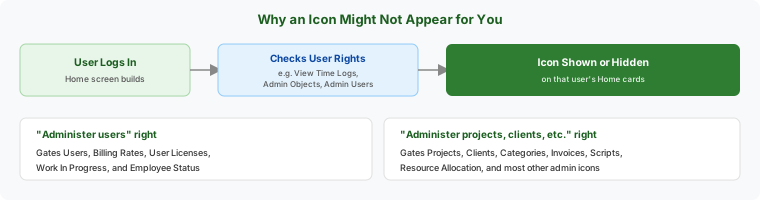
If an icon you expect to see isn't there, check with your Standard Time® administrator about your assigned user rights — most missing icons come down to a right that hasn't been granted yet, not a missing feature.