9 June 2026
Where to Find Your Barcode Scans in the Time Logs Page
You have set up your employees and badges (Step 1) and added your work orders with project barcodes (Step 2). Your team is scanning. But where does all that data actually go? This is Step 3 — learning to open the Time Logs page, read every scan entry, review the full project context on the right panel, and filter results so you can find exactly what you need.
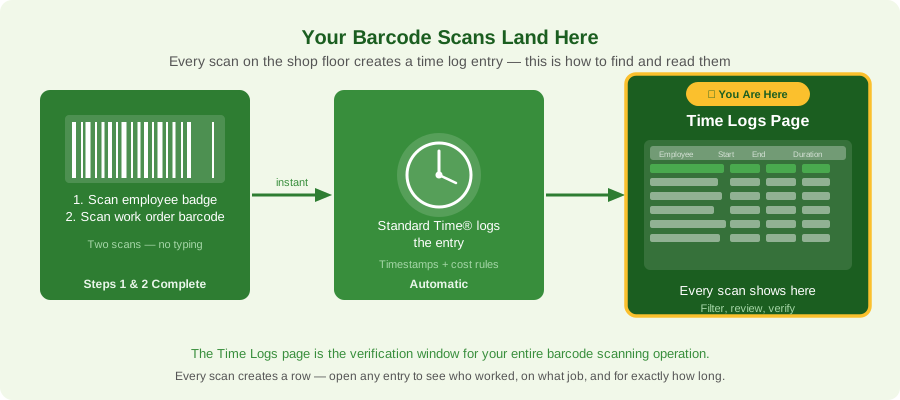
Every two-scan sequence on the shop floor creates a row in the Time Logs page — with the employee, timestamps, work order, and full project details attached automatically.
What You Will See When You Are Done
By the end of this article you will know how to:
- Navigate to the Time Logs view from the Home screen
- Open any individual scan entry and read its detail panel — start time, end time, actual hours, and employee name
- Locate the project information attached to each scan: client, project, subproject, task, and category
- Use the Filter View panel to narrow the list to a specific employee, date range, or work order
- Identify complete entries versus open entries that still need a clock-out scan
The Time Logs page is not a report — it is the live ledger of every scan your floor has produced. Once you know how to read it, you can verify that scanning is working correctly, catch missing clock-outs before they become problems, and confirm that every hour is attached to the right job.
Watch: Checking Barcode Scans in the Time Logs Page
This walkthrough covers opening the Time Logs view, clicking into a work order entry, reviewing the project details panel on the right, and using Filter View to narrow your results — all in under five minutes.
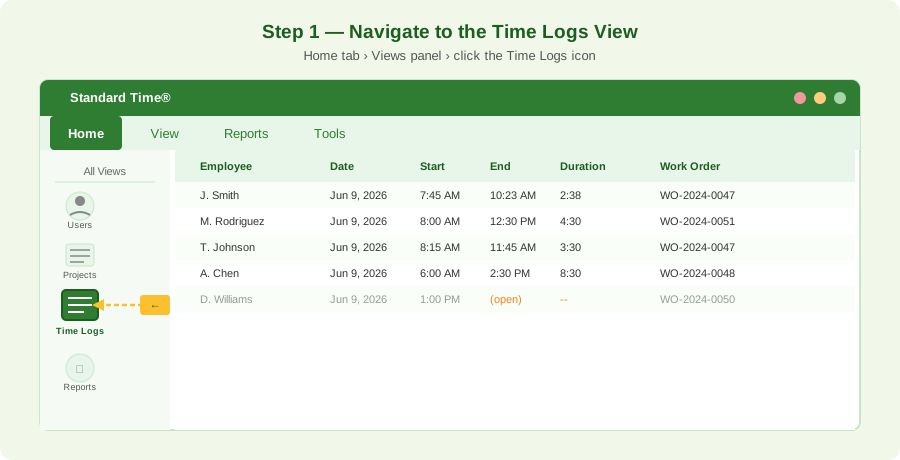
Step 1 — Go to the Home screen, open the Views panel on the left, and click the Time Logs icon. Every scan your team has ever made appears in this list.
Step 1: Open the Time Logs View
Launch Standard Time® and go to the Home screen. Look at the left-side navigation panel — this is the All Views sidebar that gives you access to every section of the software. The icons you see represent Users, Projects, Reports, Time Logs, and more, depending on your layout and configuration.
Finding the Time Logs Icon
Scan the left panel for the Time Logs icon. It typically looks like a list or table with horizontal lines. Click it once and the Time Logs list opens in the main panel area. You will immediately see rows of scan data — one row per individual scan session, ordered by date and time.
What the List Shows By Default
When you first open the Time Logs view, you will see all recent entries sorted with the most recent at the top. Each row in the list shows:
| Column | What It Shows |
|---|---|
| Employee | The name encoded in the employee barcode badge scanned to start the session |
| Date | The calendar date the scan took place |
| Start Time | The exact timestamp when the employee scanned in |
| End Time | The timestamp when the employee scanned out — blank if the entry is still open |
| Duration | The total hours and minutes worked, auto-calculated from start to end |
| Work Order | The project or job barcode that was scanned — the work order being clocked against |
This list can hold thousands of entries. On a busy shop floor with ten employees scanning several times a day, a single week can produce hundreds of rows. That is why the Filter View tool you will learn in Step 4 is so important — raw list mode is fine for spot-checking, but filtering is how you work with the data at scale.
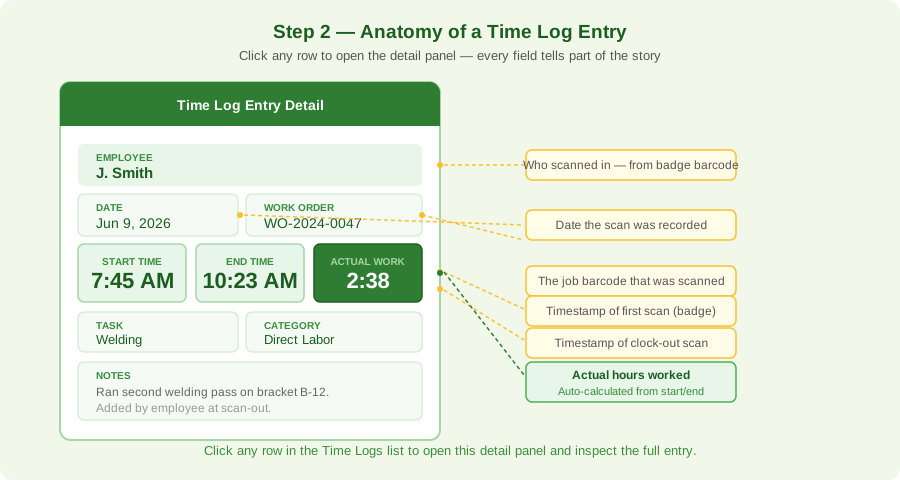
Step 2 — Click any row to open the detail panel. Every field in the entry is labeled and clickable — the green Duration box is what drives job costing, billing reports, and payroll summaries.
Step 2: Open a Work Order Entry and Read Its Details
Click any row in the Time Logs list and a detail panel opens — either in the same screen or as a pop-up depending on your layout. This is where you see the full story behind a single scan session.
The Fields in a Time Log Entry
-
Employee (top of the panel) The name of the employee who performed the scan. This value came directly from the badge barcode — no keyboard input involved. If you see an unexpected name here, it usually means the wrong badge was scanned or two employees swapped badges, not a data entry error.
-
Start Time The precise moment the employee scanned their badge to begin working. Standard Time® reads the system clock at the instant the scanner sends the barcode value — to the second. This timestamp is automatic and cannot be accidentally rounded the way manual time entries often are.
-
End Time The moment the employee scanned out. If this field shows (open) or is blank, the employee has not yet scanned out — their time entry is still accumulating. You will handle this in Step 5 of this article.
-
Actual Work (Duration) The total time between start and end, displayed in hours and minutes. This is the value that flows into job costing, billing reports, and labor summaries. For a standard-rate employee, this number multiplied by the project's hourly rate gives you the direct labor cost for that session.
-
Work Order / Project The job barcode that was scanned. This links the time entry to a specific project record in Standard Time®. Clicking this field may take you directly to the project record, where you can see the full budget, schedule, and accumulated hours to date.
-
Task and Category If your project is set up with task-level barcodes (Welding, Assembly, Painting), those appear here. Category reflects the billing or cost type — Direct Labor, Overhead, Material, and so on. Both fields carry through to invoices and GL exports automatically.
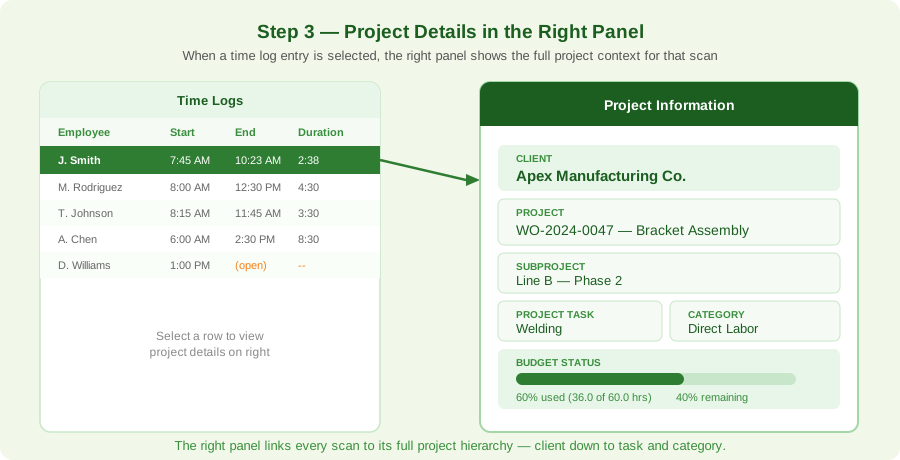
Step 3 — The right panel links every scan to its full project hierarchy. Client at the top flows down through project, subproject, task, and category — and the budget bar shows how many hours remain on the job.
Step 3: Review Project Information in the Right Panel
When you select a row in the Time Logs list, the right side of the screen fills in with the project context for that scan. This panel is where Standard Time® shows you the full hierarchy: which client ordered the work, which project it belongs to, how the work is categorized, and how much budget remains.
The Project Hierarchy Fields
Reading the right panel top-to-bottom gives you the complete picture for any single scan:
- Client: The customer who ordered the job. If you manage multiple accounts, this field is what keeps one customer's hours from appearing in another's billing report. Clicking the client name opens the full customer record where you can see all projects associated with that account.
- Project: The specific work order — the top-level job container that the barcode was attached to. This is the record you created in Step 2 of the series. The project name, its due date, and its budget all live here. You should recognize this value as the same job code you put on the physical barcode label posted at the workstation.
- Subproject: An optional subdivision within a project. Large jobs are sometimes split by line, phase, or location — Line A vs. Line B, Phase 1 vs. Phase 2. Subprojects let you break a single work order into trackable segments without creating separate barcode labels for each one.
- Project Task: The specific operation being performed — Welding, Assembly, Painting, Inspection, Machining. If employees scan task barcodes at each station rather than just a single job barcode, the task field tells you exactly where in the production routing the hours were spent.
- Category: The cost type. Common categories are Direct Labor (work that goes directly into the product), Overhead (setup, cleaning, idle time), Rework (corrective work not in the original estimate), and Travel or Training for non-production sessions. Category drives how costs appear in your P&L and which GL account the hours are allocated to.
% Status Column in the Projects Grid
Standard Time® lets you add a % Status column directly to the Projects grid page — the same page where your work orders and jobs are listed. When enabled, this column appears alongside other project columns (name, client, due date, estimated hours, and so on) and shows a visual progress bar for each job on its own row.
The bar fills as actual scanned hours accumulate against the project's estimated hours budget. At a glance you can scan down the grid and see every active work order's burn rate at once — no need to open each project individually. A job at 40% with two weeks left looks very different from one at 90% with a week left, and the column makes that difference obvious without running a report.
To add the column, right-click any column header in the Projects grid and choose Add Column (or use the Columns button in the View tab ribbon). Select % Status from the list and it will appear in the grid alongside your other project fields.
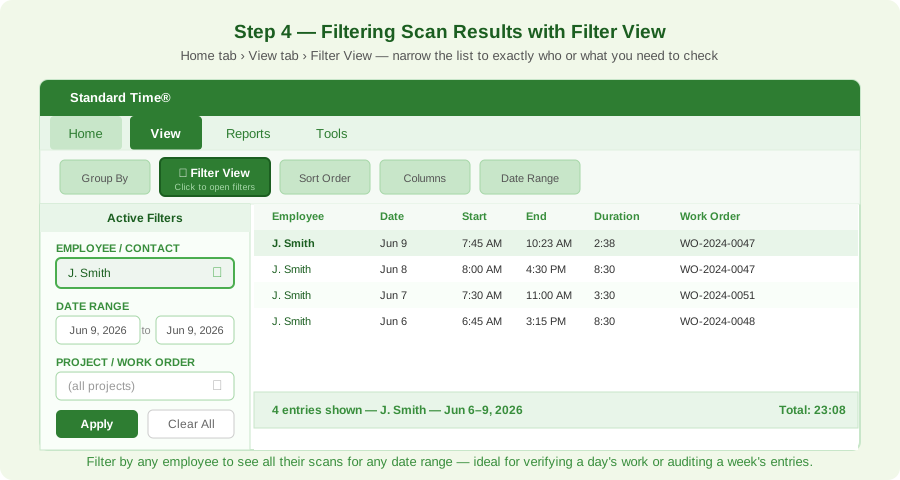
Step 4 — Click Filter View in the View tab ribbon to open the filter panel on the left. Select an employee from the dropdown and set your date range — the list updates instantly as you make each selection.
Step 4: Filter Scan Results with Filter View
The raw Time Logs list shows every scan from every employee on every job — useful for a broad overview, but not useful when you need to answer a specific question like "How many hours did J. Smith log on WO-2024-0047 this week?" Filter View gives you a focused answer in seconds.
Opening the Filter Panel
-
Click the View tab in the top ribbon The View tab is the second tab in the main ribbon bar, right next to Home. Clicking it reveals a secondary toolbar of view-management controls: Group By, Filter View, Sort Order, Columns, and Date Range.
-
Click Filter View A filter panel slides open on the left side of the screen, above the Time Logs list. You will see three main filter sections: Employee/Contact, Date Range, and Project.
-
Select the Employee / Contact dropdown Click the dropdown in the Users section of the tree and select the employee whose scans you want to review. The dropdown is populated from your Users list — the same list you configured in Step 1 of this series. You can select one employee or leave it set to "all" to see the full team.
-
Set the Date Range Enter a From and To date to bound the results. Common ranges are today (single date), this week (Monday through today), or a specific pay period. Standard Time® remembers your last date range, so you do not have to retype it every session.
-
Optionally add a Project filter If you want to see only scans logged against a specific work order, select it from the Project dropdown. This is especially useful when a supervisor wants to see who has been working on a particular job and how many hours each person has contributed.
The Time Logs list updates immediately as you make each selection. A summary bar at the bottom of the list shows the total hours for the filtered results — one line, no calculator needed.
Practical Filter Combinations
Different daily questions call for different filter setups:
| Question | Filter Setup |
|---|---|
| How many hours did this employee log today? | Employee = that person; Date = today |
| Who scanned into WO-2024-0047 this week? | Project = WO-2024-0047; Date = this week; Employee = all |
| Did the morning shift clock out before the afternoon shift clocked in? | Employee = all; Date = today; look for open entries |
| How many hours remain on this job? | Project = job barcode; Date = all time — compare total to budget in right panel |
| What did the Welding group work on last week? | Employee = each welder; Date = last week; review project column |
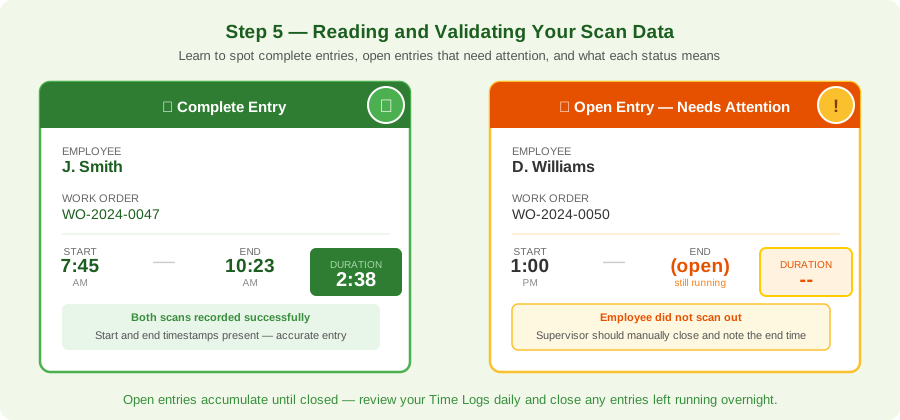
Step 5 — Complete entries have both a start and end time, and the duration is calculated automatically. Open entries are still accumulating — someone forgot to scan out and a supervisor needs to close the entry manually.
Step 5: Validating Your Scan Data — Complete vs. Open Entries
Not every scan session is perfect. Employees forget to scan out at the end of their shift, get pulled away mid-task, or occasionally scan the wrong barcode. Knowing how to spot these situations in the Time Logs list — and what to do about them — keeps your data clean and your job costs accurate.
The Complete Entry
A complete entry has both a start time and an end time, and shows a calculated duration. These entries are ready to flow into reports, billing, and payroll calculations. In the list view, complete entries show a normal duration value in the Duration column — hours and minutes, like 2:38 or 8:15.
What to check on a complete entry:
- Does the duration look reasonable for the work performed? A 14-hour entry for a standard shift suggests the employee forgot to scan out at end-of-shift and the entry accumulated until the next day.
- Is the work order correct? If the employee meant to scan into WO-2024-0047 but scanned WO-2024-0074 by mistake, the entry is "complete" but attached to the wrong job.
- Is the start time plausible? A scan at 3:47 AM for a standard first-shift employee is worth investigating.
The Open Entry
An open entry has a start time but no end time. The Duration column shows a dash or the word "open" instead of a calculated value. Open entries are common — shift-end scans get missed, employees leave for an appointment, or the scanning station goes offline before the clock-out scan registers.
Open EntryOpen entries do not feed into reports accurately and will distort job-cost summaries if left unclosed. Standard Time® can be configured to alert a supervisor when an entry has been open for longer than a threshold (commonly nine or ten hours), but you can also catch them by filtering today's logs and scanning for any row where the End Time column is blank.
How to Close an Open Entry
-
Click the open entry in the list The detail panel opens on the right. The End Time field is blank.
-
Click the End Time field and type the correct time If you know when the employee stopped working — because they told you, or because you can verify it from another source — type that time directly. Use the 12-hour or 24-hour format that your installation is configured for.
-
Save the entry Standard Time® recalculates the Duration automatically. Add a note in the Notes field explaining that the end time was manually entered by a supervisor, and why. This creates an audit trail that is useful if the entry is ever questioned.
Common Scan Data Patterns and What They Mean
| What You See | What It Means | What to Do |
|---|---|---|
| Duration of 14+ hours | Employee likely forgot to scan out at shift end | Edit the end time to the actual clock-out; add a note |
| Two entries for same employee on same job, same hour | Double scan — employee scanned twice accidentally | Delete the duplicate entry or merge with correct one |
| Entry with no project (work order is blank) | Employee scanned badge but not the job barcode | Assign the correct project to the entry; remind employee of two-scan procedure |
| Start time at 12:00 AM or 11:59 PM | Entry crossed midnight — may span two calendar days | Split the entry at midnight; adjust both start and end times |
| Employee name not recognized in project records | Badge encoded a name not matching any user record | Check the Users list; re-print the badge with the exact matching name |
The Time Logs Page as a Daily Management Tool
Many shop supervisors build a brief Time Logs review into their morning routine — five minutes before the floor gets busy. The routine looks like this:
-
Set the date filter to yesterday See every scan from the previous shift. The total hours in the summary bar tells you whether the shift logged roughly what you expected.
-
Scan the End Time column for any blanks These are overnight open entries. Close them now before they accumulate further and before reporting runs.
-
Check the Duration column for outliers Any single entry over 10 hours deserves a second look. So does any entry under 5 minutes — that often means a misfire scan rather than an intentional time log.
-
Filter by the jobs approaching budget Review any work orders where the budget bar was near its alert threshold. See how many hours were added yesterday and whether the job is on track to close before its deadline.
This five-minute check keeps data quality high and ensures that every scan your team performed on the previous shift is accounted for, accurate, and attached to the right job. It is the difference between time-tracking data that you trust and data that you have to reconcile at month end.
Putting It All Together
Step 3 is complete when you can navigate to the Time Logs page, open any entry, read the full detail and project context, and filter down to exactly the employee or work order you want to review. Here is the quick summary:
- Home → All Views → click the Time Logs icon
- Click any row → detail panel opens showing employee, start/end, duration, and work order
- Select the entry → right panel shows client, project, subproject, task, category, and budget bar
- View tab → Filter View → set employee, date range, and/or project — list updates instantly
- Review End Time column for open entries — close any that should be finished
In Step 4 of this series, we will walk through the first live scan from start to finish — scanning a badge, scanning a work order, and watching the entry appear in Time Logs in real time.