What Overtime Rules Do
Employees don't have to do anything different for overtime. They clock in and out of jobs the same way they always do — by barcode scan, timer, or timesheet — and Standard Time® works out afterward which of those hours are regular time, which are overtime, and which are double time. The answer comes from a short list of overtime rules that an administrator sets up once for the whole company.
The result shows up as four extra columns you can add to the Time Logs grid: Regular hours, Overtime hours, Double-time hours, and an Overtime summary that names the rule responsible for each piece. Because they're calculated rather than typed in, they stay right as time logs are added, edited, or corrected — change a start time or a rule, and the split updates to match.
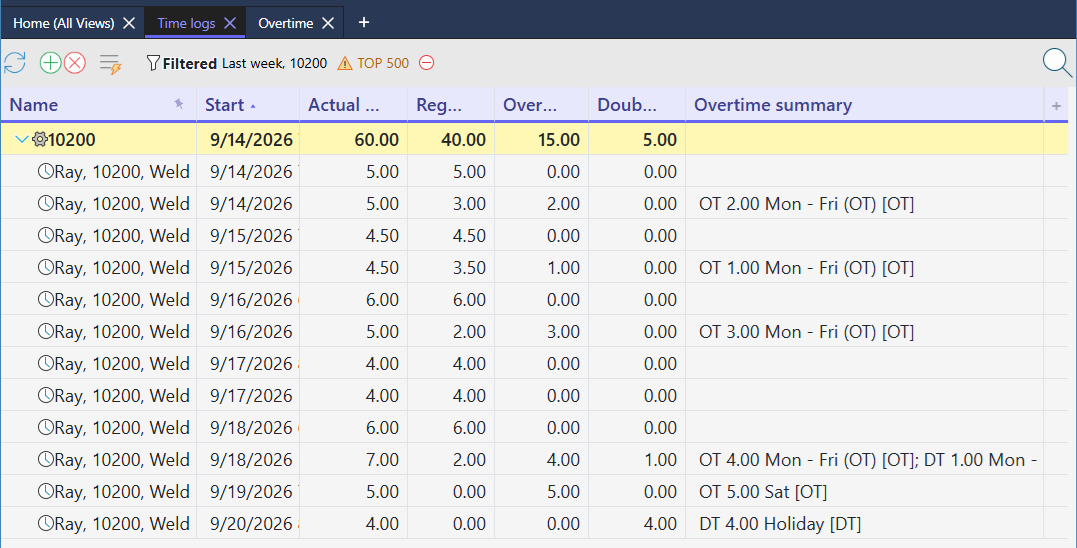
Regular time, overtime, and double time are always three slices of the same total — Regular + Overtime + Double time = Actual work, on every row and in every total. Overtime rules never add or remove hours; they only decide which bucket each hour belongs in.
Opening the Overtime Rules Grid
Overtime rules are an administrator setting. To open them:
- Open the Time Logs grid (or the Users grid).
- Right-click any row and choose Admin › Overtime rules.
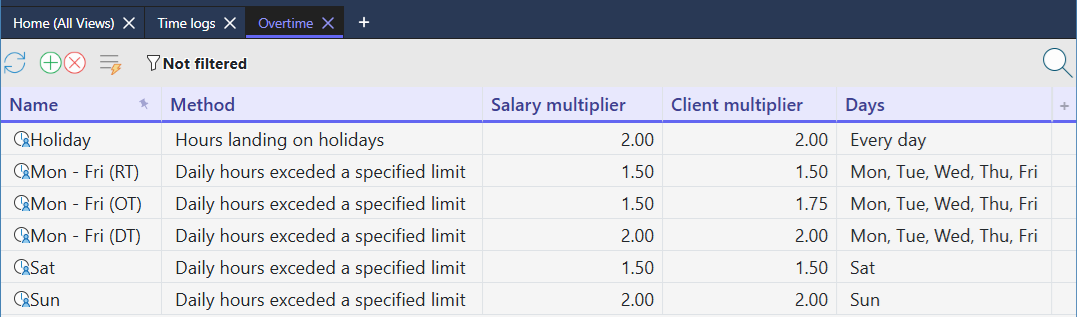
- The Overtime tab opens with one row per rule. Click a rule to see its settings in the Properties panel, or use the green plus button to add a new one.
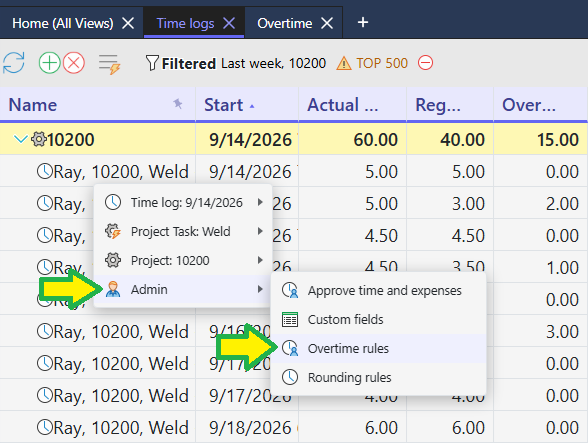
The Admin menu only appears for administrator accounts, and changing a rule's settings requires the Administer users right. See the User Setup Guide for how rights are granted.
Every Rule Setting, Explained
Each rule's Properties panel is divided into five groups. Here's what every field means and how it's used in the calculation.
| Setting | What it does |
|---|---|
| Name and Description | |
| Name | The rule's name. It appears in the Overtime summary column of Time Logs, so a short, clear name such as "Mon - Fri (OT)" or "Holiday" makes that column easy to read. |
| Description | Optional notes for your own reference. Not used in the calculation. |
| Order | The sequence the rules are checked in — 1 first, then 2, and so on. Order matters whenever a rule has Continue rules set to No (it stops the rules after it), and it decides which rule gets credit in the summary when two rules of the same type claim the same hour. |
| Assigned users | Shows who the rule is for — "All users" in every example on this page. In the current version, every overtime rule is checked against every employee's time logs. |
| Conditions | |
| Method | How the rule decides that overtime has started: a daily limit, a weekly limit, the employee's own schedule, or holidays. The five choices are explained in The Five Methods below. The method also decides which of the other Conditions fields are editable — the rest are grayed out. |
| Days | Which days of the week a daily rule applies to — for example Mon through Fri, or just Sat. Leaving every day unchecked means every day. Used by the two daily methods; weekly and holiday rules ignore it. |
| Weekly hours | For the "Weekly hours exceed a specified limit" method: hours in a week beyond this number are claimed by the rule. Typically 40. |
| Daily > hours | Where the rule's slice of the day starts. The rule applies only when the day's total is greater than this number — a day of exactly 8.00 hours is not "over 8." Set to 0 to claim the day from its very first hour. |
| Daily <= hours | Where the rule's slice of the day ends. Together with Daily > hours, it defines a band — for example, over 8 up to 12. A value of 24 or more means no upper limit, so even a day with more than 24 hours logged (possible when a time log runs past midnight) stays covered. |
| Multiply rates | |
| Salary multiplier | The pay-rate factor for hours this rule claims — for example 1.50 for time-and-a-half. Recorded with the rule for your payroll and rate reference. The Time Logs overtime columns report hours, so the multiplier doesn't change how hours are split. |
| Client multiplier | The billing-rate factor for hours this rule claims — for example 1.75 if customers are billed a premium for overtime work. Like the salary multiplier, it doesn't change the hour split. |
| Results | |
| Result type | Regular Time Overtime or Double time — the one setting that decides which column the claimed hours land in. |
| Result code | A short free-text code such as RT, OT, or DT, shown in square brackets in the Overtime summary. It's a label only — it does not change the column. A rule with Result type Overtime and code DT would still produce overtime hours. |
| Continue rules | Yes: after this rule applies, keep checking the rules after it. No: once this rule applies, skip all the remaining rules of the same kind (daily rules for that day, or weekly rules for that week). A rule that doesn't apply never stops anything, whatever this is set to. |
| History | |
| Last update / History | When the rule was last used. Informational only. |
The Five Methods
Every rule uses one of five methods. Three look at one day at a time; two look at the whole week.
| Method | Looks at | Which hours the rule claims | Settings used |
|---|---|---|---|
| Daily hours exceed a specified limit | One day | On the chosen days, the band of the day's hours from Daily > hours up to Daily <= hours. The workhorse method — all five weekday and weekend rules in this guide use it. | Days, Daily > hours, Daily <= hours |
| Daily hours exceed employee schedule | One day | On the chosen days, every hour past the employee's own scheduled hours for that day, with no upper limit. On a day the employee isn't scheduled at all, every hour worked is claimed. Useful when employees work different shift lengths. | Days, the employee's schedule |
| Hours landing on holidays | One day | On days that are holidays on the Holiday Calendar, the band from Daily > hours up to Daily <= hours. Set 0 and 24 to claim the whole holiday. | Daily > hours, Daily <= hours, Holiday Calendar |
| Weekly hours exceed a specified limit | Whole week | Every hour in the week past Weekly hours — counting only hours no daily rule already made overtime or double time. See How Weekly Rules Work. | Weekly hours |
| Weekly hours exceed employee schedule | Whole week | Same as above, but the limit is the employee's own scheduled hours for that week instead of a fixed number. | The employee's schedule |
Rules of different methods work together. A common setup is a daily rule for over 8 hours plus a weekly rule for over 40 hours — Standard Time® makes sure an hour already counted as daily overtime is never counted a second time as weekly overtime.
How a Day's Hours Are Split
Overtime is worked out per employee, one day at a time. The idea at the center of it all is simple: the day's time logs are laid end to end, in the order they started. The first minute the employee worked that day is hour 0; if they worked 13 hours, the last minute is hour 13. Each rule that applies claims a stretch of that line, and each time log gets whatever part of the line it sits on.
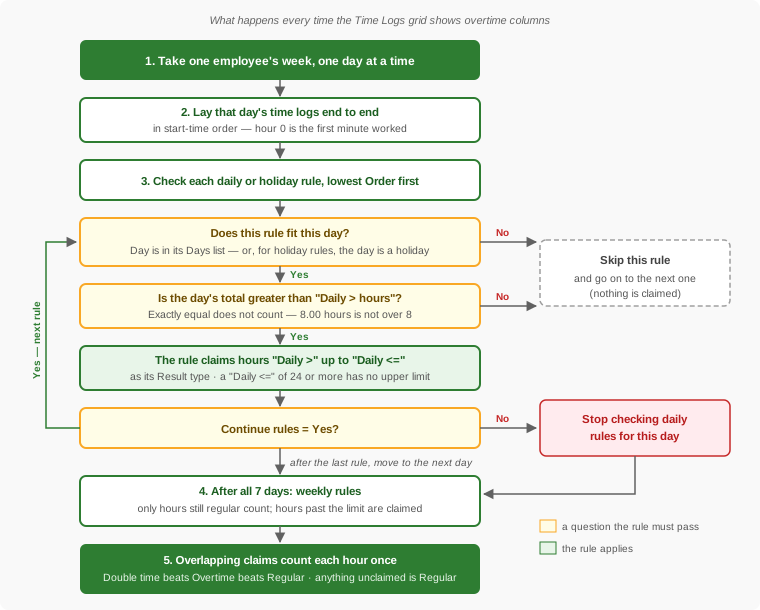
Step by step:
- Gather the day's time logs. A time log belongs to the day it starts on — a shift that runs past midnight counts entirely toward the day it began.
- Lay them end to end in start-time order. Gaps between time logs (lunch, breaks) don't count; only the hours actually logged do.
- Check each daily and holiday rule in Order. A rule is skipped if today isn't one of its Days (or, for a holiday rule, today isn't a holiday), or if the day's total isn't greater than its Daily > hours.
- Each rule that applies claims its band — from Daily > hours up to Daily <= hours — as its Result type.
- Continue rules. If the rule that just applied has Continue rules set to No, no more daily rules are checked for that day.
- Resolve overlaps. If two claimed bands overlap, each hour is counted once, as the highest type: Double time beats Overtime beats Regular. Any hour no rule claimed is regular.
- Split each time log by where it falls on the line. A time log that straddles a boundary is divided — part regular, part overtime.
Here's what that looks like for Friday in the example week, where the employee logged a 6-hour morning and a 7-hour afternoon:
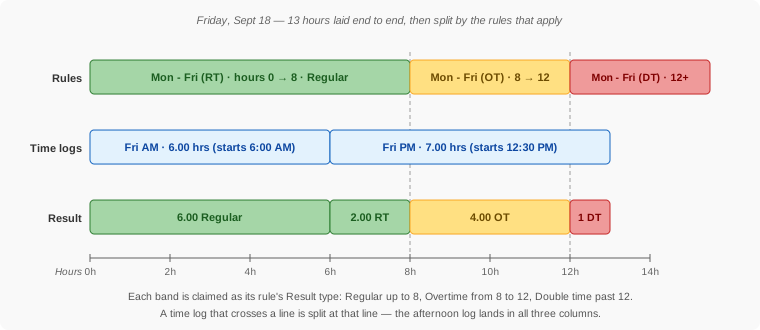
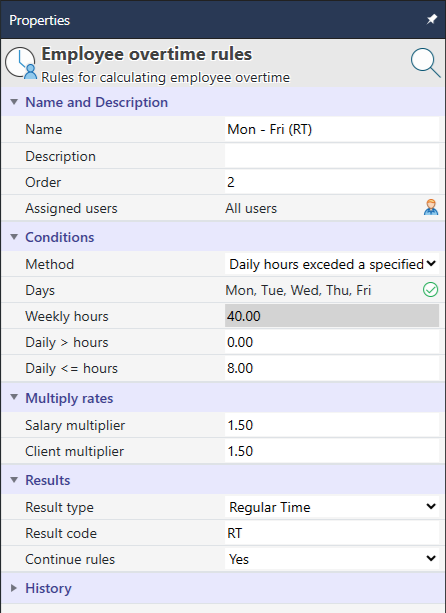
Do you need a Regular Time rule? No. Any hour no rule claims is regular already, so a rule with Result type Regular Time never moves hours anywhere. The example's "Mon - Fri (RT)" rule is there to make the setup self-documenting and to record the regular-time multipliers. Just keep its Continue rules set to Yes — see Tips for why.
How Weekly Rules Work
Weekly rules run after all seven days' daily and holiday rules are finished, and they only look at hours that are still regular. Those remaining regular hours are laid end to end across the whole week in start-time order, and every hour past the weekly limit is claimed by the rule. The week begins on the week-start day set for your account.
That order is what prevents double counting. An hour that a daily rule already made overtime isn't counted toward the weekly limit, so it can't be made overtime a second time.
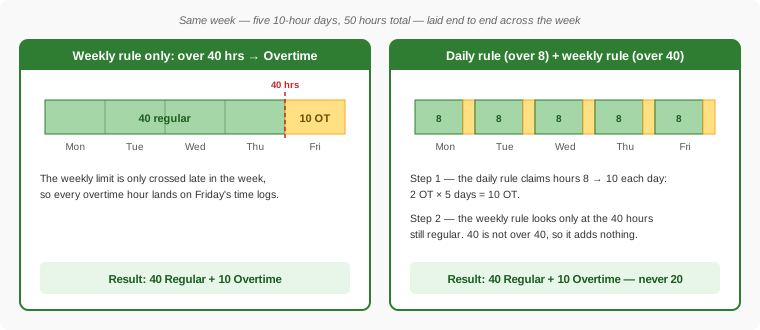
A few more things to know about weekly rules:
- A weekly rule claims every hour past its limit, with no upper end. To add a second tier — say, double time past 60 hours — add another weekly rule with Weekly hours 60 and Result type Double time. Between 40 and 60 the overtime rule wins; past 60 both rules claim the hours, and double time beats overtime.
- Continue rules works the same way as for daily rules: a weekly rule that applies with Continue rules set to No stops the weekly rules after it.
- With "Weekly hours exceed employee schedule," the limit is the employee's own scheduled hours for that week, so a part-time employee scheduled for 24 hours starts overtime at hour 24.
Example: Six Rules for a Typical Shop
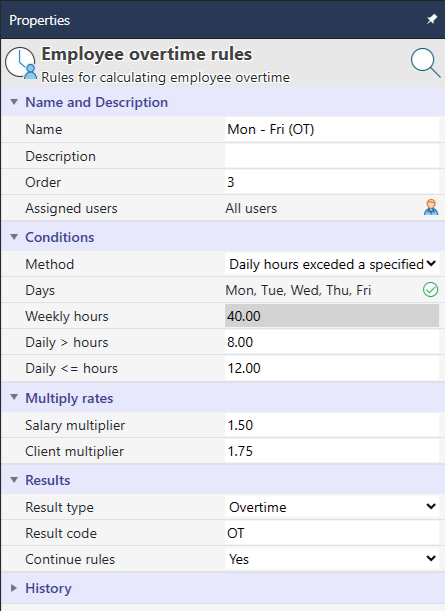
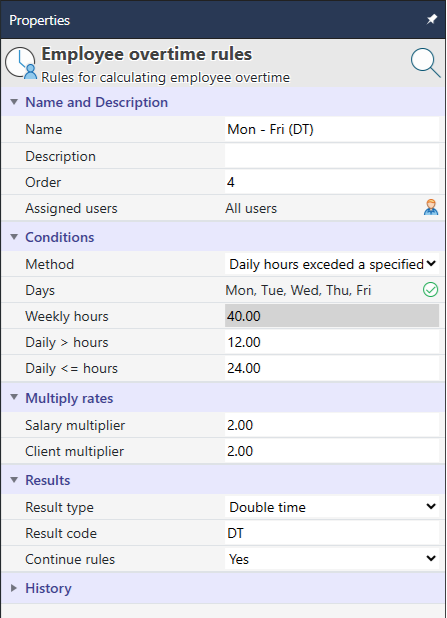
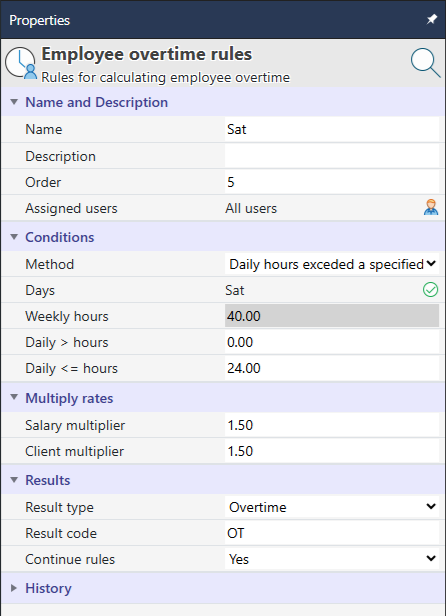
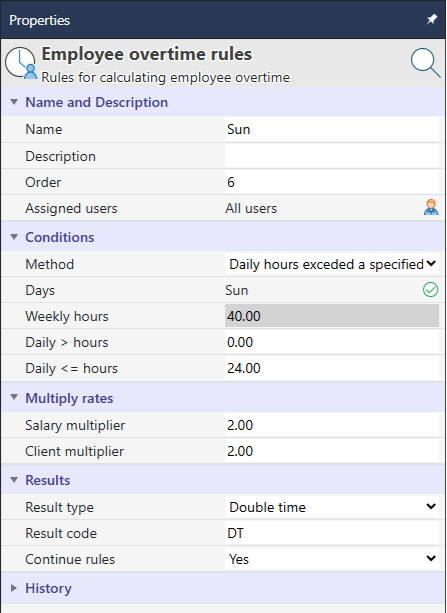
The example in this guide uses six rules that together describe a common policy: time-and-a-half after 8 hours on weekdays, double time past 12 hours, time-and-a-half all day Saturday, and double time all day Sunday and on holidays.
| Order | Name | Method | Days | Daily > | Daily <= | Result type | Code | Continue |
|---|---|---|---|---|---|---|---|---|
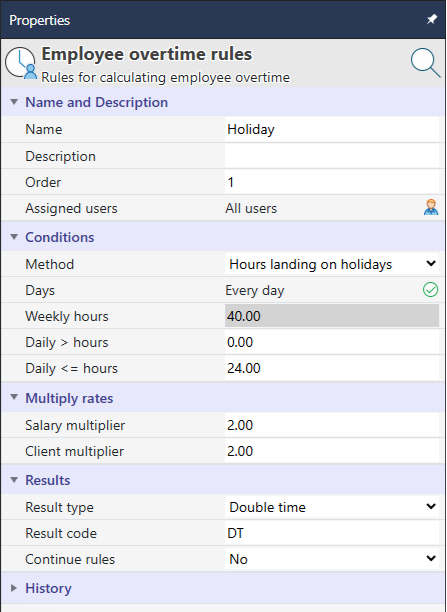
| 1 | Holiday | Hours landing on holidays | Every day | 0 | 24 | Double time | DT | No |
| 2 | Mon - Fri (RT) | Daily limit | Mon–Fri | 0 | 8 | Regular Time | RT | Yes |
| 3 | Mon - Fri (OT) | Daily limit | Mon–Fri | 8 | 12 | Overtime | OT | Yes |
| 4 | Mon - Fri (DT) | Daily limit | Mon–Fri | 12 | 24 | Double time | DT | Yes |
| 5 | Sat | Daily limit | Sat | 0 | 24 | Overtime | OT | Yes |
| 6 | Sun | Daily limit | Sun | 0 | 24 | Double time | DT | Yes |
Here is each rule's Properties panel:
Example: One Week, Line by Line
One employee welded on job 10200 every day of the week of Monday, September 14 — a morning and an afternoon time log each weekday, and a single time log on Saturday and Sunday. Sunday, September 20 is on the Holiday Calendar in this example. With the Time Logs grid filtered to Last week and job 10200, here's how every line works out:
| Time log | Actual | Day's line | Regular | Overtime | Double | Why |
|---|---|---|---|---|---|---|
| Mon AM, 7:00 AM | 5.00 | 0 → 5 | 5.00 | 0.00 | 0.00 | Day total 10 is over 8, so Mon - Fri (OT) claims hours 8–10. Not over 12, so Mon - Fri (DT) doesn't apply. The afternoon log covers 5–10: 3 regular, 2 overtime. |
| Mon PM, 12:30 PM | 5.00 | 5 → 10 | 3.00 | 2.00 | 0.00 | |
| Tue AM, 7:00 AM | 4.50 | 0 → 4.5 | 4.50 | 0.00 | 0.00 | Day total 9: hours 8–9 are overtime, all in the afternoon log. |
| Tue PM, 12:00 PM | 4.50 | 4.5 → 9 | 3.50 | 1.00 | 0.00 | |
| Wed AM, 6:00 AM | 6.00 | 0 → 6 | 6.00 | 0.00 | 0.00 | Day total 11: hours 8–11 are overtime. The afternoon log covers 6–11: 2 regular, 3 overtime. |
| Wed PM, 12:30 PM | 5.00 | 6 → 11 | 2.00 | 3.00 | 0.00 | |
| Thu AM, 8:00 AM | 4.00 | 0 → 4 | 4.00 | 0.00 | 0.00 | Day total exactly 8.00 — not greater than 8 — so no overtime rule applies. |
| Thu PM, 12:30 PM | 4.00 | 4 → 8 | 4.00 | 0.00 | 0.00 | |
| Fri AM, 6:00 AM | 6.00 | 0 → 6 | 6.00 | 0.00 | 0.00 | Day total 13: Mon - Fri (OT) claims 8–12 (4 hrs) and Mon - Fri (DT) claims 12–13 (1 hr). The afternoon log covers 6–13: 2 regular, 4 overtime, 1 double time. |
| Fri PM, 12:30 PM | 7.00 | 6 → 13 | 2.00 | 4.00 | 1.00 | |
| Sat, 7:00 AM | 5.00 | 0 → 5 | 0.00 | 5.00 | 0.00 | Not a holiday, so Holiday is skipped. The Sat rule claims the whole day as overtime. |
| Sun, 8:00 AM | 4.00 | 0 → 4 | 0.00 | 0.00 | 4.00 | A holiday. Holiday (Order 1) claims the whole day as double time and, with Continue rules No, stops the rest — the Sun rule is never checked, which is why the summary says "Holiday," not "Sun." |
| Week total | 60.00 | 40.00 | 15.00 | 5.00 | Matches the job's group row in the Time Logs grid. |
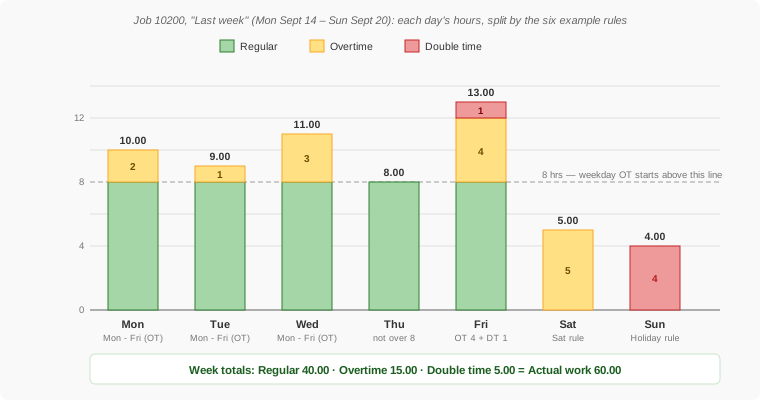
This example has no weekly rule. If you added one for over 40 hours, it would change nothing this week: after the daily rules, exactly 40.00 regular hours remain, and 40 isn't over 40.
The Overtime Columns in Time Logs
To see overtime results, add the columns to the Time Logs grid: right-click a column header, choose to insert a column, and pick any of the four below. They're read-only — to change the results, change the time logs or the rules.
| Column | What it shows |
|---|---|
| Regular hours | The time log's hours that are neither overtime nor double time: its actual work minus the other two columns. With no overtime rules at all, this equals the time log's full duration. |
| Overtime hours | The time log's hours claimed by rules whose Result type is Overtime. |
| Double-time hours | The time log's hours claimed by rules whose Result type is Double time. |
| Overtime summary | Which rules claimed this time log's premium hours, and how many each — for example OT 5.00 Sat [OT]. Blank when the whole time log is regular time. |
![The Overtime summary text OT 4.00 Mon - Fri (OT) [OT]; DT 1.00 Mon - Fri (DT) [DT], labeled: Type, Hours, Rule name, and Result code in square brackets, with a semicolon before the next rule's entry](overtime-svgs/overtime-summary-anatomy.svg)
A few more things worth knowing:
- Totals work. All three hour columns add up in group rows and in the Totals at Top/Bottom row, as in the 60 / 40 / 15 / 5 row for job 10200 in the screenshot above.
- Filtering doesn't change the math. Overtime is always worked out from all of an employee's time logs for the week, whatever the grid is filtered to. Filtering to one job shows that job's share — if the employee also worked on another job that day, the hours on both jobs count toward the 8-hour line.
- These columns can't be sorted, since they're calculated on the fly rather than stored.
- Who can see them. The overtime columns are only available to users with the Can view salary rates and costs right, the same right that shows salary rates.
- They stay current. Saving a time log, an overtime rule, an employee schedule, or a holiday refreshes the results right away; changes made by someone else show up within about a minute.
Tips and Common Surprises
| What you see | Why, and what to do |
|---|---|
| A rule named "DT" or coded [DT] puts hours in the Overtime column. | Only Result type picks the column. The name and Result code are labels. Set Result type to Double time. |
| Weekday overtime stopped appearing entirely. | Check the Continue rules setting on every rule ahead of your overtime rules. A Regular Time rule with Continue rules set to No applies every workday and then stops every rule after it — including overtime. |
| A holiday shows Saturday or Sunday results instead of holiday results. | Put the Holiday rule first (Order 1) and set its Continue rules to No, as in the example. Otherwise both rules claim the day and the higher type wins, which may not be the rate you want. |
| Exactly 8.00 hours shows no overtime, but 8.01 does. | Correct: a rule applies only when the day is greater than Daily > hours. |
| An overnight shift's overtime all lands on the first day. | A time log counts toward the day it starts on. Starting a new time log after midnight puts those hours on the next day. |
| Changing a multiplier didn't change any hours. | Multipliers are rate factors, not hour factors. The Time Logs columns always report hours. |
| The overtime columns aren't in the column list. | Your account needs the Can view salary rates and costs right. |
| Overtime shows on a different job than expected. | Overtime falls on the day's latest hours. Whichever job was worked last picks it up. |
- How to Run Time Reports — report on the time logs behind your overtime totals
- Time Logs — Barcode Scan Results — where scanned hours land before overtime is applied
- Clock In/Out Plus Project Timers — capture attendance and job time without double-counting hours
- Frozen Summary Rows — includes the Timesheet's Overtime Totals special row
- How to Set Up Users — administrator accounts and the rights mentioned on this page
- FAQ: Shop Floor & Time Tracking