What Is AI Chat?
AI Chat is a conversational panel inside Standard Time® that reads a project's tasks, dates, resources, and dependencies, then answers questions or proposes schedule changes in plain language. It sits alongside your project data rather than replacing any of the grids, Gantt chart, or Resource Allocation views you already use — you can ask it a question, get an answer, and keep working in the same window.
AI Chat requires an AI provider and model to already be configured. If your organization hasn't set that up yet, start with the AI Providers Integration Guide, which covers supported providers and how model configurations work.
Assigning an AI Model to a User
Every user account in Standard Time® has an AI Model field. An administrator assigns a configured model to each employee or workgroup from that user's Properties panel — this is what determines which provider and model AI Chat talks to on that person's behalf, and it's a separate step from configuring the AI Model record itself (name, system prompt, credentials).

If AI Chat is missing or grayed out for a user, this is the first thing to check — no AI Model assignment means no provider to send the conversation to.
Launching AI Chat
With a model assigned, there are two ways to open AI Chat for a single project: right-click the project in the Projects or Project Tasks grid and choose Chat with AI from the context menu, or select the project and click the AI Chat icon on the View ribbon.

Want to analyze tasks spanning several projects at once instead of one project at a time? Open Resource Allocation and use its own Chat with AI option — see the AI Providers Integration Guide for that multi-project workflow.
Starting the Conversation
Before any project data leaves Standard Time®, the app asks for permission to send it to the AI. Click OK to proceed, or Cancel to back out without sending anything.
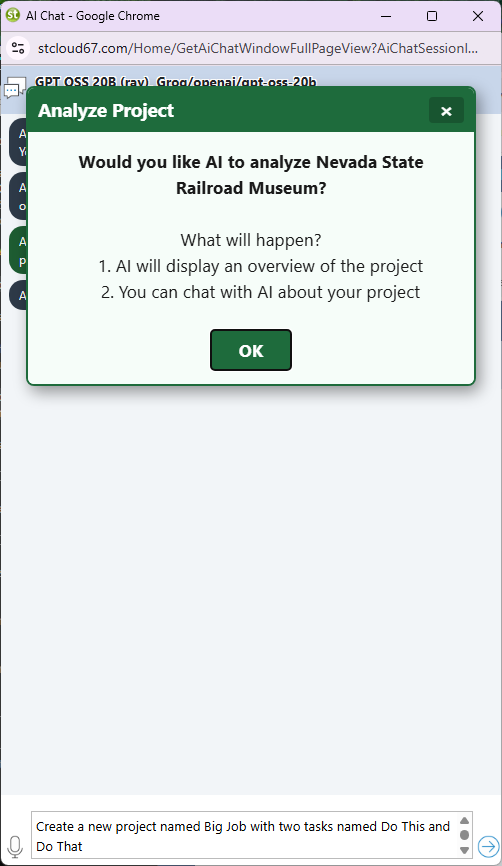
Once you click OK, the chat window opens and the AI begins analyzing the project automatically — you'll typically see an initial summary before you've typed a single word.
Worked Example: Moving a Project's Tasks
Here's a real request against project 86101. The chat window shows which provider and model are handling the conversation — a reminder that this is the model assigned to your user account in the step above — along with the AI's initial read on the project. Type a plain-language instruction into the box at the bottom, just as you would in any chat app.

After sending that prompt, the AI analyzes the project's current dates and dependencies and proposes an updated schedule. Standard Time® then asks you to confirm before writing anything back to the project.


Seeing the Result
After clicking OK on the confirmation prompt, the project view refreshes immediately so you can see the updated schedule. Below, project 86101's tasks now fall in December (of a future year, so this screenshot stays accurate long after publication):

The AI's changes land in the same grids, Gantt chart, and Resource Allocation views as any manual edit — there's nothing AI-specific to learn on the reporting side.
Nothing Changes Until You Approve
Every AI-suggested change to task dates, durations, or resources goes through the same confirmation prompt shown above. Clicking Cancel discards the suggestion and leaves your project exactly as it was — your data is never touched without an explicit OK.

Other Things You Can Ask AI to Do
Moving tasks to a new month is one example — AI Chat can answer questions or propose edits across four general areas. It always has the full project snapshot to work from: tasks, dates, durations, resources, dependencies, and percent complete.

A few things worth knowing as you experiment:
- Questions that only ask for information ("what," "who," "summarize") never trigger a confirmation prompt — only requests that would actually change task data do.
- You can mix a question and an instruction in the same message, e.g. "Which tasks are behind schedule, and can you push just those out a week?"
- Large projects with many tasks and time log entries use more tokens per request. See the AI Rate Limits & Tokens reference if you start seeing rate-limit errors.
- AI Providers Integration Guide — supported providers, per-employee model assignment, and Exclusion Flags for token control
- AI Rate Limits, Tokens, TPM & RPM — what to do when an AI Chat request hits a rate limit
- Frozen Summary Rows Guide — the Gantt Mini-Map row shown above, and seven other live status rows
- Managing Projects with AI Chat — a blog-length look at using AI Chat day to day
- FAQ: AI Features