What Are AI Rate Limits?
When Standard Time® sends a request to an AI model — to analyze a project, answer a question, or create tasks — it is making an API call to an external service such as Groq, OpenAI, Anthropic, or Mistral. Each of those services enforces rate limits: caps on how much work your account can request in a given time window.
Rate limits exist because AI model inference is computationally expensive. Providers share their infrastructure across many customers, so limits prevent any one account from overwhelming the service. On free and lower-tier plans these limits are tight; paid tiers raise them substantially.
When Standard Time® AI Chat hits a rate limit, the service returns an HTTP 429 Too Many Requests response. The AI Chat window displays this as an error message with the limit that was exceeded, how much of it was used, and how long to wait before retrying.
What Is a Token?
AI language models do not read text the way humans do. They break every sentence into small chunks called tokens. A token is roughly four characters of English text — usually a short word, a common word fragment, or a punctuation mark. The model processes tokens, not words or sentences.
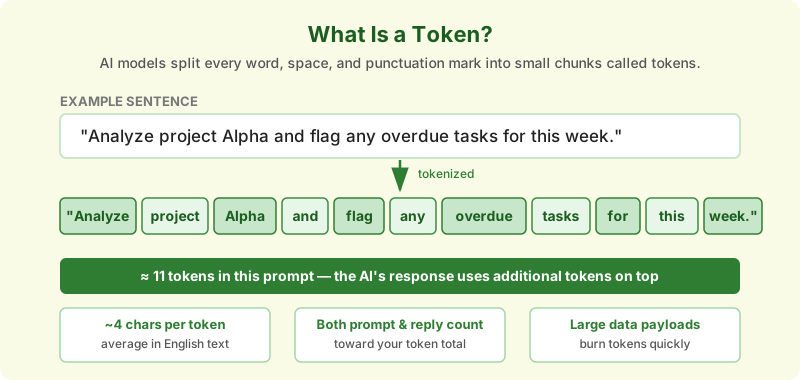
Every prompt and every reply is measured in tokens. Both the text you send and the text the model writes back count toward your token totals.
Token counts matter for two reasons:
- Rate limits: AI providers cap how many tokens your account can use per minute, per hour, or per day. Large payloads exhaust these limits quickly.
- Cost: Paid API tiers charge per token. Sending less data means smaller bills.
The data Standard Time® sends to the AI includes: task names, descriptions, employee assignments, start and due dates, status values, time logs, notes, budget fields, and any custom field values. For a project with 50 tasks, dozens of time log entries, and many notes, a single AI Chat request can easily exceed 3,000–5,000 tokens.
Tokens Per Minute (TPM)
Tokens Per Minute (TPM) is the most commonly hit rate limit in Standard Time® AI Chat sessions. It measures the combined token count of all prompts you send plus all responses the model writes back, summed across the rolling 60-second window.
When TPM is exceeded, the API returns a 429 with a message like:
Rate limit reached for model llama-3.3-70b-versatile on tokens per minute (TPM):
Limit 6,000 · Used 5,842 · Requested 1,240
Please try again in 38.7s.
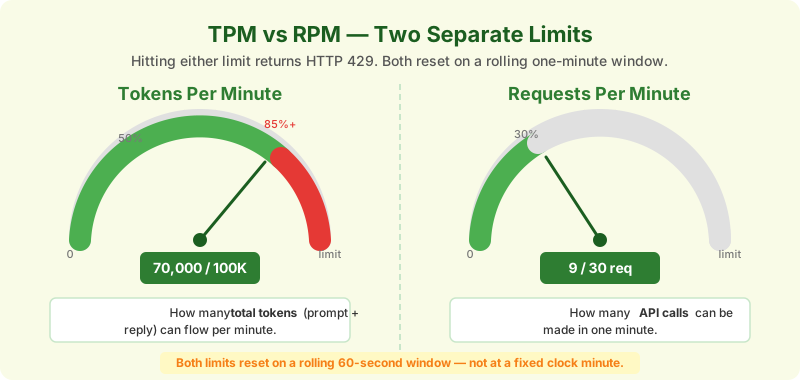
TPM and RPM are independent limits — you can hit either one separately. Both reset on a rolling 60-second window.
Key points about TPM:
- The window is rolling, not a fixed clock minute. Tokens from 59 seconds ago still count until the full 60 seconds have elapsed.
- The AI's reply tokens count against your TPM just as the prompt tokens do. A verbose AI response can itself push you over the limit.
- Different models on the same provider have separate TPM limits. Switching models does not share or combine your quota.
| Provider / Plan | TPM Limit (approx.) | Notes |
|---|---|---|
| Groq — on-demand (free) | 6,000 – 30,000 | Varies by model; check console.groq.com/docs/rate-limits |
| Groq — Dev Tier | 60,000 – 120,000+ | Higher limits; billing required |
| OpenAI — Tier 1 | 60,000 – 200,000 | Varies by model (GPT-4o, GPT-4o-mini differ) |
| Anthropic — Build plan | 40,000 – 400,000 | Varies by model (Claude Haiku vs Sonnet vs Opus) |
| Mistral — Free tier | 500,000 | Generous free tier for experimentation |
| Ollama (local) | No limit | Runs on your own hardware; no API rate limits |
Requests Per Minute (RPM)
Requests Per Minute (RPM) is the cap on how many separate API calls your account can make in a 60-second window, regardless of how many tokens each call uses. A short "summarize this task" prompt and a large "analyze the full project" prompt each count as one request against your RPM.
Standard Time® AI Chat typically makes one request per user message. Follow-up questions in the same conversation each add one request. Automatic background analyses (if configured) can also contribute.
An RPM error looks like:
Rate limit reached for model openai/gpt-oss-20b on requests per minute (RPM):
Limit 30 · Used 30 · Requested 1
Please try again in 12.4s.
RPM limits are usually much easier to stay within than TPM limits during normal use. However, if multiple team members share a single API key in Standard Time®, their requests all count toward the same RPM quota. Consider issuing separate API keys per user for large teams.
stdata.AiModelSet stores its own API key. You can create two separate model configurations — one per department or team — each using a different API key, to effectively double your RPM headroom.
Tokens Per Day (TPD)
Tokens Per Day (TPD) is a daily ceiling on your total token consumption. Unlike TPM and RPM which reset every minute, TPD resets once per day — typically at midnight UTC. Groq's free on-demand tier enforces a 200,000-token-per-day cap; once consumed, all further requests return 429 until the next reset.
TPD errors tend to appear toward the end of a heavy workday when a team has run many AI Chat sessions. The error message will say "tokens per day (TPD)" and will not include a short wait time — the reset happens at midnight UTC, not sooner.
| Limit Type | Window | Resets | Typical action when hit |
|---|---|---|---|
| TPM | Rolling 60 seconds | Continuously, as old tokens age out | Wait the stated seconds, then retry |
| RPM | Rolling 60 seconds | Continuously, as old requests age out | Wait the stated seconds, then retry |
| TPD | Calendar day | Midnight UTC | Wait until next day or upgrade plan |
How to Reduce Token Usage
The most effective way to avoid rate limit errors is to send less data to the AI in the first place. Standard Time® gives you several practical levers:
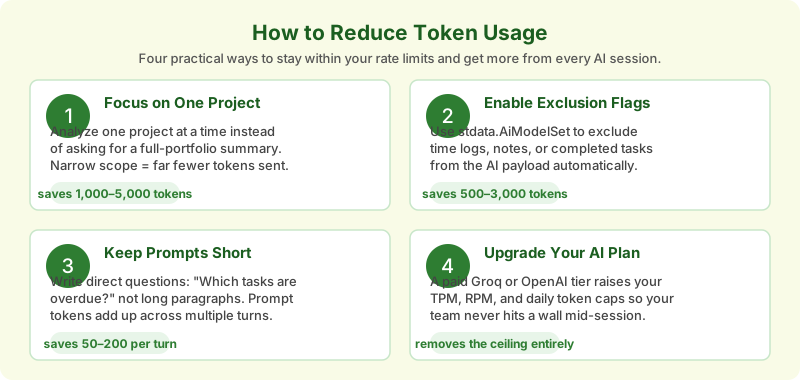
Four strategies for staying within rate limits — each one can be applied independently or combined for maximum savings.
1. Analyze one project at a time
When you click a single project row in the Projects page before opening AI Chat, Standard Time® sends only that project's data. Asking for a portfolio-wide summary forces all projects to be included in the payload, multiplying the token count. Narrow your focus to the project that needs attention right now.
2. Enable Exclusion Flags in stdata.AiModelSet
The most powerful token-reduction tool available. See the Exclusion Flags section below for the complete reference.
3. Write shorter, focused prompts
Each word you type in the AI Chat window adds prompt tokens. Instead of writing "Please take a look at the project I have open and give me a detailed analysis of what is going wrong and what we might do to fix it," write: "Which tasks are overdue?" The AI already has the project context — you do not need to describe what you want in paragraph form.
4. Avoid re-asking questions already answered
Each message in the AI Chat session carries the full conversation history as context. A 10-turn conversation compresses that history into the prompt of message 11. Keeping sessions short — a few focused questions rather than an open-ended conversation — keeps the compounding context from inflating token counts.
5. Upgrade your AI provider plan
If your team regularly hits limits even with the optimizations above, a paid tier is often the most practical fix. Groq Dev Tier, OpenAI Tier 2+, and Anthropic's higher plans all raise TPM and TPD substantially. Upgrade links:
- Groq: console.groq.com/settings/billing
- OpenAI: platform.openai.com/settings/organization/billing
- Anthropic: console.anthropic.com/settings/plans
Exclusion Flags in stdata.AiModelSet
Standard Time® stores AI model configurations in the stdata.AiModelSet database table. Each row defines one AI model: the provider endpoint, the model name, the API key, and a set of Exclusion Flags that control exactly which data categories are stripped from the payload before the request is sent.
Exclusion Flags work by removing entire data categories from the project snapshot that Standard Time® assembles for the AI. Excluded fields are never serialized into the prompt — the AI simply does not receive them. This reduces payload size, token count, and the likelihood of hitting a rate limit, without requiring you to change how you use AI Chat.
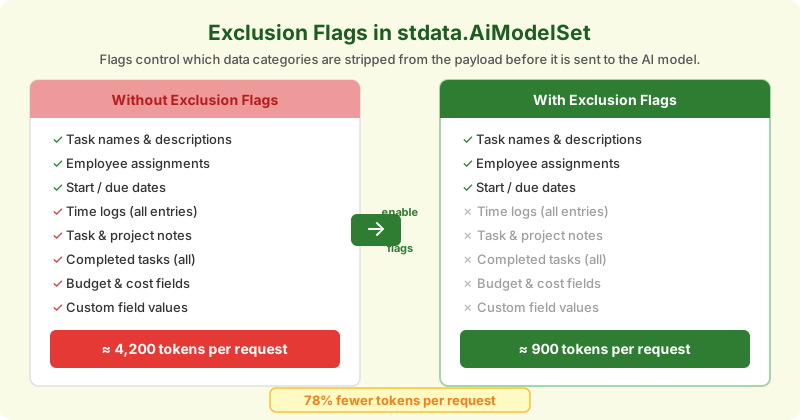
Exclusion Flags remove entire data categories before the payload leaves Standard Time®. The AI never sees — and cannot accidentally expose — the excluded fields.
Available Exclusion Flags
The flags below are set in the stdata.AiModelSet table for each configured AI model. Enable flags that correspond to data your AI Chat sessions do not need to see.
| Flag | Data Excluded from Payload | Typical Token Savings | When to Use |
|---|---|---|---|
ExcludeTimeLogs |
All time log entries for every task — employee, start time, stop time, duration, notes | 200 – 800 / project | When asking about project status, not labor hours |
ExcludeNotes |
Task notes and project-level notes fields | 100 – 500 / project | When notes are informal and not needed for AI analysis |
ExcludeCompletedTasks |
Tasks whose status is Completed or Closed | 300 – 2,000 / project | When focused on what's still in progress or overdue |
ExcludeAssignments |
Employee-to-task assignment records | 50 – 200 / project | When asking about schedule only, not staffing |
ExcludeBudget |
Budget amount, cost-to-date, and billing rate fields | 30 – 100 / project | When financial data is sensitive or not relevant to the question |
ExcludeCustomFields |
All custom field name/value pairs on tasks and projects | 50 – 400 / project | When custom fields are internal codes the AI would not interpret usefully |
ExcludeTimeLogs + ExcludeCompletedTasks together. These two flags alone typically cut payload size by 60–80% on active mid-project workloads without removing any data the AI needs for schedule or status analysis.
How to Configure Exclusion Flags
Exclusion Flags are set on the AI model configuration row in Standard Time®. To change them:
- Open Standard Time® and go to Tools → Options → AI Models (or access
stdata.AiModelSetdirectly if you are a database administrator). - Select the AI model configuration you want to modify.
- In the Exclusion Flags section, check the categories you want to exclude from AI payloads.
- Save the configuration. The new flags take effect on the next AI Chat request — no restart required.
Privacy Benefit
Beyond token savings, Exclusion Flags are a data-minimization tool. Fields flagged as excluded are never serialized and never leave Standard Time®. This is useful when:
- Budget or billing data is commercially sensitive and should not be transmitted to a third-party AI provider.
- Employee time logs contain personally identifiable information subject to data governance policies.
- Custom fields contain internal codes or serial numbers that have no analytical value for the AI but add token bulk.
Troubleshooting Common Errors
| Error | Cause | Fix |
|---|---|---|
HTTP 429 — TPM exceeded |
Too many tokens sent/received in the last 60 seconds | Wait the stated seconds. Enable ExcludeTimeLogs and ExcludeCompletedTasks to reduce future payloads. |
HTTP 429 — RPM exceeded |
Too many API calls in the last 60 seconds | Wait the stated seconds. If the team shares one key, provision separate keys per department in stdata.AiModelSet. |
HTTP 429 — TPD exceeded |
Daily token cap fully consumed | Wait until midnight UTC, or upgrade your AI provider plan. Use Exclusion Flags to reduce daily consumption going forward. |
| AI gives incomplete answers | A flag is excluding data the AI needs | Disable one flag at a time until the AI has sufficient context. Start by re-enabling ExcludeNotes or ExcludeAssignments. |
| AI response cuts off mid-sentence | The reply hit the model's max token output limit | Ask a narrower question. Break large analyses into two or three focused prompts. |
| Errors persist after waiting | API key invalid, quota frozen, or billing issue | Log into your AI provider console and verify account standing and billing status. |
Related Articles
- Groq AI Model Error 429 Rate Limit Exceeded — what the error message means and how to resolve it quickly
- How to Get a Quick AI Project Analysis — four steps to an instant project breakdown in Standard Time®
- Managing Projects with AI Chat — how the AI Chat window can create tasks, reassign work, and analyze timelines
- AI-Powered Manufacturing Software — overview of all AI features in Standard Time®