Supported Providers
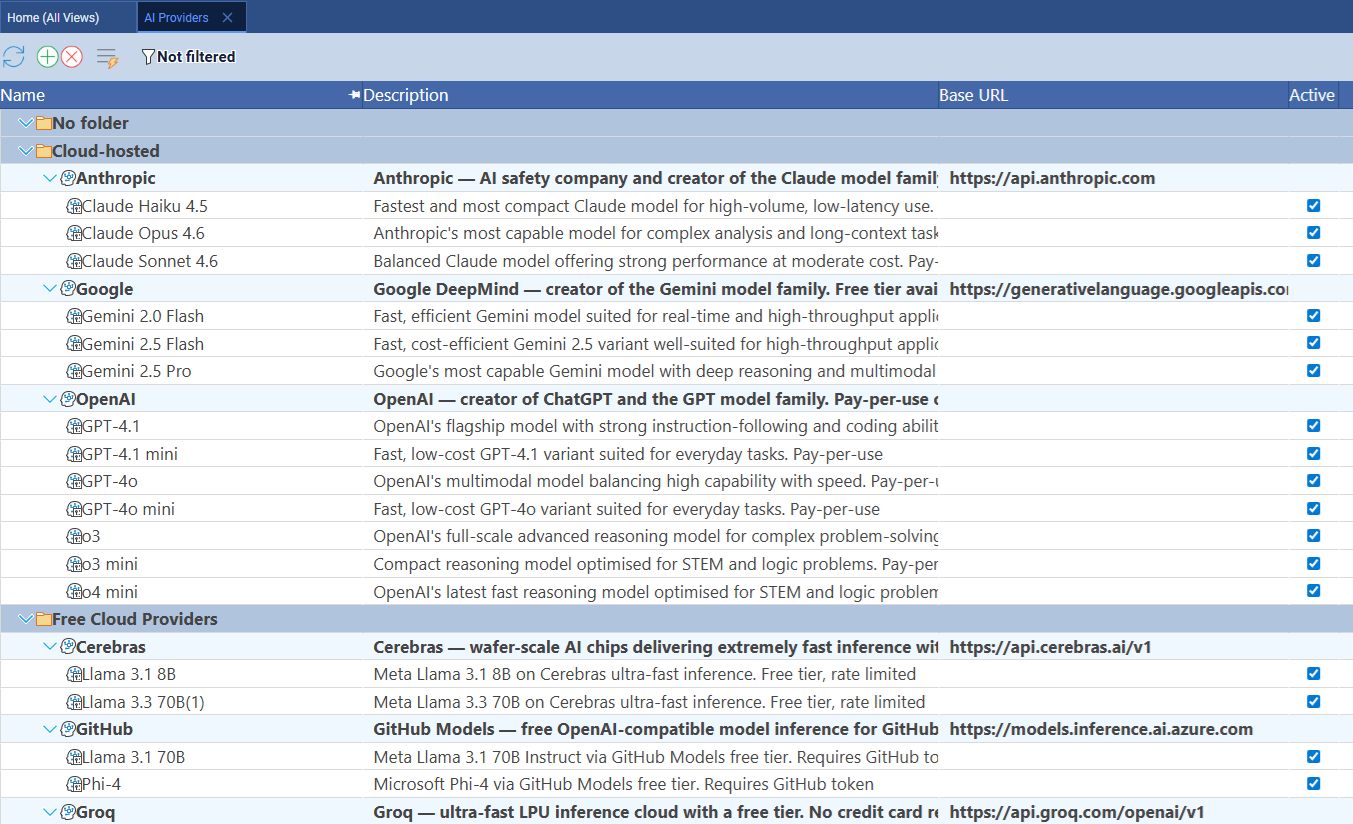
Standard Time® uses the OpenAI-compatible chat completion API, so any provider that exposes a compatible endpoint works. The table below shows the providers that ship pre-configured — each created automatically when you first open the AI setup screen.
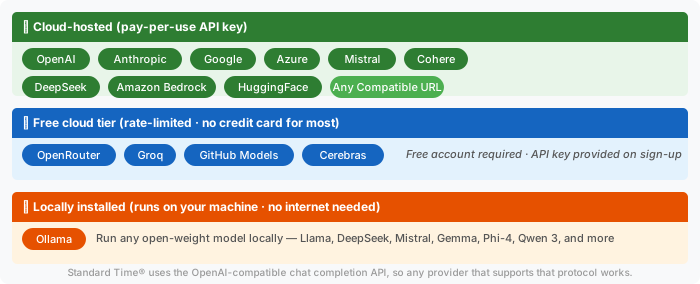
Bring your own API key. Pay-per-use billing directly with the provider. Best quality and reliability. OpenAI, Anthropic, Google, Azure, Mistral, Cohere, Amazon Bedrock, DeepSeek, HuggingFace.
Rate-limited but no credit card required for most. Good for evaluation or low-volume use. OpenRouter, Groq, GitHub Models, Cerebras. Requires a free account with the provider.
Ollama runs open-weight models on your own hardware — no internet required. Ideal for sensitive shop floor data or air-gapped environments. Llama, DeepSeek, Mistral, Gemma, Phi-4, Qwen 3, and more.
How AI Chat Works
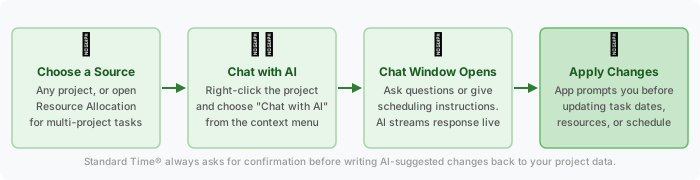
The AI Chat window opens as a lightweight popup alongside your project data. There are two ways to launch it, depending on whether you want to work with a single project or a collection of tasks spanning multiple projects.
Option A — Chat about a single project
Right-click any project in the Project Tasks view and choose Chat with AI from the context menu. Standard Time® packages the project's tasks, dates, resources, dependencies, and phase structure into a JSON payload and sends it to your configured AI model. The chat window opens and the AI immediately begins analyzing your project.
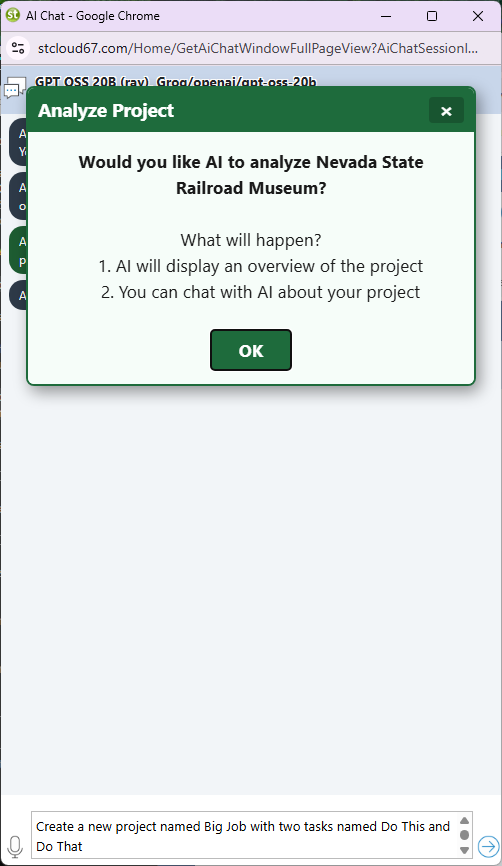
The app asks for permission before sending project data to the AI. Click OK to proceed.
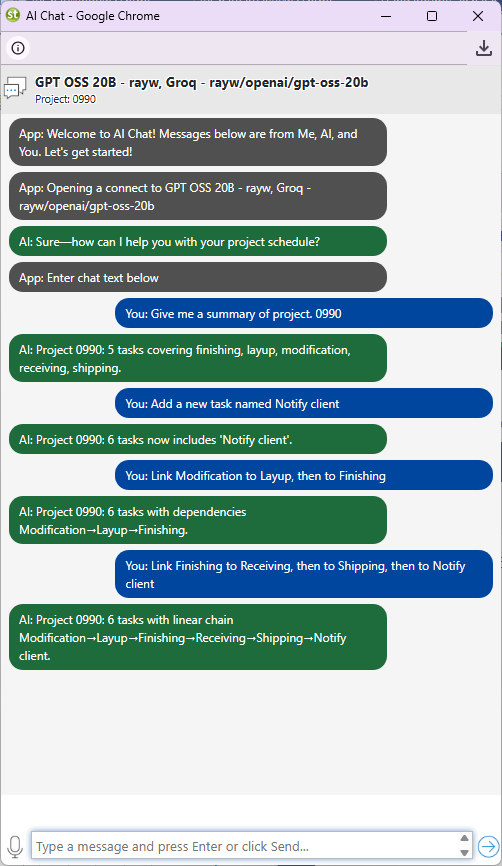
The chat window streams the AI's response in real time. Ask follow-up questions or give new scheduling instructions.
Option B — Chat about tasks spanning multiple projects
Open the Resource Allocation window and choose Chat with AI from the toolbar or task context menu. This sends a flat list of all displayed task records — which may come from many different projects — to the AI in a single session. Use this when you want to re-balance workload across your entire shop floor, not just a single work order.
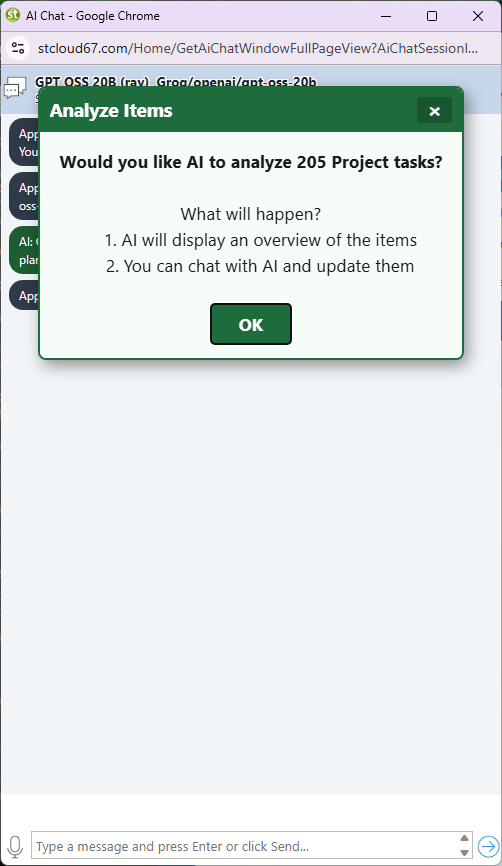
From Resource Allocation you can send tasks from many projects at once. The app shows a record count and asks for confirmation before proceeding — large task sets use more tokens.
How changes get applied
When the AI suggests changes to task dates, durations, or resources, Standard Time® parses the structured JSON response and shows you a confirmation popup: "Apply these changes to [Project Name]?" Clicking OK writes the AI-suggested updates directly to your project data. Clicking Cancel discards the suggestion — your original data is never touched without approval.
Per-Employee Model Assignment
Every user account in Standard Time® has an AI Model field. Administrators can assign a different AI model — and thus a different provider, API key, and system prompt — to each employee or workgroup. This means:
- Production floor workers use a fast, inexpensive model for quick shop floor questions.
- Project planners get a more capable model for complex multi-phase scheduling.
- The IT group uses a locally installed Ollama model so sensitive data never leaves the building.
- Each department's token costs are billed to the API key configured on their model record.
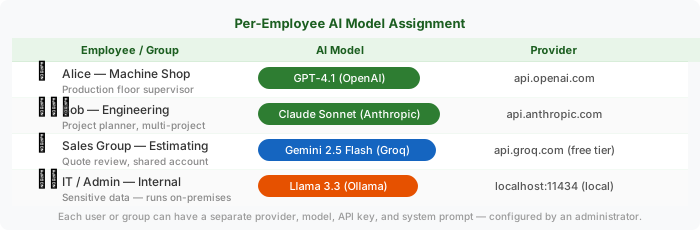
The AI Model record stores the model name (e.g. gpt-4.1), the linked provider, an optional system prompt that shapes the AI's personality and focus, and API credential overrides. Credentials set on a model record take priority over the provider defaults — so one provider can serve multiple models under different API keys if needed.
| Field | Purpose |
|---|---|
| Name | Display name shown in the UI (e.g. "Shop Floor GPT-4.1 mini") |
| Model Name | API identifier sent to the provider (e.g. gpt-4.1-mini, claude-sonnet-4-6) |
| Provider | Linked AI provider record (sets base URL, provider type) |
| System Prompt | Custom instructions prepended to every conversation (e.g. "Focus only on scheduling. Be brief.") |
| Temperature / Top P | Creativity controls — lower values produce more consistent, predictable outputs |
| Max Output Tokens | Caps the response length to limit cost on high-volume users |
| API Key (override) | Overrides the provider-level API key for this model only |
| Base URL (override) | Overrides the provider endpoint — useful for custom deployments |
| Deployment Name | Required for Azure OpenAI Service deployments |
| Exclusion Flags | Controls which data groups are omitted from the AI payload (see below) |
What You Can Ask the AI
The AI receives a full snapshot of your project in JSON format — tasks, dates, durations, resources, phases, dependencies, and percent complete. You can ask questions or give instructions in plain language. The AI returns a structured response with a plain-language summary and, when applicable, updated task data it proposes applying to your project.
Scheduling
- Compress the schedule — which tasks can overlap?
- What is the critical path through this project?
- Push all tasks out two weeks from today.
- Sequence the tasks so the welding bay isn't double-booked.
Resource Management
- Who is overloaded in week 3?
- Move Alice's tasks to Bob while she's on leave.
- Balance the workload evenly across the team.
- Which tasks have no one assigned?
Analysis
- Summarize where this project stands today.
- Which tasks are running late?
- Estimate the finish date given current progress.
- What are the biggest risks in this schedule?
Task Editing
- Break "Final Assembly" into three sub-tasks.
- Add a quality inspection step after each fabrication task.
- Delete tasks that are already marked complete.
- Rename tasks to match the job traveler numbering.
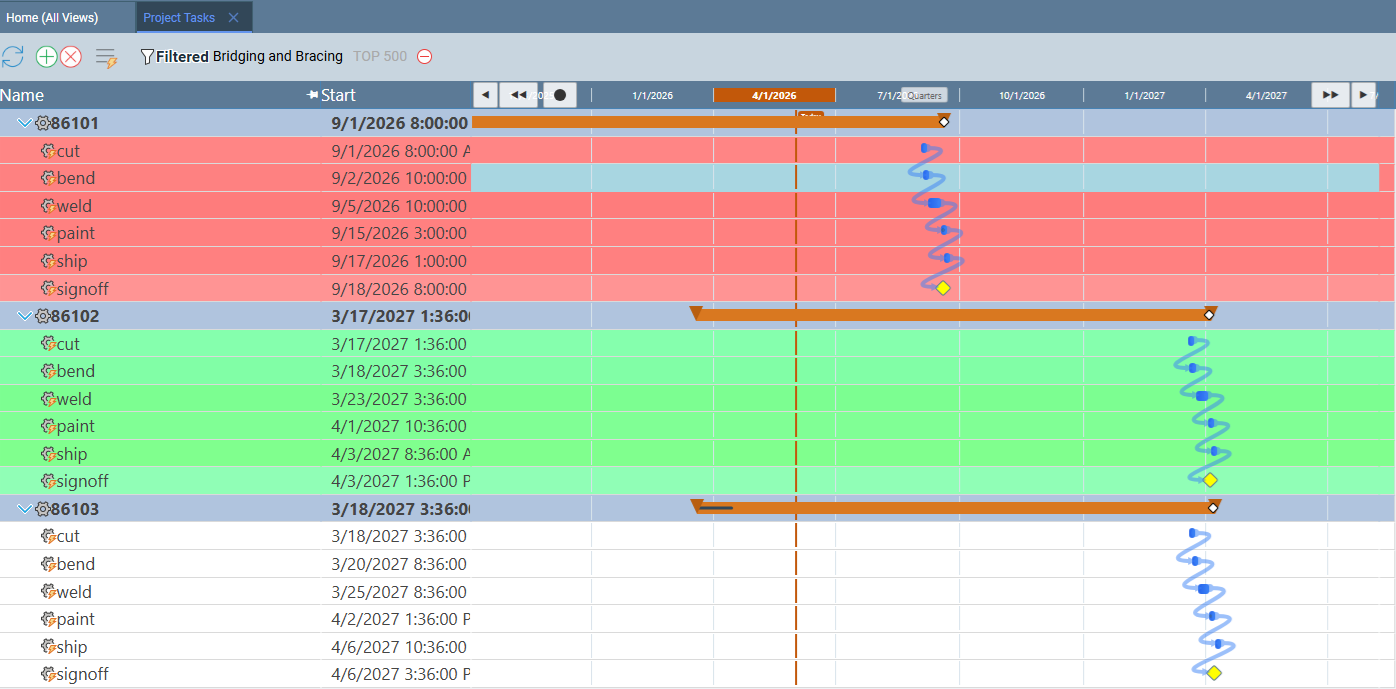
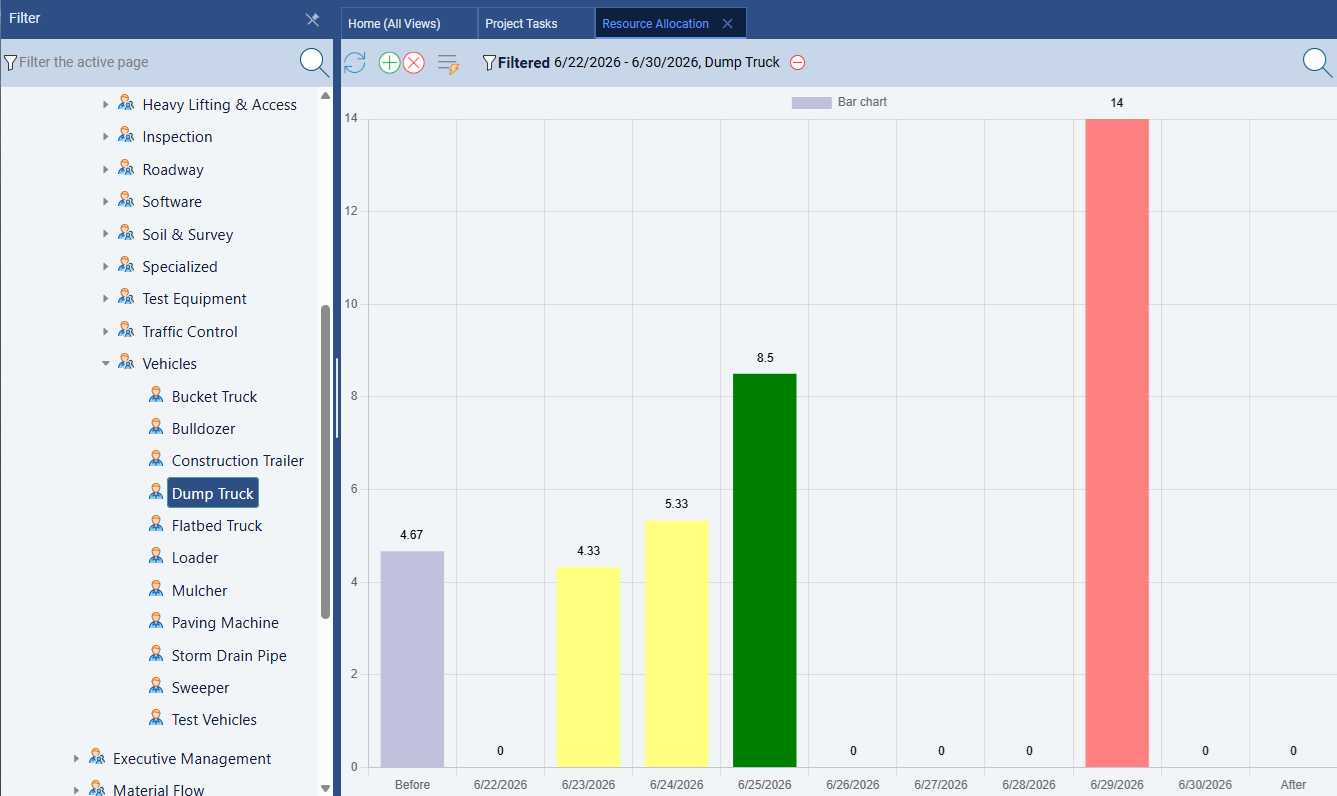
Left: updated Gantt chart after AI compresses the schedule. Right: resource allocation bar chart showing corrected over-allocation after AI re-balances the workload.
Controlling Token Costs
Each AI model record has seven Exclusion Flags that control which data groups are included in the JSON payload sent to the AI. By default all groups are included. Turning off groups you don't need reduces the number of tokens in each request — which reduces cost and often speeds up the response.
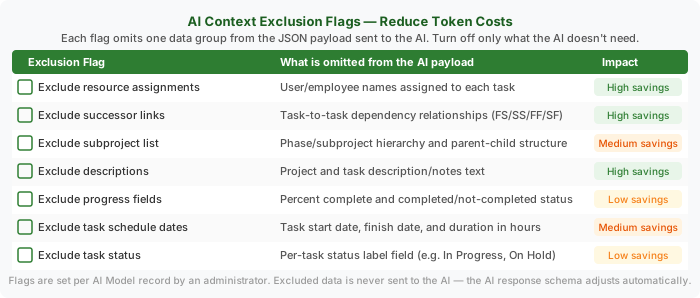
Exclusion flags are additive — you can combine any subset. The AI response schema adjusts automatically: if you exclude task dates, the AI is not asked to return updated dates; if you exclude resources, the AI is not asked to return assignments. This prevents the AI from hallucinating values for data it never received.
- Schedule-only analysis: Exclude resources, successors, and descriptions. The AI focuses on dates and durations without noise from assignment data.
- Workload analysis: Exclude successors, subprojects, and descriptions. The AI sees resources and dates but skips dependency network detail.
- Quick summary: Exclude everything except task names and dates. Minimal token use for a fast status overview.
For a detailed reference of all token-reduction strategies including Exclusion Flags, see the AI Rate Limits and Token Usage guide.
Setup Steps
Setting up AI Chat takes about five minutes. You need administrator access in Standard Time® and an API key from your chosen provider.
-
Open the AI Providers screen.
In Standard Time®, navigate to Tools → AI Providers. The app creates a set of default providers automatically — OpenAI, Anthropic, Google, Groq, GitHub Models, Cerebras, Ollama, and others. Select the provider you want to use. -
Enter your API key.
Paste the API key from your provider into the API Key field on the provider record. For Ollama (local), no key is required. For Azure OpenAI, also set the Base URL to your deployment endpoint. -
Open the AI Models screen.
Default models are pre-configured for each provider (e.g. GPT-4.1, Claude Sonnet 4.6, Gemini 2.5 Flash). Select a model and confirm it is linked to the correct provider.
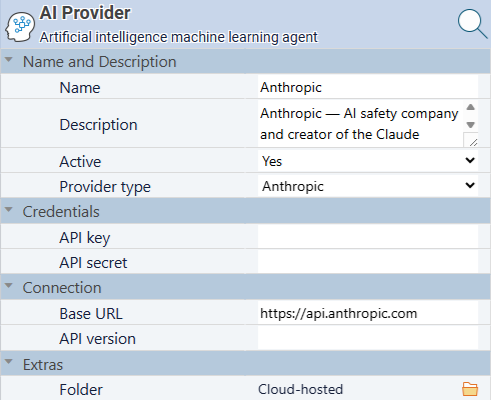
AI Provider properties — set the provider type, base URL (if needed), and your API key. Ollama requires no key.
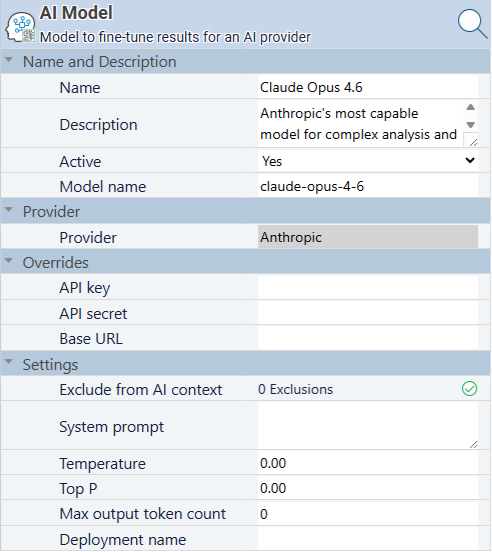
AI Model properties — link the model to a provider, set the model name, system prompt, temperature, and exclusion flags.
-
(Optional) Customize the system prompt.
Add a system prompt to focus the AI on your shop floor context. For example: "You are a project scheduling assistant for a metal fabrication shop. Focus on machine capacity and lead times. Be concise." -
(Optional) Set exclusion flags.
On the AI Model record, open the Exclusion Flags checklist and turn off any data groups the model doesn't need. This reduces token cost without affecting the AI's usefulness for your specific questions. -
Assign the model to users.
In Tools → Users, set the AI Model field for each user. Employees without a model assignment will use the system default if one is configured. -
Test the connection.
Open any project in the Project Tasks view, right-click the project header, and choose Chat with AI. Confirm the prompt and type a question. If the chat window responds, the integration is working.
Back to Integrations