19 November 2026 · The honest list
What AI Can't Do in Standard Time® (and Why That Protects You)
When you hear that an AI assistant can work with your shop data, the first question should be: what can it break? Here is the plain answer. Claude and ChatGPT can look things up and, after you approve a preview, change project tasks. There is a lot they cannot touch, and we built it that way on purpose.
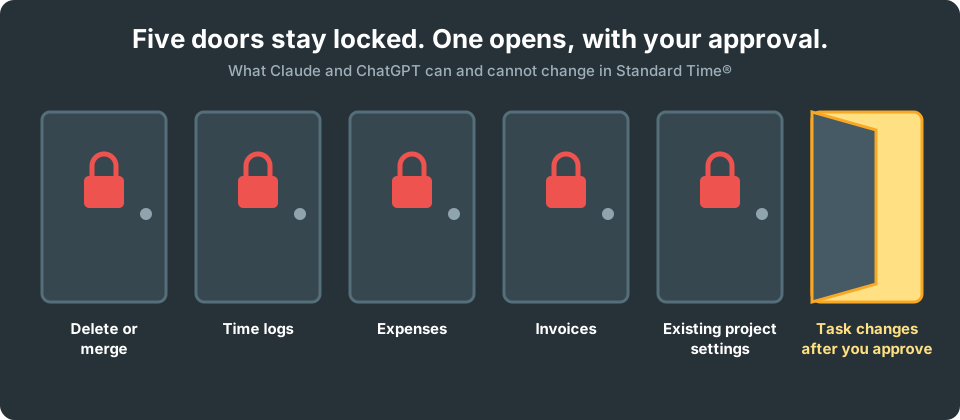
Five doors stay locked. One opens, with your approval.
The Short Version
| It cannot… | So you stay in charge of… |
|---|---|
| Delete or merge anything | Removing records |
| Edit time logs, expenses, or invoices | Payroll and billing records |
| Change existing project settings | How projects are set up |
| See more than your login can see | Who sees what |
| Save anything without your approval | Every change |
The Limits, One by One
Red marks something the assistant cannot do at all. Orange marks a practical limit you can work around.
Delete or merge anything
Why: A deleted job or a merged customer is hard to put back, so this is off the table for an assistant.
Instead: Delete or merge in Standard Time® yourself, with the confirmations it already asks for.
Edit time logs, expenses, or invoices
Why: These are your payroll and billing records, and changes to them should be deliberate and traceable.
Instead: Edit them in their own grids, with your normal rights. The assistant can still read them, if your rights allow.
Change existing project settings
Why: How a project is set up affects how its work is tracked and billed, so that stays in your hands.
Instead: Change them in the Properties panel. The assistant can create a new project or copy a whole one, if an administrator approves it.
See more than you can see
Why: It signs in as you, with your rights, and those are re-checked on every request. Projects you cannot see stay hidden.
Instead: If something is missing, ask an administrator whether you need another right.
See what was hidden when it connected
Why: Cost and rate fields and user names can be hidden at connection time, and a hidden field cannot be asked about.
Instead: To change what it sees, revoke the connection and reconnect with different choices.
Save a change without your approval
Why: Every change is a preview first, then a separate apply. A proposal that is not approved within 30 minutes lapses.
Instead: Read the preview before you approve, especially the dates and the number of rows.
Recall notifications already sent
Why: Undo removes what a change created and restores what it edited, but it cannot pull back a webhook or Zapier message that already went out.
Instead: If automations are listening, check your first changes on a throwaway project before you rely on them.
Make a very large change in one go
Why: Only one proposal is open at a time. A preview lists up to 25 rows, and one proposal creates up to 25 new tasks.
Instead: Work in rounds. Apply the first set, then attach the next tasks to the project it created.
Update a project that has opted out
Why: A project whose AI-updates setting is off is skipped.
Instead: Turn the setting on for that project, or make the change by hand.
Run on an on-premise install
Why: Claude Chat and ChatGPT connect to Standard Time® cloud accounts only.
Instead: On-premise users can still use the built-in AI Chat with the provider an administrator assigns.
Where It Can Still Be Wrong
The limits above protect your records, but they do not make an assistant infallible. It can misunderstand a request, pick the wrong job when two have similar names, or be confidently wrong about arithmetic. Your answers are also only as good as the data behind them, so a missing scan is still a missing scan.
The Two 30-Minute Windows
Approving and undoing are separate clocks. You have up to 30 minutes to approve a proposal, and once it is applied you have 30 minutes to undo it.
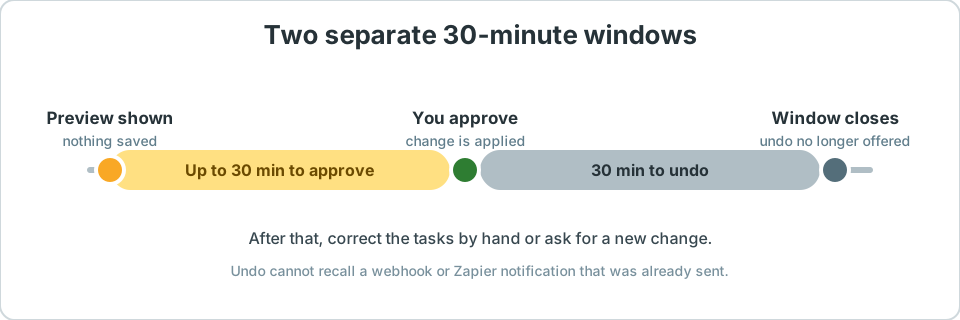
After the second window closes, correct tasks by hand or ask for a new change.
What It Can Do
- Answer questions about projects, tasks, and hours from your live data, within your rights.
- Propose changes to project tasks: dates, planned hours, progress, assignments, links, and new tasks.
- Show a preview, wait for your approval, and offer undo for 30 minutes.
See AI for Manufacturing for the full picture, or the AI Features FAQ for quick answers. Claude is made by Anthropic and ChatGPT by OpenAI; neither is affiliated with Standard Time®, and their plans and menus are their own.