What Are User Rights?
The Admin checkbox on the Users page is a coarse, all-or-nothing switch — an administrator can see and edit essentially everything, while a regular employee cannot. User Rights are a much finer-grained layer underneath that switch: roughly 40 individual permissions that control one specific capability each, from "can this person see client billing rates" to "can this person log time without picking a project." Rights are set independently of the Admin checkbox, so you can give a non-administrator selective access to a handful of features, or restrict an administrator's view down to just the modules they need.
Every employee's Rights are opened the same way: from their Properties panel, under User Experience > Rights. See Opening the Rights Popup below for the exact click path, or the User Setup Guide for how this fits into onboarding a new employee.
Admin Status vs. User Rights
The Rights popup adapts to who it's being opened for. Every time it opens for a given employee, Standard Time® checks whether the account being edited is an administrator or a workgroup, and only then adds a block of seven additional "Administrative rights" checkboxes to the top of the list. Non-admin employees never see those seven items at all — the checkboxes are not merely grayed out, they are absent from the popup entirely. Every other right in the list — the base set of roughly 33 — is offered to every employee, admin or not.
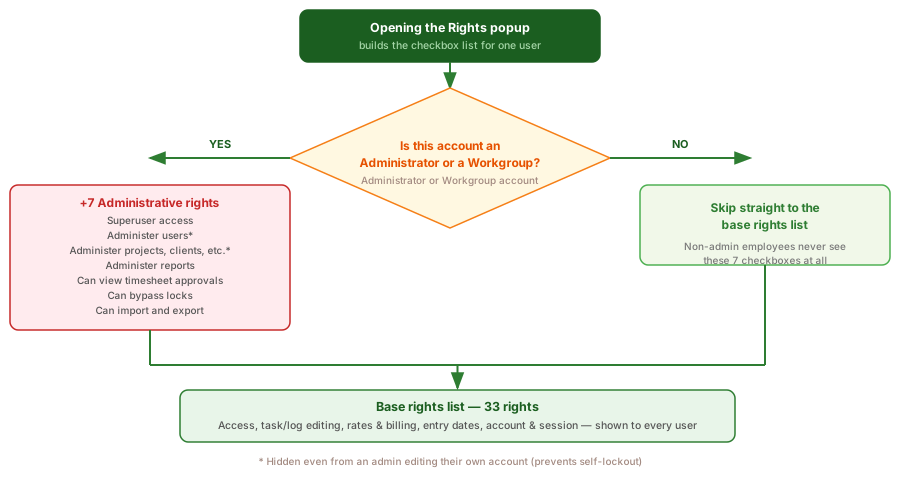
Administrative rights property shows more rights for admins than for non-admins — the extra block only gets added when the account being edited is an Administrator or a Workgroup.Workgroup Rights Cascade to Every User Below
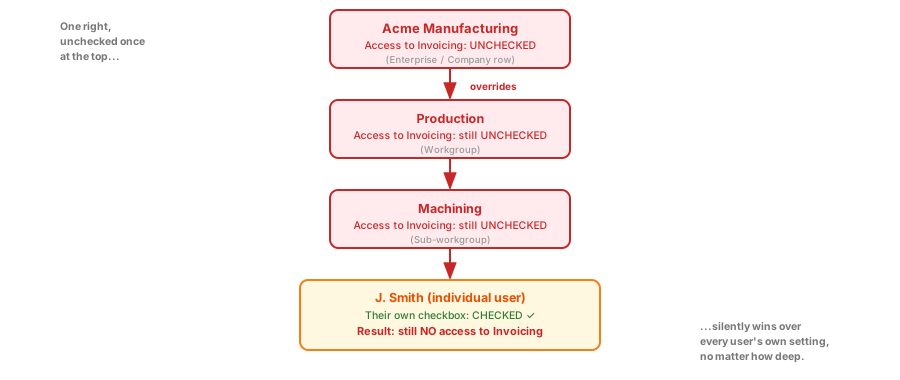
Everything above describes rights on an individual user. But workgroups — including the top-level enterprise (company) row at the very top of the Users tree — have their own Rights popup too, opened the exact same way. This is one of the most powerful, and most easily overlooked, controls in the whole program: a right that is unchecked at a workgroup automatically overrides that same right for every user and every nested workgroup beneath it, no matter how each individual account is configured.
Standard Time®'s HasRight() check walks up the tree from the user to their workgroup, to that workgroup's parent, and so on up to the enterprise row. If any ancestor has the right turned off, the check returns "no" — a user's own checkbox can never override a "no" set higher up the tree. The reverse is not true: an individual user can still be denied a right their workgroup allows, simply by unchecking it on their own account.
Administrator-Only Rights
The 40 rights in the popup break down into seven categories. The next several sections work through each one, starting with the seven that only appear for administrators and workgroups.
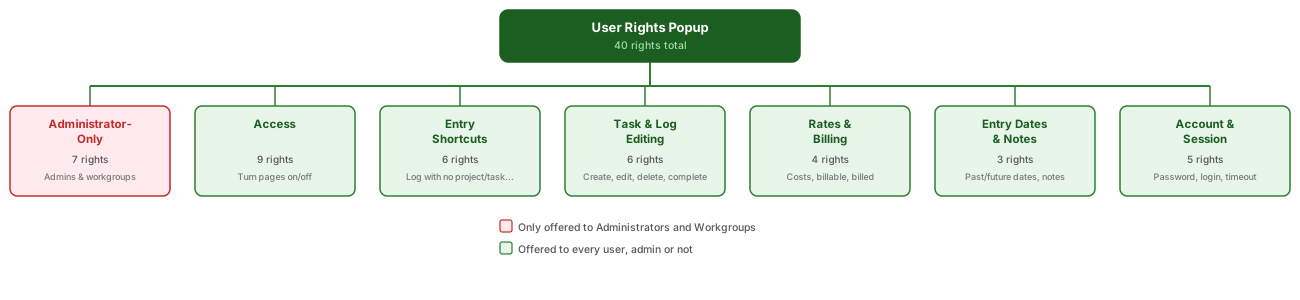
These first seven rights only appear in the Rights popup when the account being edited is an administrator or a workgroup. They govern the highest-impact capabilities in the program — managing other users, managing projects and clients, and bypassing normal safeguards.
| Right | Admin Only | What It Controls |
|---|---|---|
| Superuser access | Admin | Admin rights, and access to all items, even if not assigned. A Superuser sees every project in the system, not just the ones they are individually assigned to. |
| Administer users | Admin | View a list of employees who can access the program or scan barcodes. Hidden from an admin's own Rights popup — only visible when editing another admin's account. |
| Administer projects, clients, etc. | Admin | Create new projects, clients, and other items that control how employees use the program. Also hidden from an admin's own Rights popup. |
| Administer reports | Admin | Modify and create new custom reports. |
| Can view timesheet approvals | Admin | Approve timesheets containing time and materials for other employees. |
| Can bypass locks | Admin | Allow the user to dismiss warnings about locked records such as time and expenses. |
| Can import and export | Admin | Bring in new records from external systems, and export data to other systems. |
Access Rights
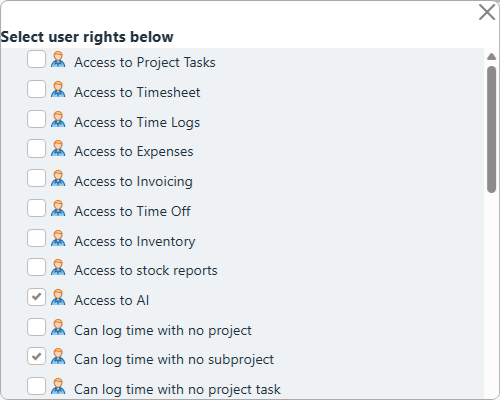
These rights simply turn entire pages or features on or off for an employee. Uncheck a right and the corresponding page disappears from that employee's view — this is the fastest way to strip a shop floor login down to just the icons a worker actually needs.
| Right | Admin Only | What It Controls |
|---|---|---|
| Access to Project Tasks | — | View a list of project tasks for the purpose of editing. |
| Access to Timesheet | — | View the timesheet for entering hours. |
| Access to Time Logs | — | View the time log for entering hours. |
| Access to Expenses | — | View the list of expenses for entering new items. |
| Access to Invoicing | — | View and create client invoices. |
| Access to Time Off | — | Display the Time Off view, and allow the user to enter Time Off requests. |
| Access to Inventory | — | View inventory for managing materials. |
| Access to stock reports | — | Run the built-in reports that are installed with the program. |
| Access to AI | — | Allow AI chat and AI updates to projects and tasks. |
Time & Expense Entry Shortcuts
By default, Standard Time® expects a time log or expense to reference a project, subproject, task, client, and category. These six rights loosen that requirement field by field, so an employee can log time or expenses faster without picking every classification — useful for miscellaneous or overhead time that doesn't map cleanly to a specific job.
| Right | Admin Only | What It Controls |
|---|---|---|
| Can log time with no project | — | Can enter hours or scan jobs without a project. |
| Can log time with no subproject | — | Can enter hours or scan jobs without a subproject. |
| Can log time with no project task | — | Can enter hours or scan jobs without a project task. |
| Can log time with no client | — | Can enter hours or scan jobs that do not have a client associated with it. |
| Can log time with no category | — | Can enter hours or scan jobs without a category. |
| Can add expenses with no accounts | — | Can enter expense records without an account associated with it. |
Task & Time Log Editing Rights
These rights control who can create or modify the underlying records — project tasks and time logs — once access to those pages is already granted by an Access right above.
| Right | Admin Only | What It Controls |
|---|---|---|
| Can create new project tasks | — | Ability to create new project tasks that can be scanned or displayed in the timesheet. |
| Can edit project tasks | — | Ability to edit existing project tasks. |
| Can delete project tasks | — | Ability to delete existing project tasks. |
| Can mark tasks as complete | — | Mark or scan barcode completions for project tasks. |
| Can edit time logs | — | Ability to edit time logs. |
| Can edit time logs dates | — | Ability to edit time log dates. |
Rates & Billing Rights
These rights control visibility into pay-sensitive numbers and the billable/billed flags used when invoicing clients.
| Right | Admin Only | What It Controls |
|---|---|---|
| Can view salary rates and costs | — | Display salary rates in the program. |
| Can view client rates and costs | — | Display client rates in the program. |
| Enable Billable option for time and expenses | — | Allow the employee to check and uncheck billable options. |
| Enable Billed option for time and expenses | — | Allow the employee to check and uncheck billed options. |
Entry Dates & Notes Rights
These rights govern when an employee is allowed to log time relative to today's date, and whether a note is required to justify a change.
| Right | Admin Only | What It Controls |
|---|---|---|
| Can enter time and expenses into today or past dates | — | Allow the user to enter new records into the past. |
| Can enter time and expenses into today or future dates | — | Allow the user to enter new records into the future. |
| Modify time without requiring special notes | — | Do not require special notes for each change to time and expense records. |
Account & Session Rights
These rights control login behavior and convenience settings for the employee's own account.
| Right | Admin Only | What It Controls |
|---|---|---|
| Can change password | — | Allow the employee to change their own password. |
| Can change pay type | — | Allow the user to change the pay type for time log records. |
| Automatically log in each time program starts up | — | Open the program without asking for login information (remembers the last login). |
| Keep pages opened between logins | — | Remember which pages were opened from the last login. |
| Stay logged in, no session timeout | — | Remain logged in indefinitely without the session timing out. |
Opening the Rights Popup
Every right on this page lives in the same place, regardless of which employee you're editing.

- Open Home > Users.
- Click the employee row to open the Properties panel on the right.
- Scroll down to the User Experience section.
- Click the Rights property. A popup checkbox list opens.
- Check or uncheck individual rights to control exactly what this employee can access.
- Close the popup — changes are applied immediately, no save button required.
Remember: which checkboxes appear depends on whether the employee you're editing is an administrator or a workgroup — see Admin Status vs. User Rights above. This same click path also opens Rights on a workgroup row, including the top-level enterprise (company) row — see Workgroup Rights Cascade to Every User Below for why that's worth knowing.
Practical Rights Combinations
Most shops don't configure all 40 rights individually for every employee — they settle on a handful of role-based patterns and reuse them. A few common starting points:
| Role | Admin Checkbox | Typical Rights |
|---|---|---|
| Shop floor worker | Off | Only the Access rights needed to scan and see their own hours (typically just Access to Time Logs, if any). All other Access rights unchecked so the Home page shows only Scan Barcodes. |
| Team lead | Off | Access to Time Logs and Access to Project Tasks for their workgroup, plus Can edit time logs to make corrections. Can view timesheet approvals is Administrator-Only — leads who approve timesheets need Admin checked instead. |
| Project manager | Admin | Full Access rights, Can create/edit/delete project tasks, Can view client rates and costs, and Can view timesheet approvals. Usually without Superuser access unless they must see unassigned projects. |
| Plant manager / owner | Admin | All rights checked, including Superuser access, Administer users, and Administer projects, clients, etc. |
Setting up rights per employee works well for a handful of exceptions. For a rule that should apply to a whole department or the whole company, set it once on the workgroup instead — see Workgroup Rights Cascade to Every User Below.
- How to Set Up Users — the full onboarding workflow: workgroups, new users, Admin status, and shop floor logins
- Home Screen Icons — Every Icon Explained — which right unlocks which Home screen icon
- FAQ: User Management — quick answers about creating users, workgroups, and access control