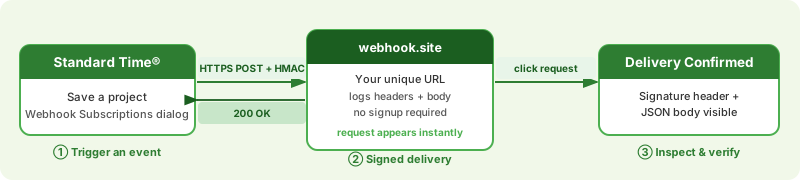
Prerequisites Checklist
Before you start, confirm these three items:
| Item | What you need | Where to get it |
|---|---|---|
| Admin access | Rights to open the Tools ribbon's Integration dropdown inside Standard Time®. | Your existing login — no special permission beyond normal admin access. |
| A reachable HTTPS endpoint | Somewhere for Standard Time® to POST to. For a smoke test, no setup is required. | webhook.site — free, no signup, gives you a unique URL instantly. |
| Five minutes | Time to register a subscription, save a test record, and confirm delivery. | — |
Step 1 — Get a Test URL from webhook.site
webhook.site hands you a unique URL and logs every incoming request — headers and body — with no signup or local listener required. It is the fastest way to confirm delivery before pointing a subscription at real infrastructure.
-
Open webhook.site in a new browser tab.
Go to https://webhook.site. The page generates a unique URL for you automatically — no account needed. -
Copy "Your unique URL."
It looks likehttps://webhook.site/d3cb1088-6609-4284-8d11-.... Keep this tab open — incoming requests will appear in the left-hand list as soon as they arrive.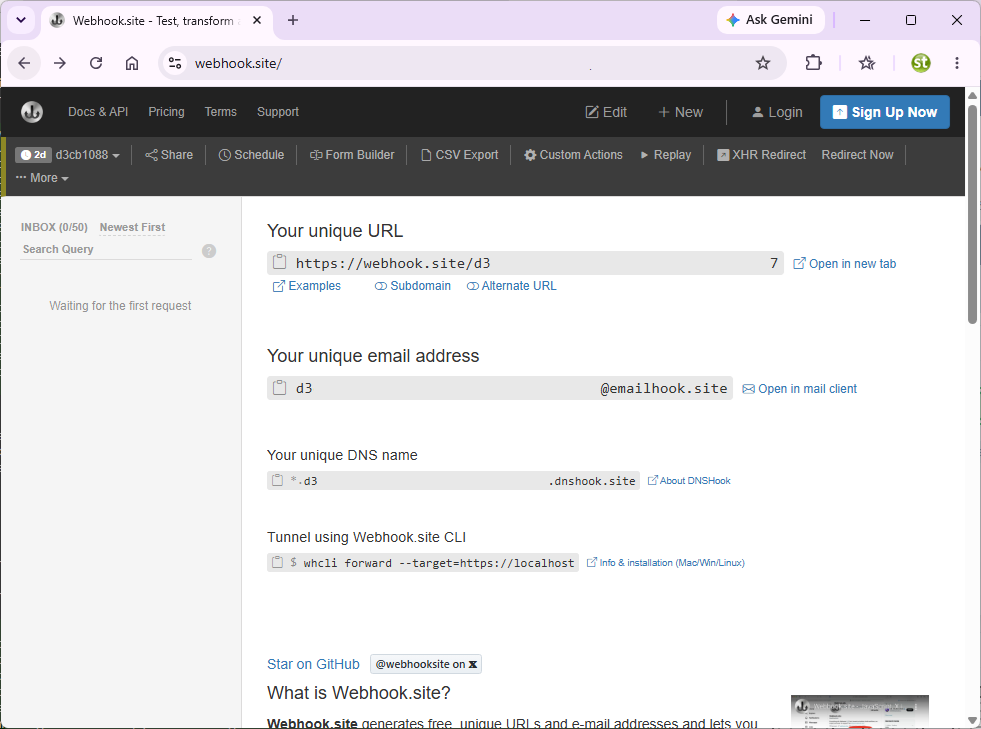
#!/view/... route used by webhook.site's own single-page app — pasting that as your Target URL causes every delivery to fail with a 404.
Step 2 — Register a Webhook Subscription
-
Open the Tools ribbon → Integration dropdown → Webhooks API.
In the top ribbon, click the Tools tab. In the Integration panel, click the Integration dropdown and choose Webhooks API.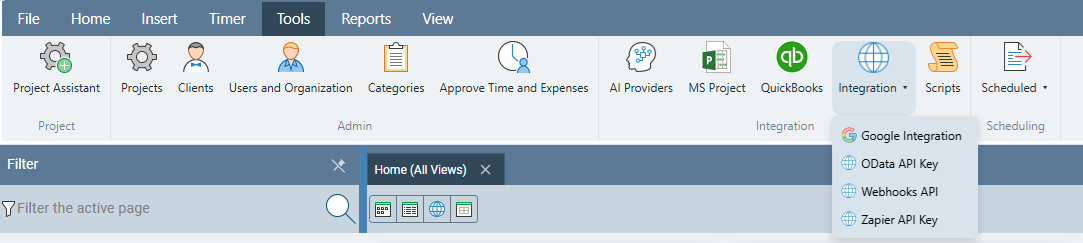
-
Select event type
project.created, paste the webhook.site URL, and add the subscription.
Chooseproject.createdfrom the Event type dropdown. Paste the URL you copied from webhook.site into Target URL. Leave Auto-generate checked for the secret. Click Add Subscription.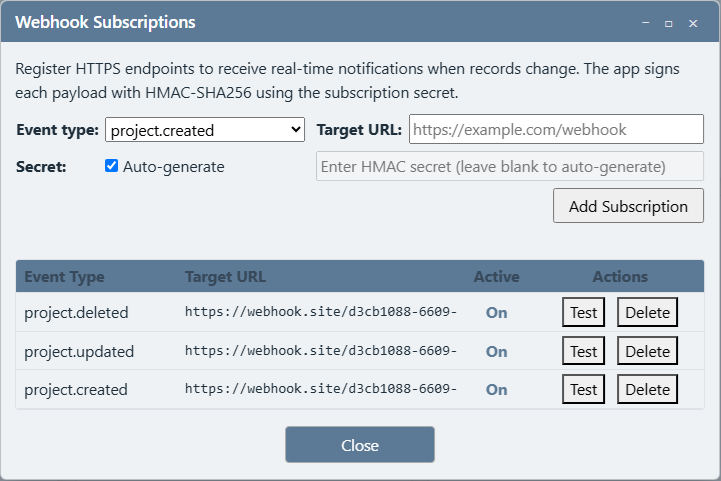
-
Copy the secret immediately.
It is shown once, in a highlighted panel. Copy it now — you'll use it in Step 4 to verify the signature. Standard Time® never displays it again; the list shows***from now on.
Step 3 — Trigger an Event and Verify Delivery
-
Save a new project in Standard Time®.
Any name works — this is just to fire theproject.createdevent you subscribed to. -
Switch to the webhook.site tab.
Within a few seconds, a new entry should appear at the top of the left-hand request list. -
Click the new entry and inspect it.
The right-hand pane shows the request headers — includingx-st-webhook-signature— and the raw JSON body, which should contain"event": "project.created"along with the project's fields (ProjectID,ProjectName, and the rest).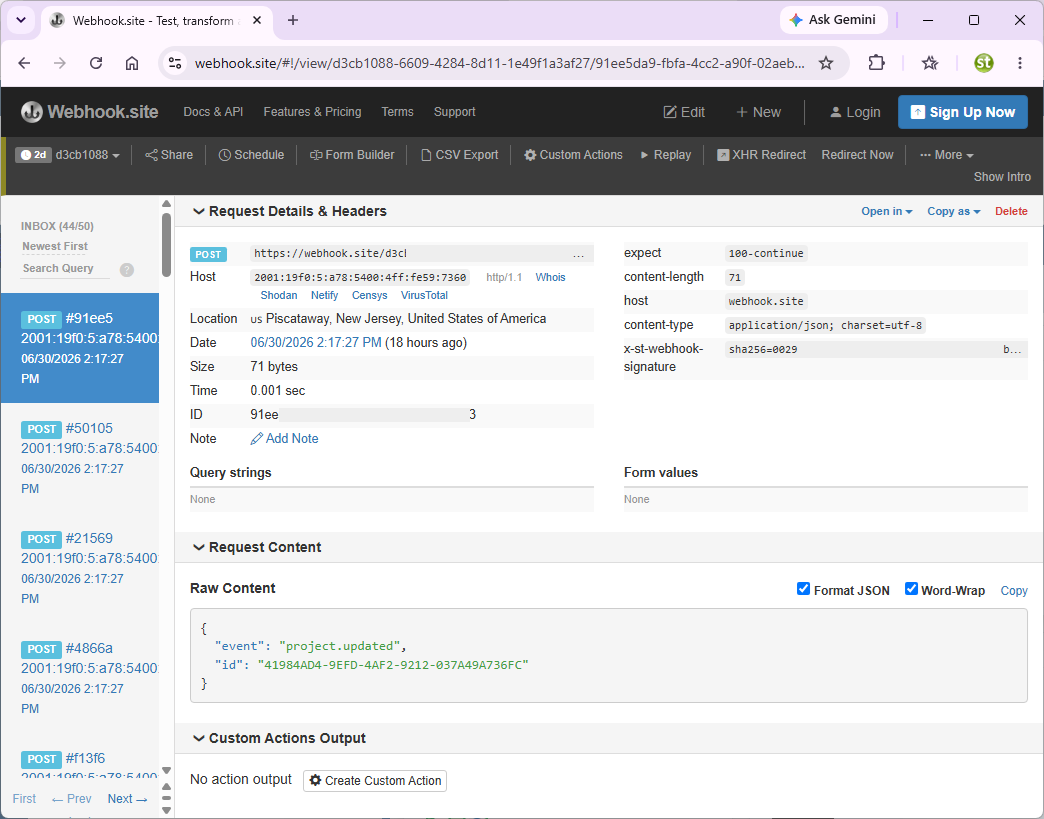
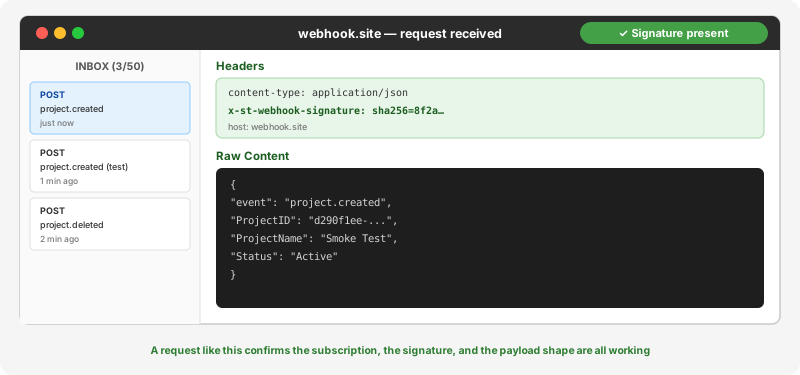
event value and the project's field data confirms your subscription, network path, and payload shape are all correct.
Step 4 — Verify the HMAC Signature
The x-st-webhook-signature header is an HMAC-SHA256 digest of the raw request body, computed with the secret you copied in Step 2. Recomputing it yourself confirms your receiving endpoint can trust the source of incoming requests.
# Paste the secret from Step 2 and the raw body from webhook.site
$key   = [System.Text.Encoding]::UTF8.GetBytes("PASTE_YOUR_SECRET_HERE")
$msg   = [System.Text.Encoding]::UTF8.GetBytes('PASTE_RAW_BODY_HERE')
$hmac  = New-Object System.Security.Cryptography.HMACSHA256 @(,$key)
$hash  = $hmac.ComputeHash($msg)
"sha256=" + (($hash | ForEach-Object { $_.ToString("x2") }) -join "")
Run this in PowerShell and compare the output to the x-st-webhook-signature value shown on webhook.site — they should match exactly.
x-st-webhook-signature header is omitted entirely rather than sent empty. That's expected — unsigned subscriptions are allowed, but signing is strongly recommended for any endpoint reachable from the public internet.
Step 5 — Test the Delete Event and the Test Button
Two more checks confirm the subscription behaves correctly under the two other event lifecycles it will see in production.
-
Click the row's Test button in the Webhook Subscriptions dialog.
This fires a sample payload to webhook.site immediately, without waiting for a real record change — useful for confirming your production endpoint is reachable at any time, not just when a real event happens to occur. -
Delete the project you created in Step 3.
If you also registered aproject.deletedsubscription, a third request should arrive on webhook.site with a minimal body:{ "event": "project.deleted", "id": "..." }— no other fields, since the record no longer exists to query.
Step 6 — Clean Up and Confirm the Feed Stops
-
Delete the test subscription from the dialog.
Click Delete next to theproject.createdrow. -
Save another project.
Confirm no further requests arrive on webhook.site. This proves the subscription — not something else — was the source of the earlier traffic, and that deleting it fully stops delivery.
project.created delivery, Step 4's recomputed signature matched, Step 5 produced both a test-fire delivery and a minimal project.deleted payload, and Step 6 produced no further deliveries after the subscription was removed.
Troubleshooting
Nothing ever arrives on webhook.site
Causes and fixes:
- You copied the browser's address bar (
#!/view/...) instead of "Your unique URL" — re-copy from the top of the webhook.site page. - The event type doesn't match the action you took — a
project.createdsubscription only fires when a new project is saved, not when an existing one is edited. - The subscription's Active column shows off — toggle it back on in the dialog.
- Give it a few seconds — delivery is asynchronous and usually lands within 5 seconds, occasionally longer under load.
The signature doesn't match
x-st-webhook-signature header.Causes and fixes:
- You must hash the exact raw request body — any re-formatting, re-indenting, or trailing newline added when you copy/pasted the JSON will change the hash.
- Double-check you pasted the secret exactly as shown when the subscription was created — it is not shown again, so a typo means starting over with a new subscription.
- Confirm you're comparing against the
x-st-webhook-signatureheader, not thecontent-lengthor another header of similar length.
Request arrives but the body looks wrong
Fix: Confirm the event type on the subscription matches the record type you changed — a
timelog.created subscription will never fire for a project save. See the Supported Event Types section of the Webhooks Integration guide for the full field list per entity.
Test button shows an error status
Fix: Confirm the Target URL is reachable from the public internet (webhook.site always is) and that it doesn't require authentication — Standard Time® sends a plain HTTPS POST with no credentials beyond the optional HMAC header.
Next Steps — All Webhook & Integration Guides
Your webhook delivery is confirmed. From here you can register subscriptions for any of the 11 record types, wire them into your own infrastructure or an automation platform, and move on to Standard Time®'s other integrations.