SELECT statements — never UPDATE, INSERT, or DELETE. See the full caution at the bottom of this page before writing your own.
What Script Columns Do
A normal grid column shows one stored field — a project's name, a time log's duration, a user's rate. A Script Column shows a value that doesn't exist as a stored field at all: it's calculated by a SQL script the moment the grid renders that row. The result can be an average, a count, a lookup from a related or external table, a flag, or any other value your SQL can produce.
Script columns use the exact same Scripts records described in our scannable script guide — same Properties panel, same Type and Script fields, same RETURN_VALUE convention. The only difference is how the script gets triggered. A scannable script runs once, when an employee scans its name. A script column runs automatically, once for every row currently visible in the grid, using that row's own record as the context — so a tag like TAG_PROJID resolves to that row's project, not to whatever was last scanned at a station.
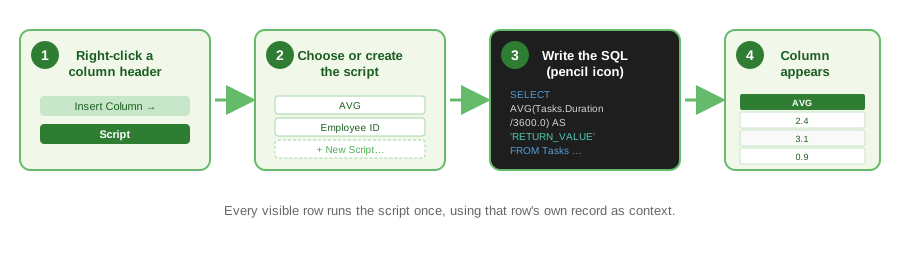
RETURN_VALUE column is exactly what appears in the grid cell for that row — a number, a short piece of text, a date, whatever your SELECT produces.
Step 1 — Insert a Script Column
Open the grid you want to add the column to — the Projects grid, Time Logs, Users, or any other grid in Standard Time®. Right-click any column header to open the column menu, then choose Insert Column and select Script as the column type.
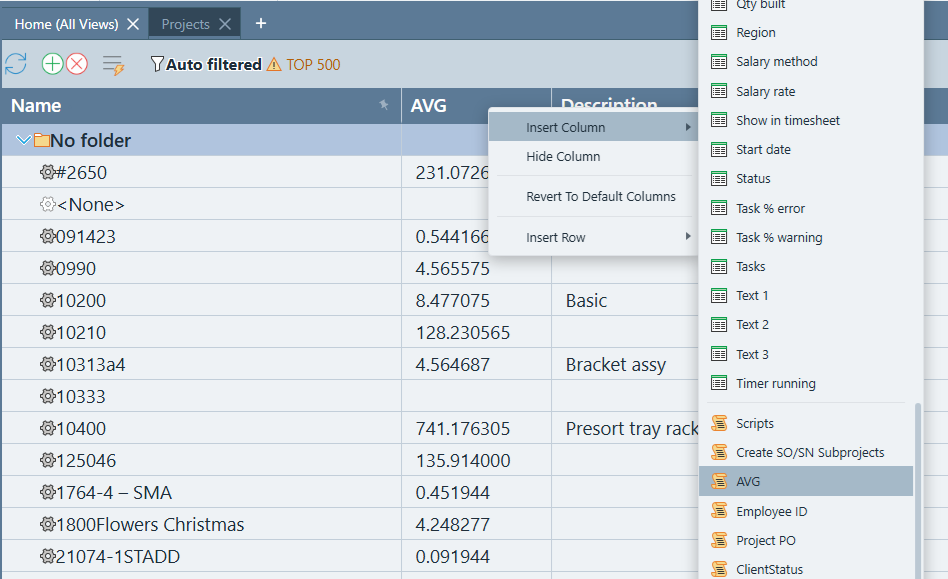
- Open the grid where you want the computed value to appear.
- Right-click any existing column header.
- Choose Insert Column from the context menu.
- Select Script as the column type.
Step 2 — Choose or Create the Script
Standard Time® prompts you to pick an existing script or create a new one. The script's Name becomes the column header, so name it the way you want it to read in the grid — short and specific, like AVG or Employee ID.
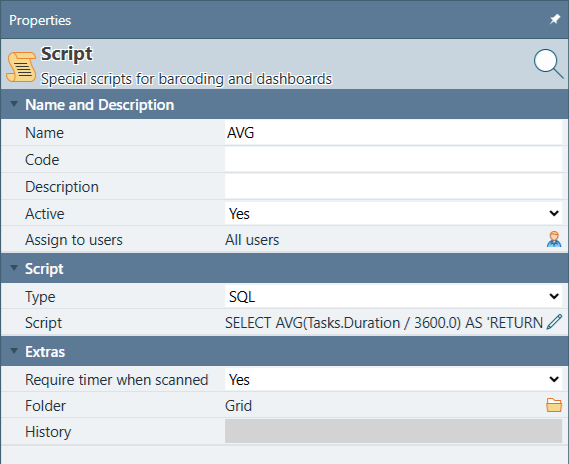
The screenshot above shows the Properties panel for a script named AVG, with Type set to SQL. This is the same Properties panel used for every script in Standard Time® — Name, Code, Description, Active, Assign to users, Type, and Script all work exactly as documented in the Script Properties Reference. SQL is by far the most common choice for a column script, since it can query related tables directly and return a single computed value per row.
Step 3 — Write the SQL
Click the pencil icon (✎) next to the Script property to open the multi-line SQL editor — the same dialog used for scannable scripts and Barcode Rule actions.
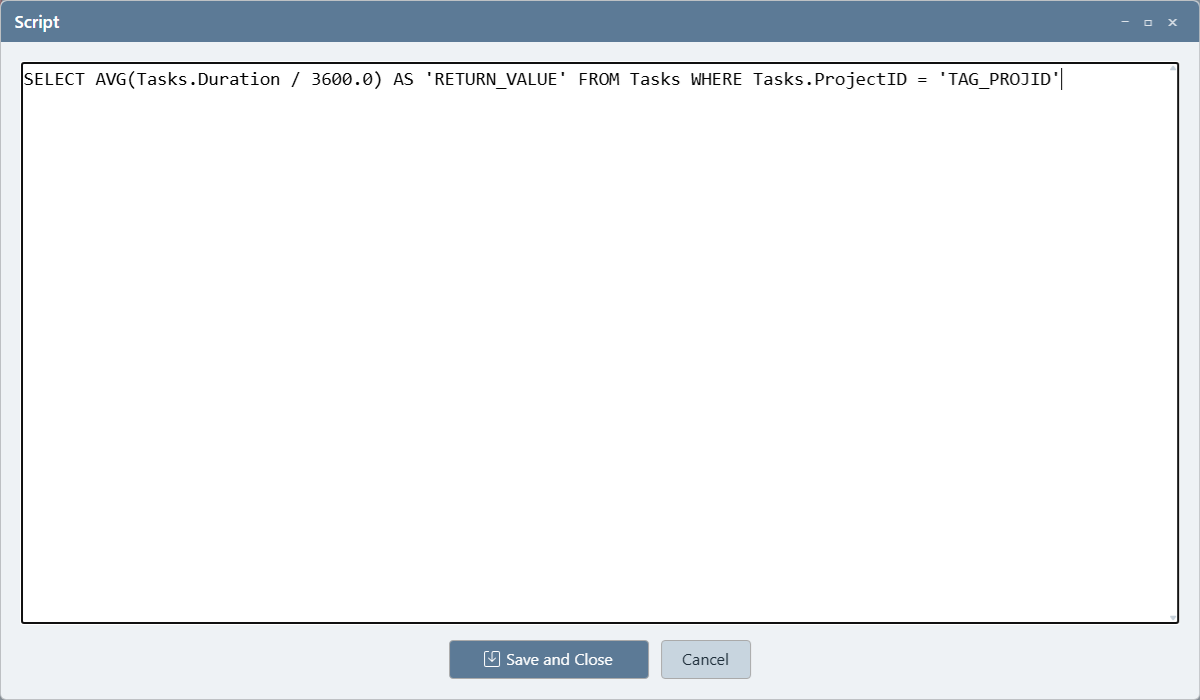
Here is the actual SQL behind the AVG column example on this page:
FROM Tasks
WHERE Tasks.ProjectID = 'TAG_PROJID'
This averages every related Tasks.Duration value (stored in seconds) for the project, converting the result to hours by dividing by 3600. Because this script is assigned to a column on the Projects grid, TAG_PROJID is replaced automatically with that row's own project ID as the grid renders — no scan, no manual context needed. Move to the next row and the same SQL text runs again with a different project ID substituted in.
TAG_PROJID, TAG_USERID, TAG_TASKID, and the rest. Which tags resolve to something meaningful depends on which grid the column lives on: TAG_PROJID is the row's project on the Projects grid, while TAG_USERID is the row's user on the Users grid.
The Result — Script Column in the Grid
Once saved, the new column appears in the grid exactly like any other column — but its value is computed fresh, per row, every time the grid loads or is refreshed.
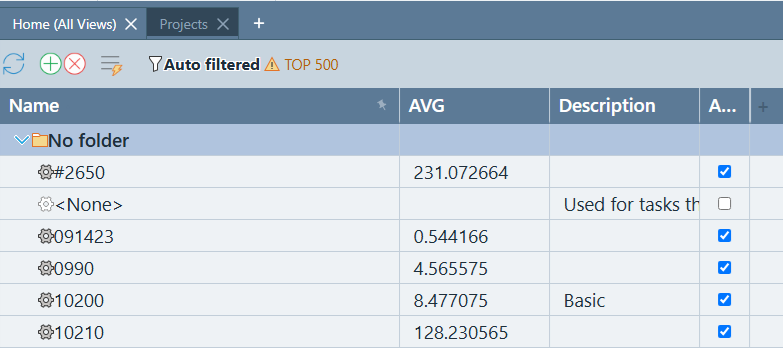
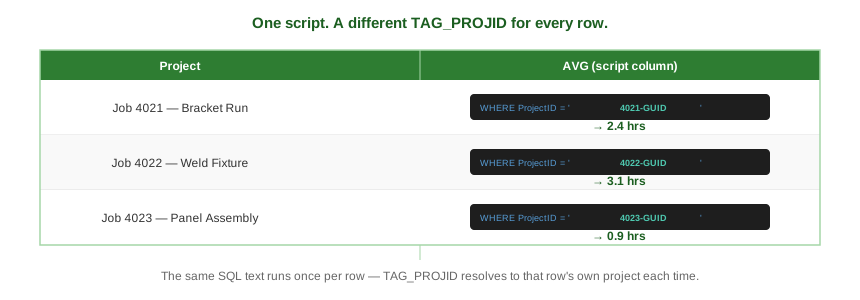
TAG_PROJID substitution (and a different result) for every row.WHERE clause against an indexed foreign key column.
Commonly Used Scripts in Grid Columns
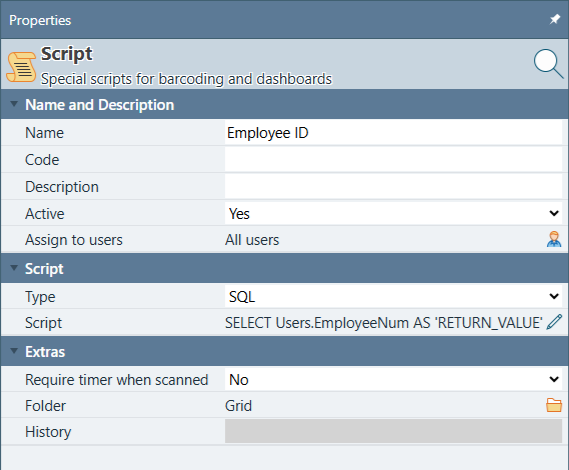
Beyond the AVG example above, a few script-column patterns come up often enough to be worth calling out. The screenshot below shows the Properties panel for an Employee ID script — a common pattern for surfacing an external HR or payroll identifier right inside a Standard Time® grid, without leaving the app to look it up.
| Script Name | Typical Grid | What It Shows |
|---|---|---|
| AVG | Projects | Average task duration (hours) across all tasks on the project — the worked example above. |
| Employee ID | Users, Time Logs | An external HR or payroll system's employee number, looked up for the row's user — handy for exports that need to match payroll records. |
| Open Task Count | Projects | A quick count of incomplete tasks remaining on the project, without opening the Project Tasks grid. |
| Days Since Last Activity | Projects | Days since the most recent time log was created on the project — a fast way to spot jobs that have gone quiet. |
| Total Material Cost | Projects | Sum of Expense records tied to the project's inventory scans — material cost alongside labor cost in one grid. |
SELECT with an aggregate or lookup function, a WHERE clause keyed to a scan-context tag for the row, and a RETURN_VALUE alias. Start from the AVG script and swap the table, aggregate, and tag to build your own.
Other Places Scripts Are Used
Grid columns are just one of several places the same Scripts engine plugs into Standard Time®. Because every script is a standalone record, one script can be reused in more than one of these places at once.
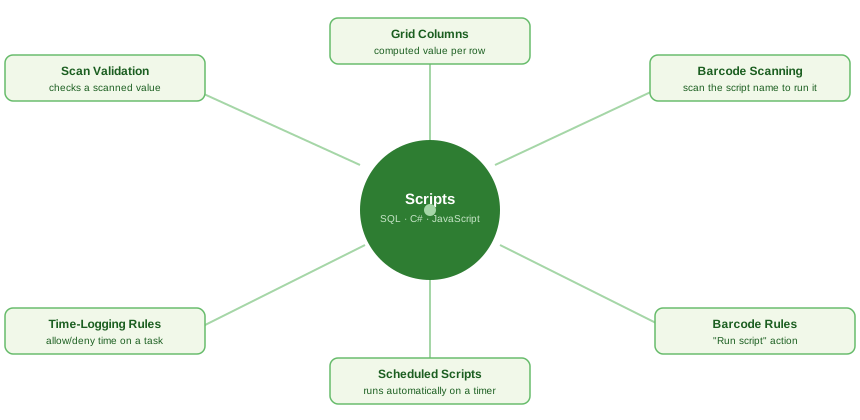
| Where | How It's Triggered |
|---|---|
| Grid Columns | Automatically, once per visible row, every time the grid loads or refreshes. Covered on this page. |
| Barcode Scanning | An employee scans the script's name (or Code) like any other barcode at the Scan Barcodes station. See our scannable script guide. |
| Barcode Rules | A Barcode Rule's Action is set to Run script, so the script fires whenever that rule's condition matches an incoming scan. See our Barcode Rules guide. |
| Scheduled Scripts | A script runs automatically on a recurring schedule, with options to email or save the results — the same automation model used by Scheduled Exports, but running a script instead of exporting a file. |
| Time-Logging Rules | A project task can reference a script that decides whether a given user is allowed to log time to it — useful for enforcing custom approval logic before a timer can start. |
| Scan Validation | A script can validate a scanned value against custom rules before Standard Time® accepts it, rejecting scans that don't match the pattern you expect. |
Caution — Proceed With Care
- Use
SELECTstatements only. Never putUPDATE,INSERT, orDELETEin a script assigned to a column — it will run repeatedly and unattended, against every row, with no confirmation step. - Test any new script as a scannable script first, against one known record, before assigning it to a column that will run against every row in the grid.
- Keep a current database backup before deploying any new script, in any of the places listed above.
- If you are not comfortable writing and testing SQL against a live database, have a qualified IT professional or database programmer review the script first.
Scoutwest, Inc. and Standard Time® are not liable for database records altered, overwritten, or deleted by user-written scripts. Scripts execute directly against your database with no transaction rollback and no undo history.