Saved Tabs vs. Dock Layouts
Standard Time® has two related but distinctly different save features living on the same tab strip. A Dock Layout captures every open tab as one named snapshot — restoring it is a deliberate, confirmed action that closes your current workspace and reopens the saved one in its place. A Saved Tab captures just the one tab you right-click, under its own name — restoring it simply opens that tab again as one more tab, and never touches anything else you have open.
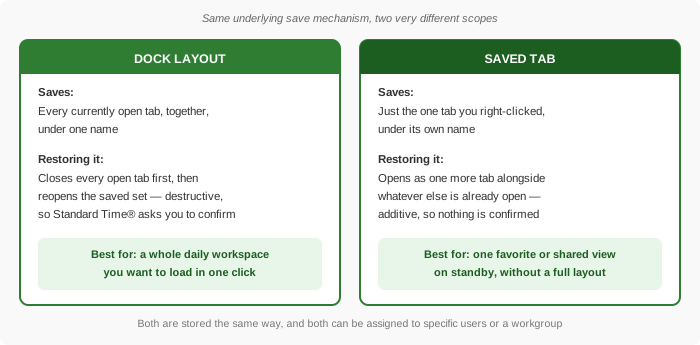
If you already know Dock Layouts, most of what follows will feel familiar — Saved Tabs reuse the same "save it, name it, restore it, optionally share it" mechanism, just scoped down to one screen instead of your whole arrangement. See Saving and Restoring Dock Layouts for the full-workspace version of this feature.
Opening a Tab's Right-Click Menu
Right-click directly on an open tab — not the empty space past the last tab, which opens the separate Dock Layout menu instead.
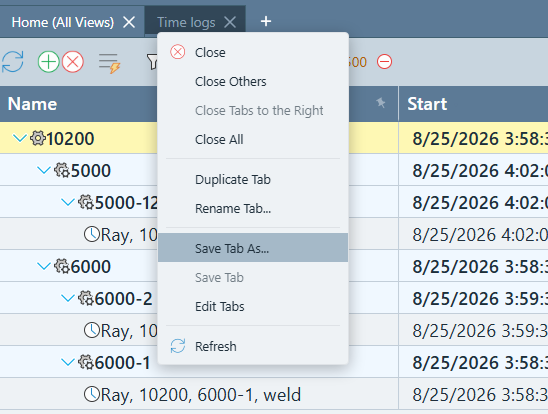
The menu includes:
- Close / Close Others / Close Tabs to the Right / Close All — the usual tab-closing shortcuts.
- Duplicate Tab — opens a fully independent copy of this tab.
- Rename Tab… — changes this tab's on-screen label.
- Save Tab As… — saves this one tab, under a new name, as a Saved Tab.
- Save Tab — a quick save that overwrites whichever Saved Tab this tab was most recently saved-as or restored from (grayed out until that's happened at least once for this tab).
- Edit Tabs — opens the same management grid covered under Managing Saved Tabs below.
- Refresh — reloads this tab's data.
The Home tab is the one exception — as a singleton screen, its right-click menu leaves out Duplicate, Rename, Save Tab As…, and Save Tab entirely, since a saved or duplicated copy of Home wouldn't make sense.
Saving a Tab
Get the one tab exactly how you want it — set its filter, arrange its grid columns — then save just that tab.
- Open the screen, set its filter, and arrange its grid columns the way you want.
- Right-click that tab.
- Choose Save Tab As…
- Type a name and confirm.
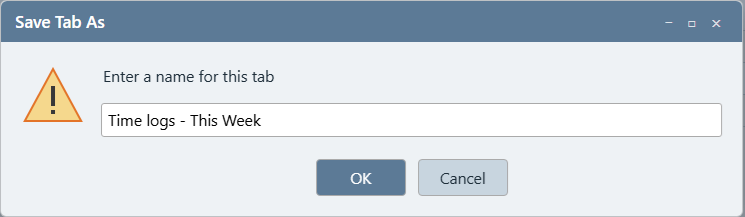
Once a tab has been saved this way (or restored from a Saved Tab — see below), the plain Save Tab item on that tab's menu becomes available. Use it any time you tweak the tab and want to update that same saved row silently, without retyping a name.
What Gets Saved
A Saved Tab captures exactly what a Dock Layout captures for one tab — the screen itself, the specific record it was showing, its active filter and settings, and the grid's column layout and widths. Restoring it puts that one tab back exactly where you left it, not just reopened blank.
As with Dock Layouts, one thing is deliberately left out: the pin/float state and size of the Filter, Properties, and Settings panels around your screen. That stays your own personal window arrangement and is never touched by saving or restoring a tab.
Restoring a Saved Tab
Right-click the empty space at the right side of the tab strip — the same spot that opens the Dock Layout menu — and hover Restore Tab to see every Saved Tab available to you. Click a name to open it.
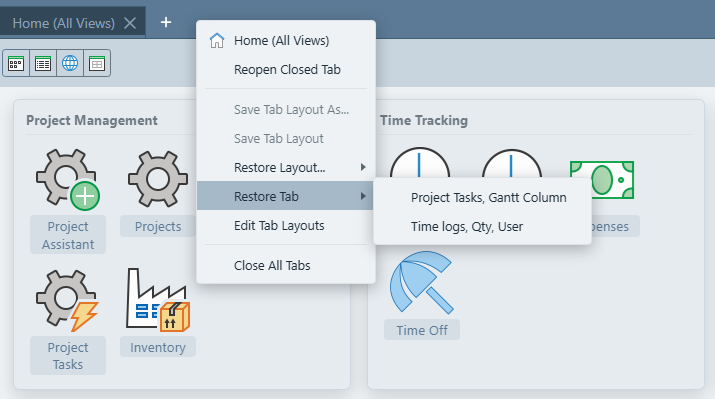
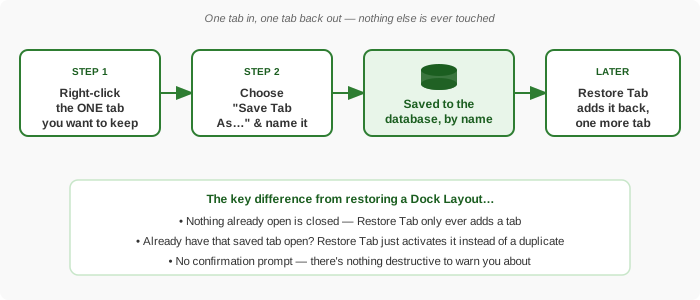
Unlike restoring a Dock Layout, there's no confirmation prompt — because nothing already open is ever closed, there's nothing destructive to warn you about. The saved tab simply opens as one more tab and becomes the active one. If a tab restored from (or saved as) that exact Saved Tab is already open, Standard Time® activates the existing tab instead of opening a duplicate.
You can also restore a tab from the Edit Tab Layouts management grid (see below) by right-clicking a Tab row and choosing Restore Tab — same additive behavior either way.
Sharing a Saved Tab With Other Users
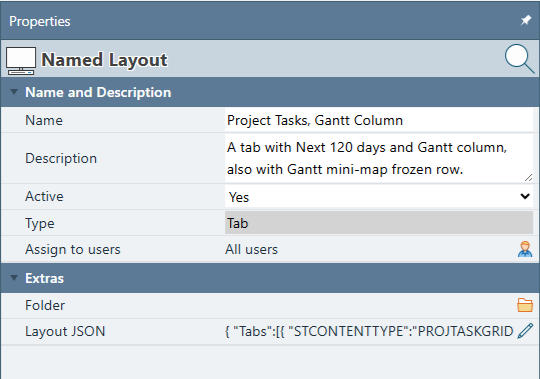
Saved tabs can be assigned to specific users or an entire workgroup, exactly like Dock Layouts — a saved tab starts out available to everyone, and assigning it is how you scope it down to just the people who should see it instead of your whole organization. Open a saved tab's Properties panel and use the Assign to users field to pick specific people, or a workgroup, and it disappears from the Restore Tab menu for everyone outside that assignment.
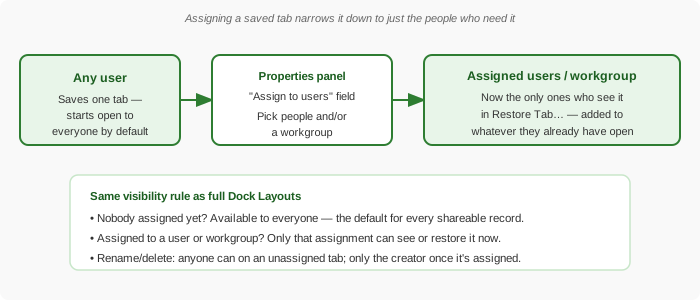
Visibility rule: a saved tab with nobody assigned is available to everyone — same default as Dock Layouts, projects, scripts, and every other shareable record in Standard Time®. Assigning it to specific users or a workgroup does the opposite of what you might expect: it narrows visibility down to just that assignment, removing it from the Restore Tab menu for everyone else. Rename and delete follow the same rule — an unassigned saved tab can be renamed or deleted by anyone, while an assigned one is locked to its original creator (or an administrator).
Managing Saved Tabs
Choose Edit Tabs (from a tab's own menu) or Edit Tab Layouts (from the tab-strip menu) to open the same management grid — every saved record you have access to, grouped first by Type into "Layouts" and "Tabs," and then by folder within each.
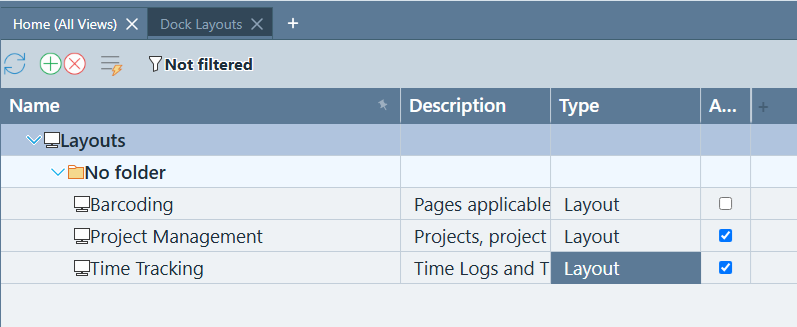
Right-click any row in the "Tabs" group for its own context menu: Properties, Rename, Delete, Duplicate, and Restore Tab. A few things to know:
- Active — uncheck this in the Properties panel to hide a saved tab from the Restore Tab menu without deleting the record. It stays in this grid, ready to switch back on.
- Rename / Delete — restricted to the tab's original creator, even for one that's been shared with an entire workgroup.
- Duplicate — makes an independent copy owned by whoever duplicates it; the copy starts with no sharing assignments of its own, even if the original was shared.
- Folder — organize saved tabs into folders, the same way you'd organize projects, for teams that build up more than a handful.
Reasons to Save Individual Tabs
A full Dock Layout is the right tool for an entire standard workspace. Saving a single tab is a different, narrower tool — here's when it's the better fit.
| Reason | Why a single tab beats a whole layout here |
|---|---|
| A frequently-checked favorite view | A pre-filtered screen you glance at often — like "Time Logs – This Week" — should be one click away without disturbing whatever else you're already working on. |
| A favorite report with its date range already set | A report's Filter panel — including its date range — is part of what a saved tab captures. Save a report tab as, say, "Full Job Cost – This Month," and restoring it reopens already filtered to that same date range instead of making you reconfigure the filter every time. |
| Sharing one screen without imposing a whole workspace | Assigning a Dock Layout to a workgroup replaces everyone's open tabs. Assigning just one saved tab — say, an "Inventory Reorder Alerts" filter — adds it to whatever each person already has open, without taking over their workspace. |
| Building a personal toolbox incrementally | Save useful views one at a time as you discover you need them, instead of having to plan and arrange an entire named layout up front. |
| One-off reference or audit views | Save a filtered view built for a specific investigation so you — or a colleague you share it with — can reopen that exact lens again later, without cluttering a Dock Layout with a screen you'll rarely need again. |
| A consistent tab across everyone's differently-arranged workspace | Different people arrange the rest of their tabs differently, but everyone needs the same one view — like a specific project's Gantt chart. Saving and assigning just that tab reaches everyone, no matter how they've set up the rest of their own workspace. |
Dock Layouts and Saved Tabs aren't an either/or choice — many teams use a Dock Layout for the daily start-of-day routine and a handful of Saved Tabs for the occasional reference views they want on standby without cluttering that main layout.
- Saving and Restoring Dock Layouts — the full-workspace counterpart to this feature
- How to Set Up Users — creating the users and workgroups you'll assign saved tabs to
- Home Screen Icons Guide — what every screen you might save as a tab actually does
- FAQ: Getting Started