What Is a Dock Layout?
Every screen you open in Standard Time® — Time Logs, a Gantt chart, Inventory, a specific report — appears as its own tab across the top of the main work area, alongside the Filter, Properties, and Settings panels docked around the edges. A Dock Layout is a named snapshot of that entire arrangement of open tabs: which screens are open, what each one is showing, and how it's filtered and arranged — saved once, under a name, and restored later in a single click.
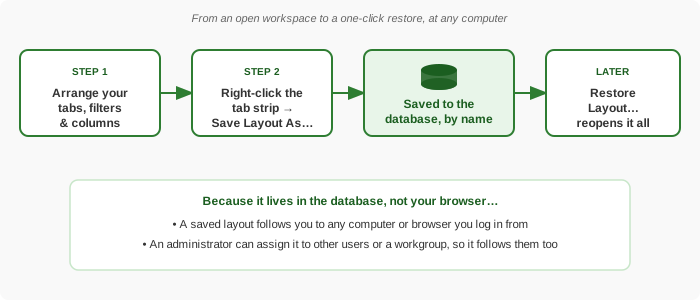
This is different from Standard Time® simply reopening your last session's tabs automatically. A Dock Layout is a deliberate, named save — you decide when to capture a workspace and what to call it, and it stays available under that name until you (or an administrator, for a shared one) delete it.
Dock Layout vs. Saved Tab
The tab strip's right-click menu actually offers two related but distinctly different save features. A Dock Layout (this page) captures every open tab as one named snapshot — restoring it is a deliberate, confirmed action that closes your current workspace and reopens the saved one in its place. A Saved Tab captures just one tab — the one you right-click — under its own name, and restoring it simply opens that tab again as one more tab, without touching anything else you already have open. See Saving and Restoring Individual Tabs for the full walkthrough of that side of the feature.
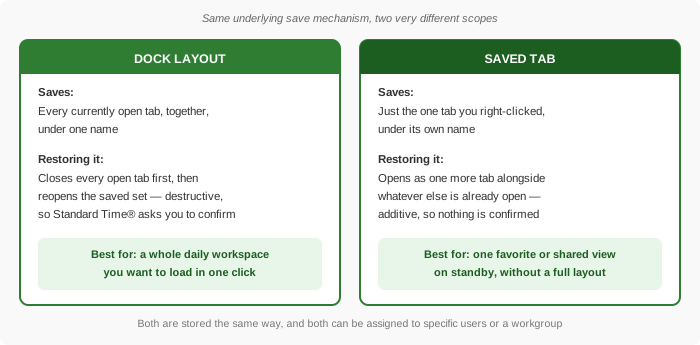
When to reach for which: use a Dock Layout for an entire standard workspace you want to load in one click — a daily start-of-day routine, or a role-specific arrangement of several tabs an administrator rolls out to a whole workgroup. Use a Saved Tab for one favorite or frequently-shared view you want on standby — a single pre-filtered report, a specific project's Gantt chart, or a reference screen you don't want cluttering (or being clobbered by) a full layout restore. Many teams use both together: a Dock Layout for the morning routine, plus a handful of Saved Tabs for the occasional views they reach for without disturbing that main layout.
Opening the Dock Layout Menu
Right-click in the empty space at the right side of the tab strip — past the last open tab, not on a tab itself — to open the Dock Layout menu.
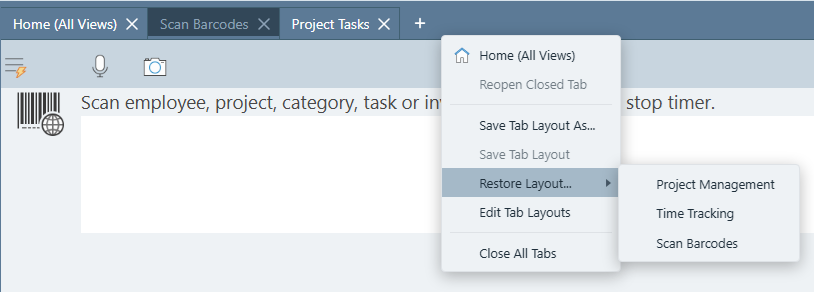
The menu includes:
- Home (All Views) — jump straight to the Home screen tab.
- Reopen Closed Tab — bring back the most recently closed tab.
- Save Tab Layout As… — save the current arrangement of every open tab under a new name.
- Save Tab Layout — a quick save that overwrites the layout you most recently saved or restored this session (grayed out until you've done one of those at least once).
- Restore Layout… — a submenu listing every saved layout available to you, by name.
- Restore Tab — a separate submenu listing individually saved tabs. Saving and restoring one tab at a time — rather than your whole workspace — is covered in its own guide: Saving and Restoring Individual Tabs.
- Edit Tab Layouts — opens the full management grid of every saved layout you can access.
- Close All Tabs — closes everything and returns to Home.
Saving Your Current Layout
Get your workspace the way you want it — open the tabs you need, filter each one, arrange the grid columns — then save it.
- Arrange your tabs: open every screen you want included, set each one's filter, and arrange its grid columns.
- Right-click the empty space at the right side of the tab strip.
- Choose Save Tab Layout As…
- Type a name and confirm.
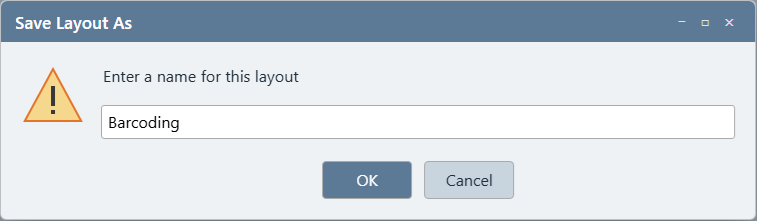
Once you've saved a layout this way (or restored one — see below), the plain Save Tab Layout item becomes available. Use it any time you tweak the workspace and want to update that same saved layout without going through the naming prompt again — it silently overwrites whichever layout you most recently saved-as or restored, rather than creating a new one.
What Gets Saved (and What Doesn't)
A layout captures far more than just "which tabs were open." For every tab, it remembers the screen itself, the specific record it was showing, its active filter and settings, and the grid's column layout and widths — plus which tab was selected when you saved. Restoring puts you back exactly where you left off on every tab, not just with the same screens reopened blank.
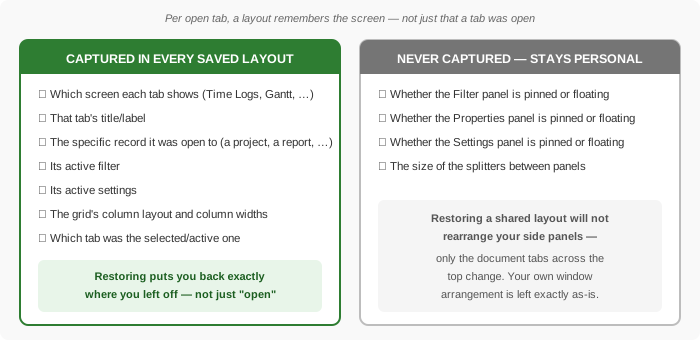
That last point matters most when a layout is shared: restoring someone else's shared layout only changes which document tabs are open across the top. It will never pin, unpin, or resize the Filter, Properties, or Settings panels around your own screen — your personal window arrangement is left exactly as it was.
Restoring a Saved Layout
Open the Dock Layout menu (right-click the right side of the tab strip) and hover Restore Layout… to see every layout available to you — your own saved layouts plus anything an administrator has shared with you. Click a name to load it.
Because restoring a layout replaces your current workspace, Standard Time® always confirms first: "Loading '<name>' will close all currently open tabs. Continue?" Confirm, and every currently open tab closes, the saved tabs reopen in the same order with their filters and column layouts intact, and the tab that was active when the layout was saved is reselected automatically.

You can also restore a layout from the Edit Tab Layouts management grid (see below) by right-clicking a row and choosing Load Layout — the same confirmation and toast behavior applies either way.
Sharing Layouts With Other Users
A saved layout starts out available to everyone — the same default every shareable record in Standard Time® uses. Open a layout's Properties panel and use the Assign to users field if you want to narrow that down instead: pick specific people — or an entire workgroup — and the layout disappears from the Restore Layout… menu for everyone outside that assignment.
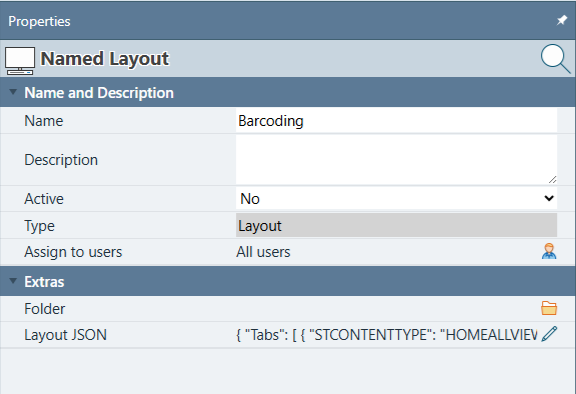
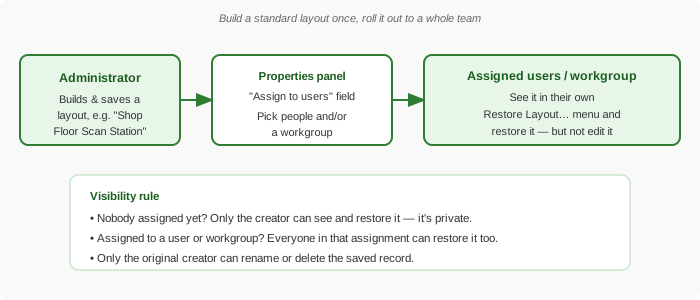
Visibility rule: a layout with nobody assigned is available to everyone — same default as projects, scripts, and every other shareable record in Standard Time®. Assigning it to specific users or a workgroup does the opposite of what you might expect: it narrows visibility down to just that assignment, removing it from the Restore Layout… menu for everyone else. Rename and delete follow the same rule — an unassigned layout can be renamed or deleted by anyone, while an assigned one is locked to its original creator (or an administrator).
Managing Saved Layouts
Choose Edit Tab Layouts from the Dock Layout menu to open the full management grid — every layout you have access to, grouped first by Type (full multi-tab layouts, listed separately from any individually saved tabs) and then by folder.
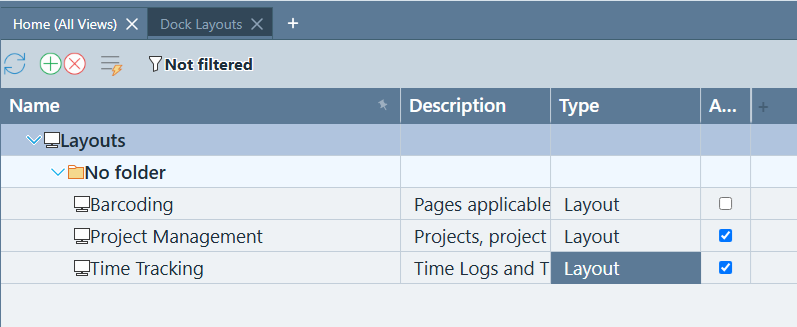
Right-click any row for its own context menu: Properties, Rename, Delete, Duplicate, and Load Layout. A few things to know:
- Active — uncheck this in the Properties panel to hide a layout from the Restore Layout… menu without deleting the record. It stays in this grid, ready to switch back on.
- Rename / Delete — restricted to the layout's original creator, even for a layout that's been shared with an entire workgroup.
- Duplicate — makes an independent copy owned by whoever duplicates it; the copy starts with no sharing assignments of its own, even if the original was shared.
- Folder — organize layouts into folders the same way you'd organize projects, for teams that build up more than a handful of saved layouts.
Ideas for Shared Layouts
Because a layout can be assigned to a workgroup, it's a practical way for an administrator to standardize a workspace for an entire role — without asking every person to build it themselves.
| Layout | Assigned to |
|---|---|
| Shop Floor Scan Station | A workgroup covering a shared scanning terminal — opens straight to Scan Barcodes, pre-filtered to that station's active jobs. |
| Month-End Reporting | The Accounting workgroup — Time Logs and Expenses filtered to last month, plus a Full Job Cost report tab, all arranged and ready. |
| Project Manager Home | Every project manager — Gantt chart, Resource Allocation, and Project Tasks tabs pre-arranged with the columns each PM actually uses. |
| New Hire Onboarding | A simplified layout — just Timesheet and Time Off — assigned to a new employee so their very first login isn't cluttered with tabs they don't need yet. |
Each of these starts the same way: one person builds the workspace, saves it under a clear name, and assigns it to the right workgroup. Everyone else just picks it from their own Restore Layout… menu.
- Saving and Restoring Individual Tabs — the single-tab counterpart to this feature
- How to Set Up Users — creating the users and workgroups you'll assign layouts to
- User Rights Reference — every permission a user account can be granted
- Home Screen Icons Guide — what every screen you might pin into a layout actually does
- FAQ: Getting Started