The Core Tension: Attendance Time vs. Project Time
On a normal scanning shop floor, a time log is created every time an employee scans their badge and a project or task — the log's Start and Stop times bound exactly that piece of work. That's ideal for job costing: every hour is attributed to a specific job. But it leaves a gap for anything that isn't a scanned job — the ten minutes an employee spends getting set up before the first job of the day, a cleanup pass at the end of a shift, a stand-up meeting, a break. None of that shows up anywhere, and the first project scan of the day rarely lines up exactly with when the employee actually arrived.
Managers who want both attendance timestamps and a job-by-job breakdown are really asking for two different things to come out of the same scan sequence: when did this person start and stop being at work, and what did they spend that time doing. The three strategies below take different approaches to answering both questions — and they are not equally good at it.
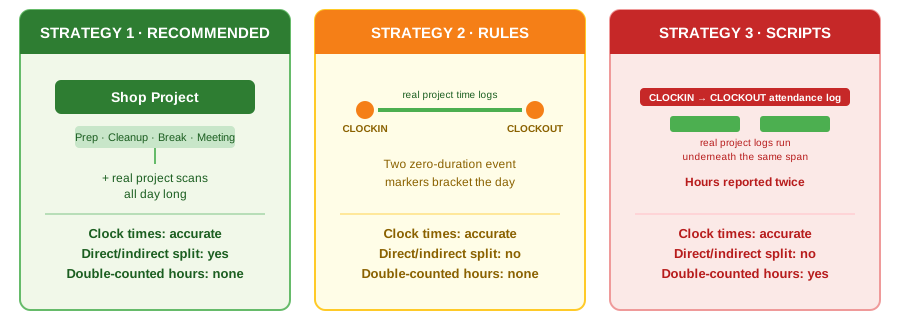
Strategy 1 — A "Shop" Project for Indirect Labor
Set up one ordinary project — call it Shop — with a handful of tasks that represent time not spent on a billable or trackable job: Prep, Cleanup, Break, Meeting, Maintenance, whatever categories make sense on your floor. It's just a project like any other, using the same scan sequence, timers, and reporting every other project already uses — nothing custom to build.
- Employee arrives and scans their badge, then scans into the Shop project (a Prep task) — this starts the very first timer of the day.
- Throughout the day, the employee scans into real project work as jobs come up — the Shop timer stops automatically the moment a new project/task scan starts a new one.
- Optional: before leaving, the employee scans back into the Shop project (a Cleanup task) to close out the day.
- The employee scans STOP to end the final timer of the day.
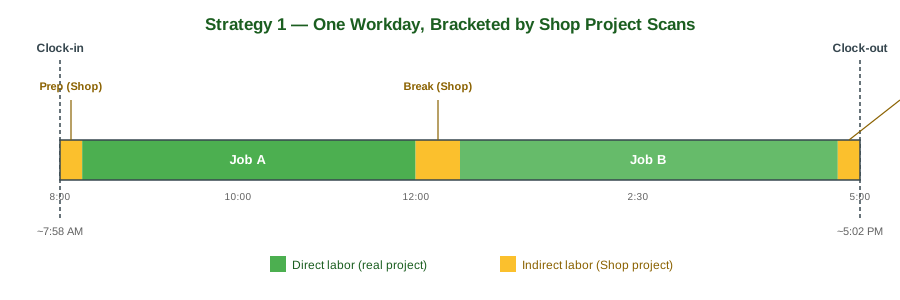
Because there's always something running from the moment the employee scans in to the moment they scan STOP, the Start of that very first time log and the Stop of the very last one are effectively the clock-in and clock-out times a manager wants — without inventing a separate attendance mechanism. And because every minute of the day is logged against a project either way, Time Logs and Reports can group by project to show direct labor (real jobs) versus indirect labor (the Shop project) automatically, using reporting Standard Time® already has.
This is the strategy to reach for first: it uses standard scanning, standard timers, and standard reporting — no Barcode Rules or Scripts required — and it's the only one of the three that gives a genuine direct-versus-indirect breakdown without any risk of over-reporting hours.
Strategy 2 — CLOCKIN / CLOCKOUT Barcode Rules
Create two Barcode Rules — one named CLOCKIN, the other CLOCKOUT — each with Condition type 1 set to Starts with and Condition value 1 matching the rule's own name, and Perform action set to Create time log. That action creates a completed time log record immediately, stamped with the current time as both Start and Stop, so each scan produces a zero-duration record — no running timer, nothing left open.
Use the three Save value / Save to field pairs to make that record identifiable and searchable later, since it wasn't created by scanning a real project. A working example:
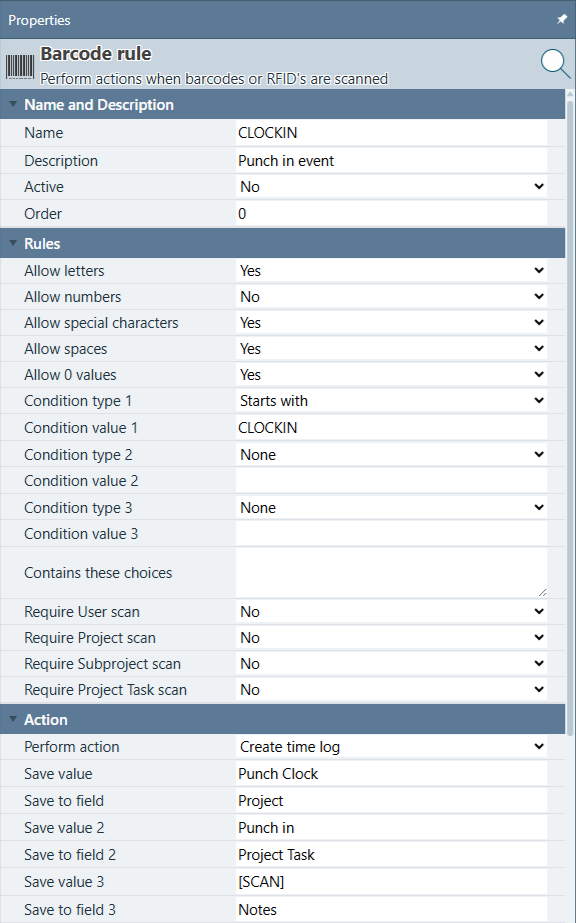
The CLOCKIN rule — Save value/field pairs write "Punch Clock" into Project, "Punch in" into Project Task, and the raw scan text into Notes.
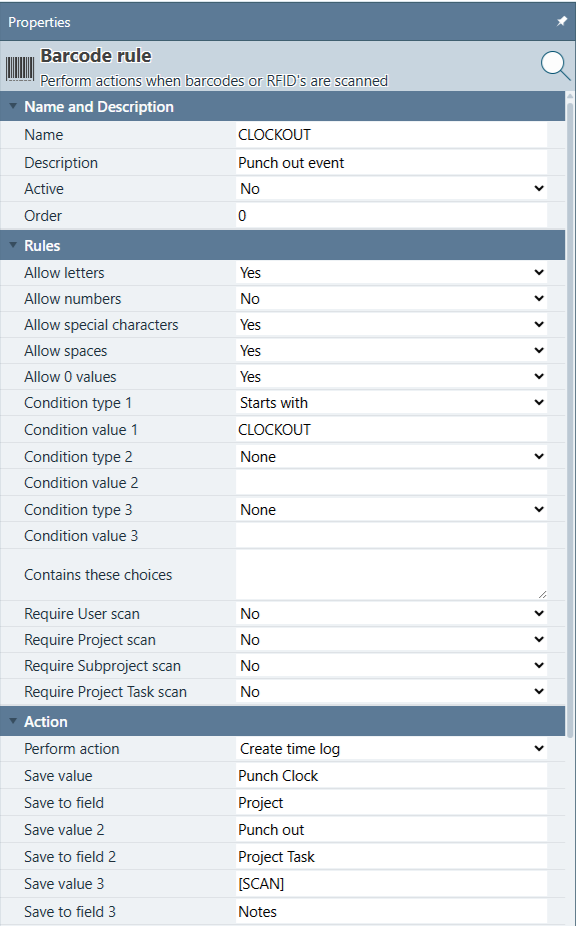
The matching CLOCKOUT rule — identical except Save value 2 writes "Punch out" instead of "Punch in."
Both rules write Punch Clock to Project and [SCAN] (the full raw scan text) to Notes, so every attendance record is instantly recognizable in Time Logs — filter or group by a Project named "Punch Clock" to pull attendance events out from real job time in one step. Only Save value 2 / Save to field 2 differs between the two rules: the CLOCKIN rule writes Punch in to Project Task, the CLOCKOUT rule writes Punch out — so a single Time Logs report grouped by Project Task shows every punch-in and punch-out event, each with its own exact timestamp, without the two ever being confused.
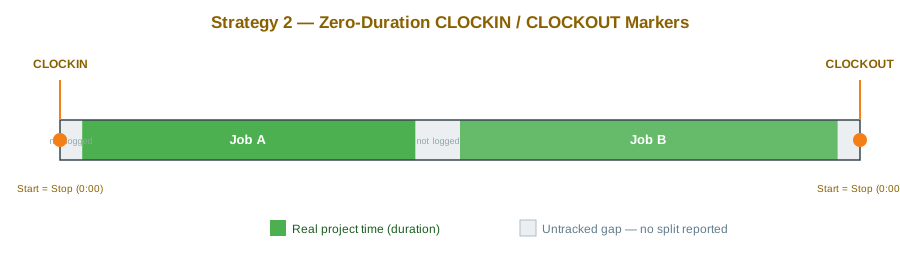
Employees scan CLOCKIN once when they arrive and CLOCKOUT once when they leave, in addition to their normal project scans throughout the day. Because the two event markers have zero duration, they never inflate total reported hours — they simply sit alongside the real, duration-bearing project time logs as timestamped reference points a manager (or a report) can query for "what time did this person arrive and leave."
Strategy 3 — CLOCKIN / CLOCKOUT Scannable Scripts
A more powerful — and riskier — variation uses two scannable scripts, also named CLOCKIN and CLOCKOUT. Unlike Strategy 2's instant zero-duration record, these scripts build one time log that spans the entire clocked-in period:
- The
CLOCKINscript (SQL) inserts a new time log forTAG_USERIDwith Start set to the current time and no Stop time yet — an open-ended attendance record. - The employee works normally the rest of the shift, scanning real projects and tasks — each of those produces its own separate, ordinary time log with its own duration.
- The
CLOCKOUTscript finds that same open attendance record (by user and by a marker that identifies it as the attendance row, not a project row) and sets its Stop to the current time — closing it out with a duration equal to the full shift.
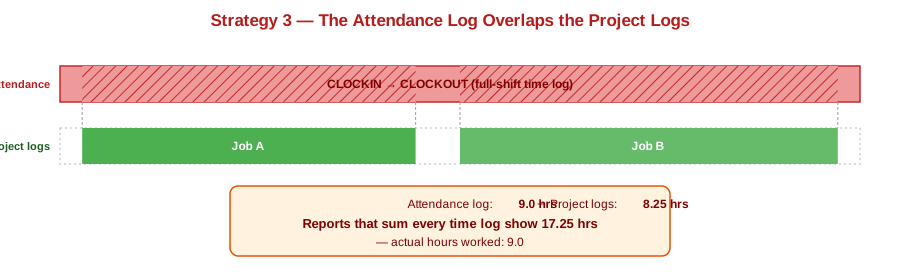
This produces a genuine, duration-bearing attendance record — an actual clock-in-to-clock-out span, not just two instants. But because that span overlaps the real project time logs recorded during the same hours, summing every time log's duration for the day counts those hours twice. In the example below, a 9-hour clocked-in day with 8.25 hours of real project scanning reports as 17.25 hours if a report simply totals every time log — the 8.25 real hours, plus the full 9-hour attendance record layered on top of them.
Writing the CLOCKIN/CLOCKOUT script pair correctly — particularly making the CLOCKOUT script reliably find the right open record, and making every report and export exclude the attendance rows from hour totals — is nontrivial SQL. Standard Time® can provide starter scripts for this approach on request; contact support if you want to pursue it despite the tradeoffs above.
Side-by-Side Comparison
| Strategy 1 — Shop Project | Strategy 2 — Barcode Rules | Strategy 3 — Scripts | |
|---|---|---|---|
| Gives clock in/out times | Yes — first and last time log of the day | Yes — explicit CLOCKIN/CLOCKOUT timestamps | Yes — a single spanning attendance record |
| Direct vs. indirect breakdown | Yes — by project/task | No — unscanned time is just an untracked gap | No — one undifferentiated block |
| Risk of double-counted hours | None | None — event markers have zero duration | Yes — attendance record overlaps project logs |
| Setup required | One project, a few tasks — no rules or scripts | Two simple Barcode Rules | Two SQL scripts, carefully written |
| Extra scans per day | 1–2 (Shop project scans, optional at end of day) | 2 (CLOCKIN, CLOCKOUT) | 2 (CLOCKIN, CLOCKOUT) |
| Reporting impact | None — normal project reports already work | Low — exclude/ignore zero-duration markers if desired | Reports and payroll exports must exclude the attendance record to avoid overstated hours |
Other Approaches Worth Considering
The three strategies above aren't the only ways to approach this. A few other options can stand alone or combine with Strategy 1:
- Just query first/last scan of the day, with no new setup at all. If every minute of every shift is already covered by real project scans — no meaningful prep, cleanup, or idle time to speak of — a report, an OData/Power BI query, or a script can compute each employee's earliest Start and latest Stop per day directly from existing time logs, with nothing new to scan. The catch is exactly what Strategy 1 solves: if the first scan of the day doesn't happen until several minutes after the employee actually arrived, this approach reports that later time as clock-in.
- Layer Categories onto Strategy 1's Shop project for finer detail. Beyond splitting time by task (Break, Meeting, Maintenance), tag Shop scans with a Category to get a second axis of reporting — useful if the same indirect-labor task name gets used for more than one underlying reason across different teams.
- Use a Barcode Macro to shrink Strategy 1's morning routine to one scan. If scanning a badge and then the Shop project every morning feels like two scans too many, save that pair as a macro under a single trigger label. One scan replays both — the badge scan and the Shop project scan — exactly as if they'd been scanned individually, with no change to how the resulting time logs are created.
- Export to a dedicated payroll/attendance system instead of tracking clock times inside Standard Time® at all. Some shops already run a separate badge-based time clock for attendance and payroll, and only want Standard Time® for job costing. In that case, skip all three strategies above — there's no need to reconcile clock times inside Standard Time® if attendance is handled elsewhere and only project time needs to be tracked here.
Which Strategy Should You Use?
Start with Strategy 1 — a Shop project. It requires no Barcode Rules, no scripts, and no changes to reporting — it's the same project/task scanning your employees already do, applied to indirect labor as well as billable jobs. It's also the only strategy of the three that answers both of the manager's original questions correctly: accurate clock in/out times and a genuine direct-versus-indirect breakdown, with no risk of double-counted hours.
Reach for Strategy 2 only if a direct/indirect split genuinely doesn't matter to you and you just want lightweight attendance timestamps sitting alongside project time. Approach Strategy 3 with real caution — it's the most work to build correctly and the only one of the three that can quietly overstate reported hours if a report or export forgets to exclude the attendance record.
- How to Use Barcode Rules — full property reference for the CLOCKIN/CLOCKOUT rules in Strategy 2
- How to Create a Scannable Script — writing the SQL scripts behind Strategy 3
- Barcode Macros — One Scan, Multiple Actions — collapse Strategy 1's morning scan pair into one label
- What Folders Can Do for You — organizing the Shop project alongside real jobs
- Shop Floor Barcode Scanning — How It Works
- FAQ: Shop Floor & Time Tracking