What Is a Claude Desktop App?
When you ask Claude to build something, it can produce a small page called an artifact. If that page uses your Standard Time® connection, it shows live numbers from your own account. In Claude Desktop you can then choose Install as app, and the page becomes an app with its own window and icon, like any other program on your computer.
- It uses the connection you already made. The app reads Standard Time® through the same Claude Chat connection described in Connect Claude Chat to Standard Time® (MCP Server). Nothing new is added to your Standard Time® account.
- It acts as the person signed in. It sees only what that person may see, and any limits you chose when you connected still apply.
- You build it, Claude hosts it. The app lives in your own Claude account. Standard Time® does not ship, sign, or support it.
- It needs Claude. To open the app you must be online and signed in to Claude Desktop.
What Can I Build?
The best fits are small, focused views for administrators and project managers. The table shows what has been tried and what has not.
| App idea | What it shows | Checked |
|---|---|---|
| Shop Floor Now | Who is clocked in and for how long, which projects have work started but not finished, and which tasks have used more than their planned hours. A simple version of the idea behind the WIP page. | Installed and working |
| Overdue tasks | How many open tasks are past their due date, and which projects have the most. | Built and tested |
| Project status board | How many projects are in each status. | Built and tested |
| Resource workload | Who is over or under their capacity this month. | Not yet tried |
| Hours vs. plan | Planned hours against hours worked, by project. | Not yet tried |
| Schedule builder | Describe a project and see a preview of the tasks to approve. Needs "Read and write" and creating turned on when you connect. | Not yet tried |
Not a fit: logging time, editing time logs, expenses or invoices, and deleting anything. The Claude Chat connection does not offer those, so an app cannot do them either.
What Do I Need Before I Start?
| You need | Details |
|---|---|
| A Standard Time® cloud account | Claude Chat is part of the Standard Time® cloud service. On-premise installs are not supported. |
| Claude Chat already connected | Follow How Do I Connect Claude on claude.ai? first. When the connector shows Connected, come back here. |
| An administrator login | By default only an administrator can approve the Claude sign-in, and the person connecting needs the Access to AI right. |
| Claude Desktop for Windows or Mac | Installing apps is a Claude Desktop feature in beta. It needs a recent version, so update Claude Desktop if you do not see Install as app. Check Anthropic's Help Center article on installing an artifact as an app for the current requirements and which Claude plans include it. |
| Permission from your Claude administrator | On team and enterprise plans, an owner may need to allow custom connectors and turn on app installs before you can use them. |
Step 1: Ask Claude to Build the App
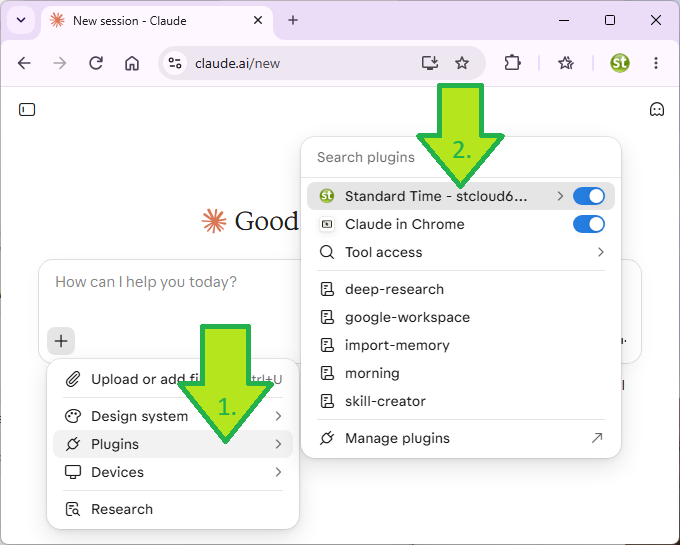
Open a new chat in Claude, either on claude.ai in your browser or in the Chat area of Claude Desktop. Use Chat, not the Code area. Click +, choose Plugins, and make sure Standard Time is switched on.
Then describe the app in plain English and say that it should be read-only. Here is a request to start with:
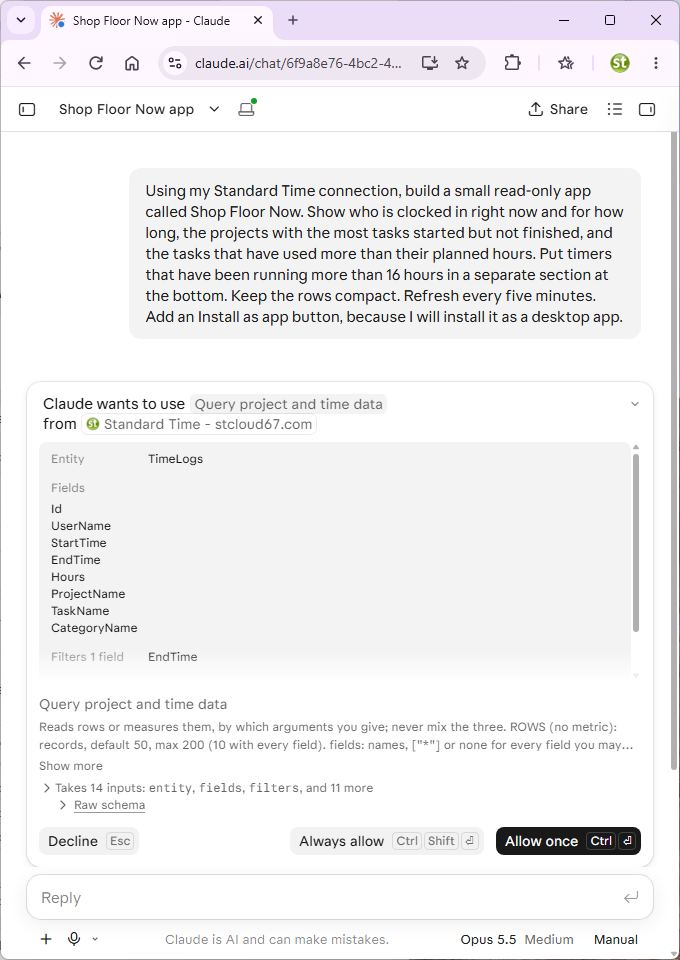
Before it builds anything, Claude looks up your data. The first time, it asks permission to use the Standard Time® tool called Query project and time data. This tool only reads, so it is safe to allow.
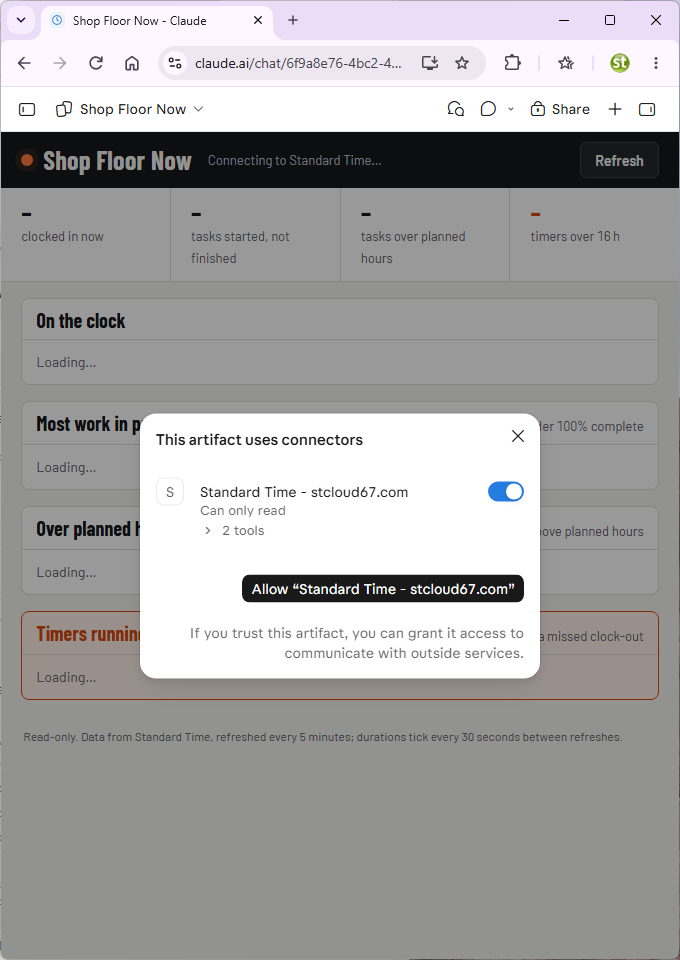
Claude then builds the page and publishes it, privately, so only you can see it. When you open it, the page asks whether it may use your Standard Time connection. The prompt says the page can only read. Click Allow.
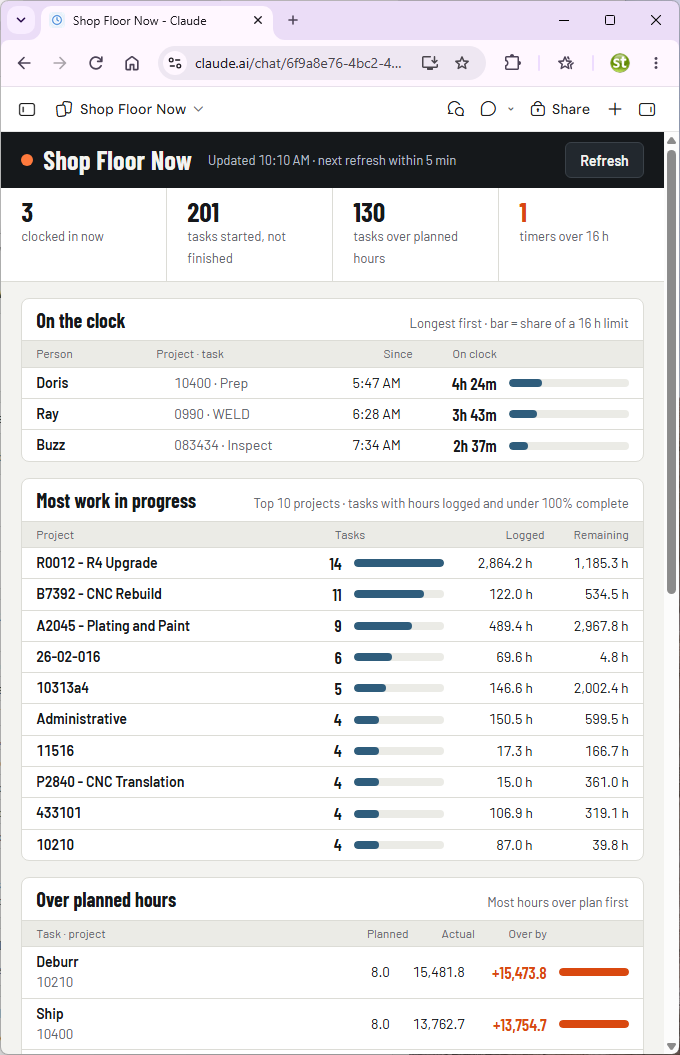
After you click Allow, the page fills with your data.
Step 2: Open It in Claude Desktop
Installing works only from the Claude Desktop app. If you built the page in Claude Desktop, it is already open there, so go on to Step 3. If you built it on claude.ai in a browser, open Claude Desktop, switch to Chat, find your chat in the recent chats list, and click the Shop Floor Now card at the top of Claude's reply.
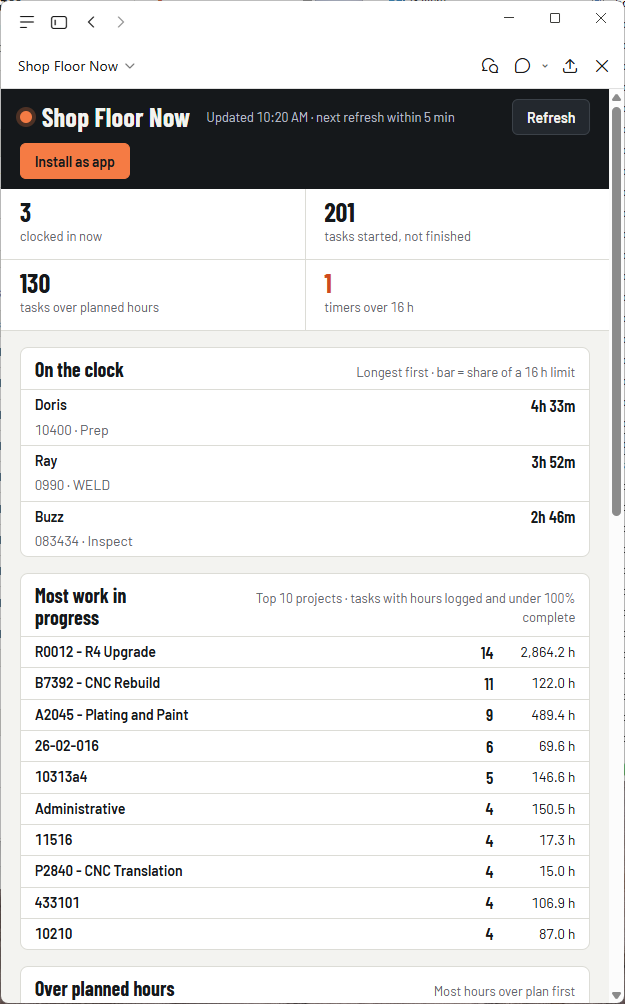
The page opens in Claude Desktop's main window, with an Install as app button near the top. A browser does not show that button.
Step 3: Install as App
- In Claude Desktop, with the page open in the main window, click the orange Install as app button near the top of the page. If your page has no such button, ask Claude: “Add an Install as app button.”
- Read the dialog, which shows the app's name, and click Install.
- The app opens in its own window and has its own icon on your taskbar (Windows) or Dock (Mac).
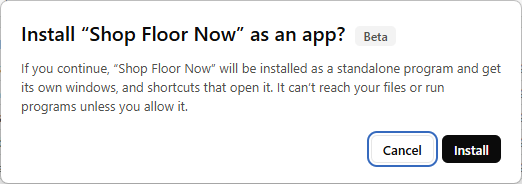
Installing does not grant the app any extra permissions. The app asks separately the first time it needs one.
Step 4: Allow Standard Time and Check the Numbers
Open the installed app from its icon. If Claude asks whether the app may use your Standard Time connection, allow it. The numbers then fill in.
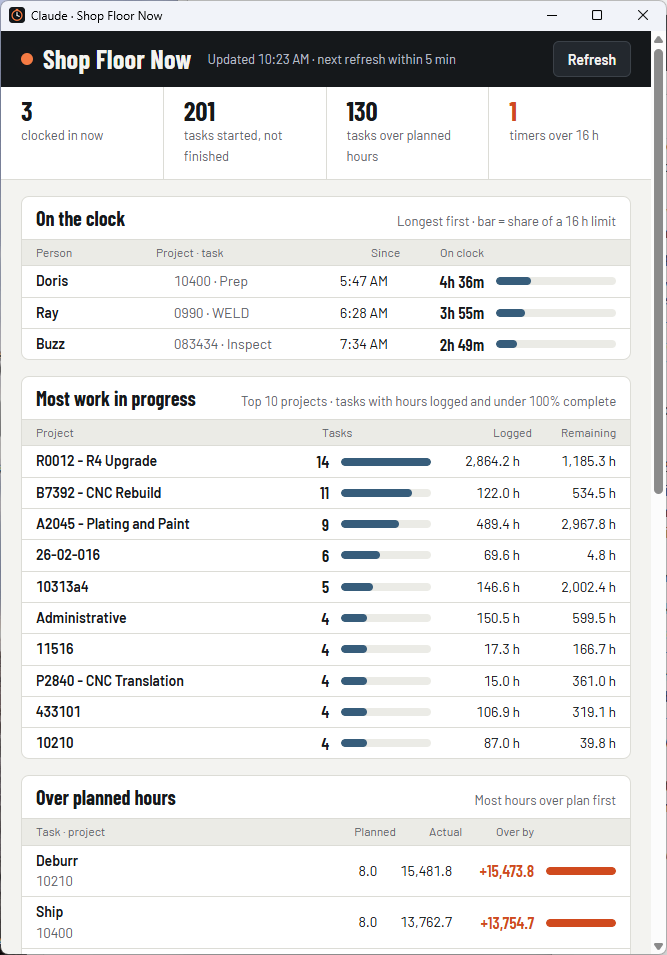
Check it once. Compare the people under On the clock with the Time Logs that have a start time but no end time, and compare the project list with your Project Tasks grid. If they match, the app is reading the right data.
The app refreshes on its own while it is open, and it shows when it last updated.
Changing Your App Later
You can add, remove or adjust features after the app is installed. Go back to the chat where Claude built it and ask for the change in plain words, the same way you asked for the app.
- Open the chat where you built the app, on claude.ai or in Claude Desktop.
- Ask for one change at a time, for example: “Remove the timers over 16 h tile from the row of counts at the top. Keep everything else the same.”
- Claude updates the page and says what it changed.
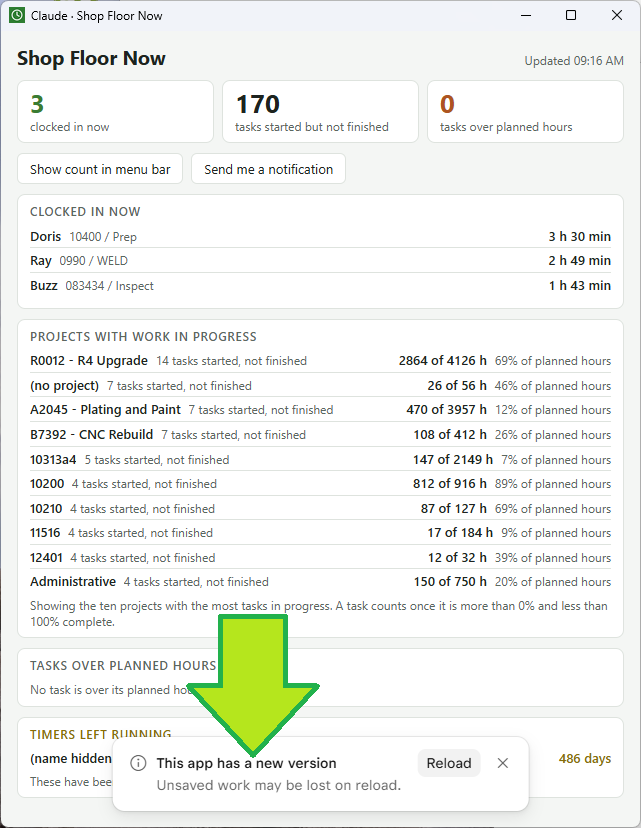
- Your installed app shows a notice that it has a new version. Click Reload to see the change.
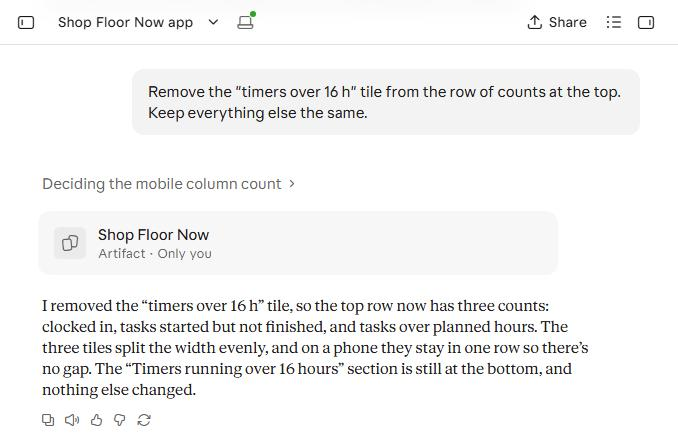
In the sample company, the row of counts went from four tiles to three. The installed app then showed the notice below, and clicking Reload switched it to the new version.
Other changes you can ask for
- Add something: “Add a tile for tasks due this week.”
- Remove something: “Remove the Over planned hours section.”
- Change how it looks: “Make the rows even more compact,” or “Refresh every ten minutes instead of five.”
- Undo a change: “Put the timers over 16 h tile back.”
What Does Shop Floor Now Show?
Shop Floor Now is a simple version of the idea behind the built-in WIP page: what is happening on the floor right now. It is not a copy of that page, and it leaves out assembly lines and upcoming jobs. Claude designs the screen each time, so yours may look and count a little differently. Ask Claude how it counted anything you are unsure about.
| Part of the screen | What it tells you |
|---|---|
| Clocked in now, and On the clock | Everyone with a timer running, with their project and task, when they started and how long they have been on. A bar shows each timer against a 16 hour limit. If you hid user names when you connected, you see stand-ins such as “User 1.” |
| Tasks started, not finished | Tasks that have hours logged and are less than 100% complete. |
| Most work in progress | The ten projects with the most of those tasks, with the hours logged so far and the hours remaining. |
| Over planned hours | Tasks whose actual hours are above their planned hours, with the biggest overruns first. It shows the first 15 and has a Show all button for the rest. It looks at every task, not only unfinished ones. The very large numbers in the screenshots come from the sample company's test data. |
| Timers over 16 h | Timers that have been running more than 16 hours, shown in orange at the bottom. These are usually a forgotten clock-in, so they are not counted as clocked in. |
Starter Prompts
Copy one of these into a chat with the Standard Time switch on, then follow Steps 2 to 4. Change the names and numbers to suit you.
Shop Floor Now Installed and working
Overdue and status board Built and tested
Resource workload Not yet tried
Hours against plan Not yet tried
Schedule builder Not yet tried
Menu Bar and Notifications
An installed app can also ask for extras that a normal web page cannot have, such as a small item in the menu bar (the system tray on Windows) or desktop notifications. You can ask for them when you build the app, for example:
Each extra asks for your permission the first time it is used, and you can turn it off later from the app's permissions. Claude asks again when the app is changed.
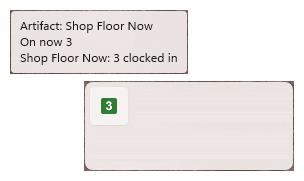
Once it is allowed, the app puts a small icon into the system tray, the group of small icons beside the clock on the taskbar. In this example it is a green square with the number of people clocked in. Windows may hide it behind the small up arrow (^), so look there first. Pointing at it shows a tooltip with the same count.
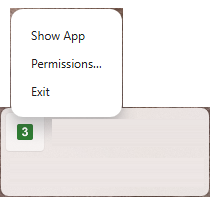
Right-click the icon for its menu. Show App brings the window back, Permissions... opens the app's Permissions dialog, and Exit quits the app completely.
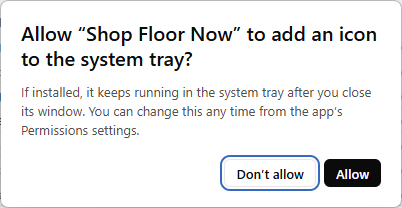
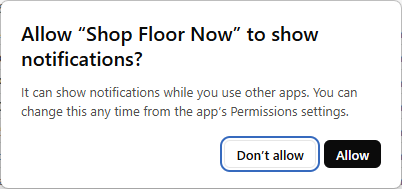
Notifications have their own permission request. The first time the app sends one, Claude asks:
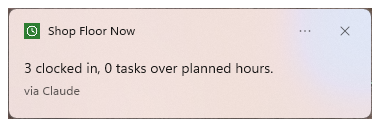
After you allow it, the notification button sends a message to Windows, which shows it like any other notification:
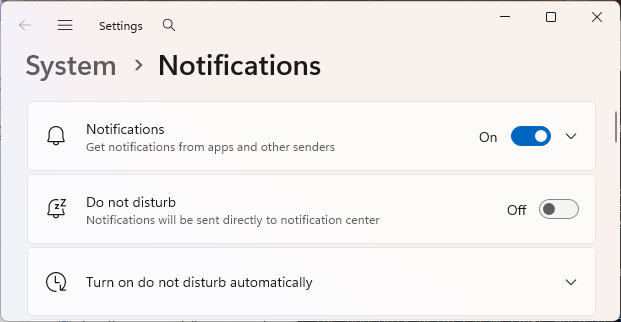
If you click Don't allow by mistake
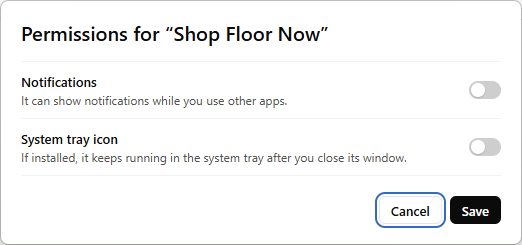
Claude remembers a "Don't allow," and the extra then fails with a permission error instead of asking again. To change your mind, open the app's permissions, switch the extra on, and save. An app with a Manage permissions button can open that dialog for you; the one shown here has one.
Is It Safe? What the App Can and Cannot Do
An app cannot do more than your Claude Chat connection allows. Every limit from the main guide still applies, because the app is only another way of using that same connection.
| Question | Answer |
|---|---|
| Whose rights does it use? | The person who signed in when connecting. It sees only what that person may see, and rights are checked on every request. |
| Can I hide costs and names? | Yes. Choose to hide cost and rate fields and user names when you connect, and the app never receives them. |
| Can it change my data? | Only if the connection allows writing and you asked for that. Changes are always previewed first, and nothing is saved until you approve it. |
| Can it delete anything? | No. The connection never deletes or merges records. |
| Can I shut it off? | Yes. Revoke the connection in Tools › Integration › MCP Server under Connected apps. The app loses access at once. |
| Who can read the app's code? | It lives in your Claude account. Treat anything you tell Claude to build into it as visible to you and to Claude. Do not paste passwords or keys into a request. |
Tips and Troubleshooting
Whenever you or Claude change an app, an installed copy shows a notice at the bottom of its window. Click Reload to switch to the new version. Anything you had typed into the app and not saved is lost on reload.
| What you see | Likely cause and fix |
|---|---|
| There is no Install as app button | Update Claude Desktop, and open the page in the Desktop main window, not in a browser, or ask Claude to add an Install as app button. On a team or enterprise plan, ask your Claude administrator whether installing apps is turned on. |
| The app says Standard Time is not connected | Connect it in Claude first (see the connection steps), then reopen the app. |
| The app asks you to sign in again | The connection went unused for about 30 days, or reached its roughly six-month limit. Sign in again from the connector page in Claude. |
| The numbers are empty | The app may not be allowed to read Standard Time. Check the app's permissions, and check that the Standard Time connector still shows Connected in Claude. |
| The numbers look wrong | Ask Claude to show how each figure is worked out, and compare with the grid in Standard Time®. Cost fields are blank if you chose to hide them. |
| The app says "This app has a new version" | The app was changed since you installed it. Click Reload. Claude may then ask again for any permission the app uses. |
| The menu bar or notification button shows a permission error (EPERM) | You clicked Don't allow earlier, and Claude remembers it. Open the app's permissions, switch the extra on, and save (see Menu Bar and Notifications). |
| The app asks for a permission again | Claude asks again when an app is changed. If you decline an extra, the app should still work without it. |
| Claude is slow or reports a rate limit | A single connection is limited to 120 requests per minute. Wait a moment, or ask for a longer refresh interval. |
Quick Answers
Can I get a desktop app for Standard Time from Claude?
Yes, in a limited way. Claude can build a small app from your own Standard Time® data, such as a project dashboard, and Claude Desktop can install it as an app on Windows or Mac. It does not replace Standard Time®; it gives administrators quick views and alerts on the desktop.
Does the app change my data?
Not unless you ask it to. An app built to read only can never change anything. An app that proposes changes still shows a preview first, and nothing is saved until you approve it.
Who can build one?
An administrator who has connected Claude to Standard Time® cloud and uses Claude Desktop. By default only an administrator can approve the Claude sign-in.
Do my staff need Claude accounts?
Yes. Each person who uses an app needs their own Claude account and their own Standard Time® connection, and the app's use of Claude counts toward that person's Claude usage.
Does it work with an on-premise install?
No. It is available for Standard Time® cloud accounts only.
- Connect Claude Chat to Standard Time® (MCP Server) — the connection this app uses
- Smoke-Test Your Claude Chat Connection — a 10-minute checklist to prove it works
- Connect ChatGPT to Standard Time® (MCP Server) — the same connection works with ChatGPT, though the desktop app steps on this page are for Claude
- AI for Manufacturing — compare the built-in AI Chat, Claude Chat, and ChatGPT
- What AI Can't Do in Standard Time® — the honest limits
- OData & Power BI — dashboards and reporting across thousands of records
- Integrations
- FAQ: Integrations & Data