6 May 2026
7 Steps to Set Up a Big-Screen TV for WIP
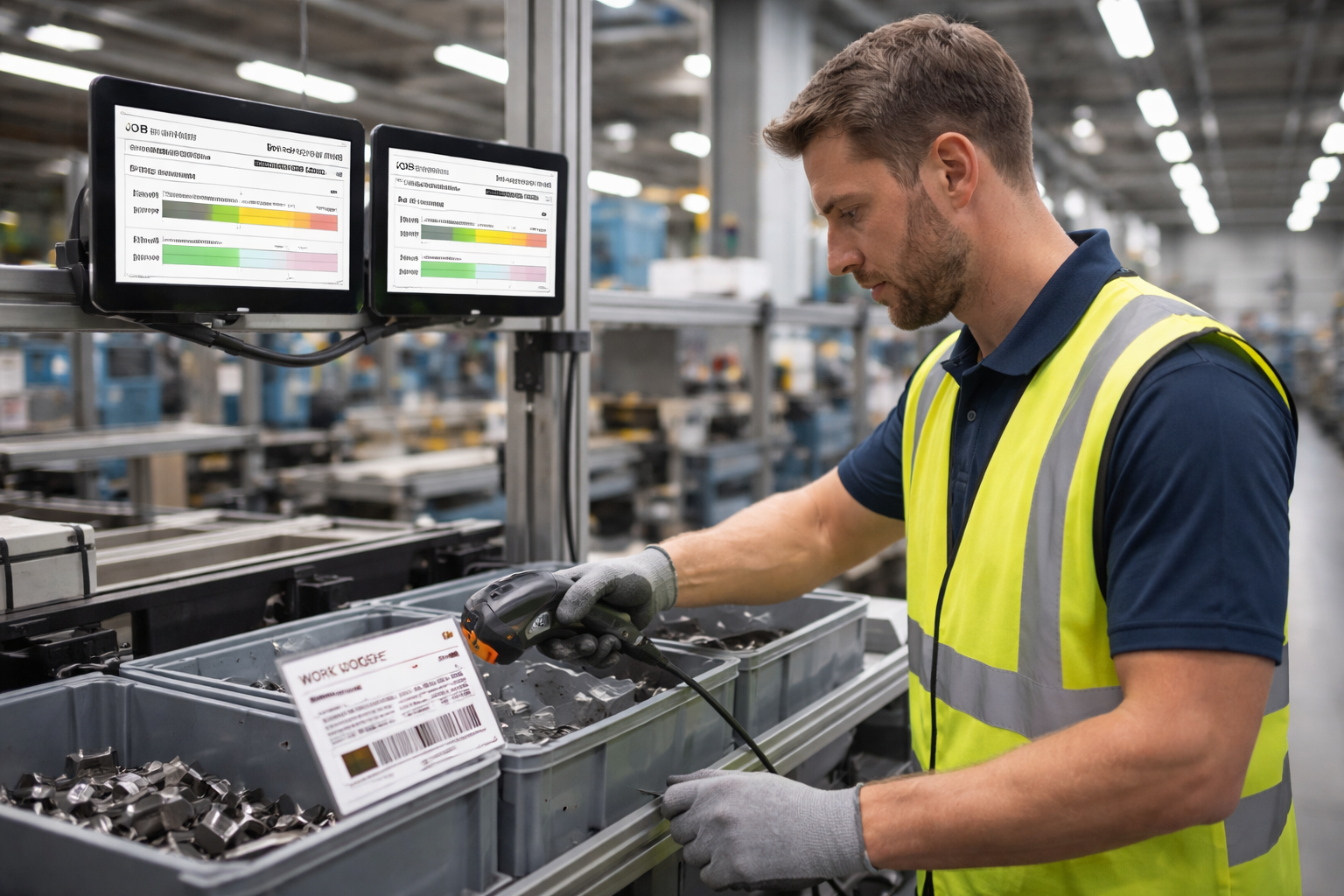
A big-screen TV on the shop floor showing live Work In Progress data keeps every employee, supervisor, and manager aligned — without a single status meeting. Here is how to get one running in minutes using a Chromebook and Standard Time®.
-
1
Connect a Big-Screen TV to a Chromebook with HDMI
Mount your TV on the wall or position it where the shop floor crew can see it, then run an HDMI cable from the TV to your Chromebook. The Chromebook is an ideal driver for this setup — it boots in seconds, never needs antivirus updates, and runs the Standard Time® cloud site natively in Chrome. Select the correct HDMI input on the TV and the Chromebook desktop will appear immediately.
-
2
Open the Standard Time® Cloud Site
On the Chromebook, open Chrome and navigate to your Standard Time® cloud instance. Log in with credentials that have at least read access to Work In Progress data. For a dedicated display station, consider creating a named display account so the login is never shared with a personal user account.
-
3
Navigate to the Work In Progress Page
Inside Standard Time®, go to View > Work In Progress (WIP). This page shows every active job on the shop floor in real time — which work orders are open, which employees are clocked in, which tasks are in progress, and how long each job has been running. This is the view that will live on your TV.
-
4
Configure Filters and Columns
Trim the WIP view down to exactly what your team needs to see. Use the column picker to show the fields that matter most — work order number, employee name, task, elapsed time, due date — and hide everything else. Apply filters to limit the display to active jobs or a specific department. Less clutter means faster comprehension at a glance from across the room.
-
5
Turn On Auto-Refresh
Enable auto-refresh so the WIP page updates itself automatically without anyone touching the keyboard. Standard Time® will periodically pull the latest data from the server, keeping the TV display current as employees clock in and out throughout the shift. No manual refreshing, no stale data on the screen.
-
6
Increase the Font Size for Readability at a Distance
A TV viewed from ten or twenty feet across a shop floor needs larger text than a desktop monitor six inches from your face. In Chrome, press Ctrl + repeatedly to zoom in until the text is comfortably readable from the farthest point where employees will be standing. You may also adjust the TV's own display settings — sharpness and contrast — to improve legibility under shop floor lighting conditions.
-
7
Choose View > Full Screen to Fill the Screen
Press F11 (or select the three-dot menu in Chrome and choose Full screen) to remove the browser's address bar, tabs, and toolbars. The WIP page now fills every pixel of the TV. Tuck the Chromebook out of sight and you have a clean, professional shop floor dashboard that updates itself all day long — no interaction required.
Why This Setup Works
- Zero maintenance — Chromebooks update silently in the background and never slow down over time.
- Always current — auto-refresh means the TV reflects actual shop floor activity, not a snapshot from the morning huddle.
- No extra hardware — any HDMI TV and an entry-level Chromebook is all you need.
- Instant visibility — supervisors and employees can see job status from anywhere on the floor without logging in or asking anyone.