What Is an API Connection?
Many systems you already own — door controllers, ERP and accounting packages, training databases, quality systems, license servers — can be asked questions over the web. The way they accept those questions is called an API. An API connection in Standard Time® is a saved record that holds three things:
- Where to call — the web address of the other system.
- How to sign in — an API key, bearer token, or user and password.
- How to judge the reply — simple rules that turn whatever comes back into GO, NO GO, or UNKNOWN (no usable answer).
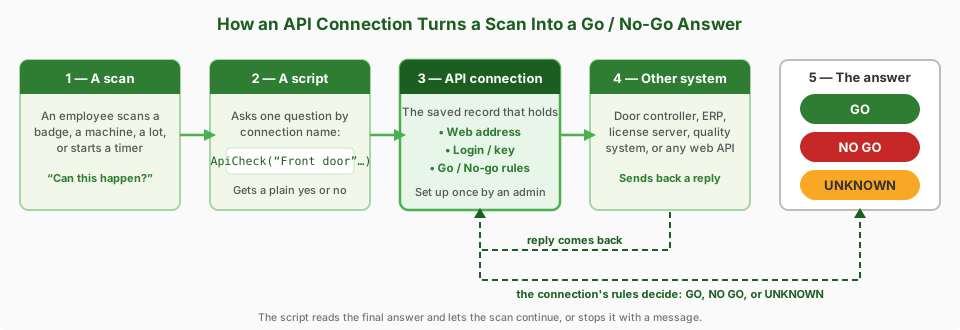
A script uses the answer the same way a can this person log time? script does: 1 means proceed, 0 means stop and show a message. That makes an API connection a drop-in way to let an outside system say yes or no to something happening on the shop floor.
Opening API Connections
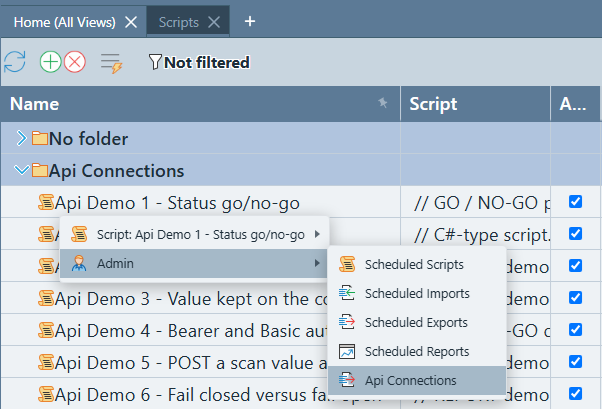
API connections are managed by administrators. Right-click any row in the Scripts grid, choose Admin, then API Connections. (The same Admin menu also lists Scheduled Scripts, Imports, Exports, and Reports.)
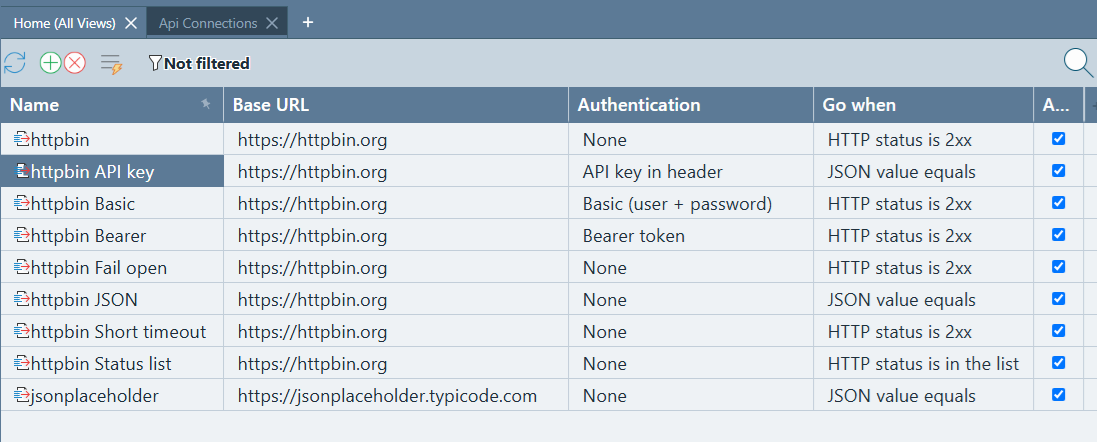
The grid lists every saved connection with its Name, Base URL, Authentication type, Go when rule, and an Active check box. The secret key or password is never shown in the grid.
Creating a Connection
Give each connection a name that says what it is for — Front door, ERP orders, Training - Press Brake. Scripts refer to the connection by this name, so keep it short and stable.
- Open the grid (Admin › API Connections).
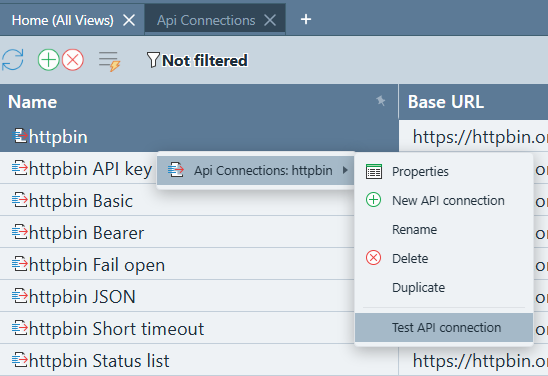
- Click the green + in the toolbar, or right-click and choose New API connection.
- Enter a unique Name and the other system's Base URL in the Properties panel.
- Choose the Authentication type and enter the key or password.
- Choose the Go when rule that tells Standard Time® what a good reply looks like.
- Fill in a Test path, then right-click the connection and choose Test API connection (see Testing).
The right-click menu on a connection has everything you need to manage it:
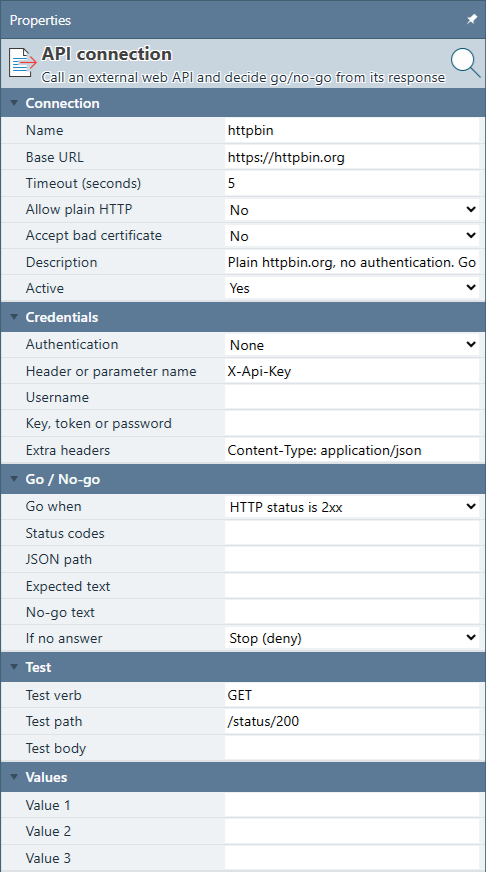
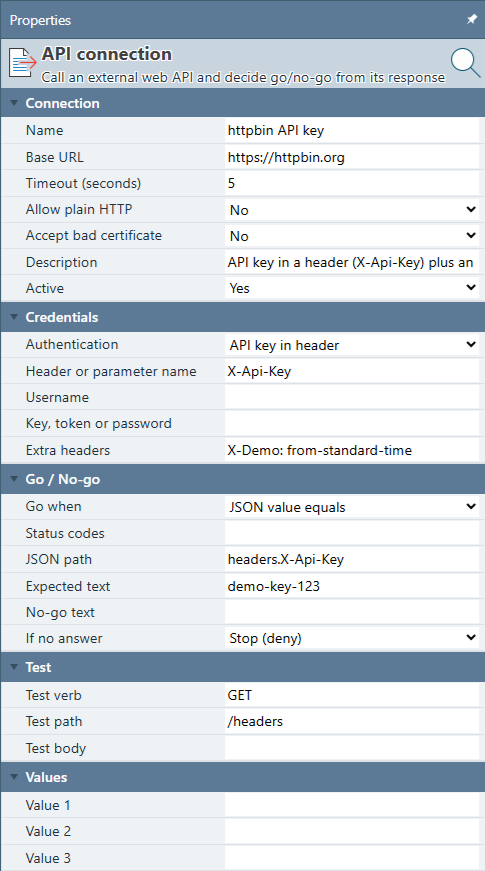
Here is a plain connection with no sign-in, which checks only that the other system answers with a good status. It is the simplest possible setup and a good first test:
Property Reference
The Properties panel groups settings into five categories: Connection, Credentials, Go / No-go, Test, and Values.
Connection
| Property | What it does |
|---|---|
| Name | The unique name scripts use to call this connection. Renaming a connection breaks any script that still uses the old name, so rename carefully. |
| Base URL | The address of the other system, up to where your questions begin — for example https://doors.example.com/api/v1. It must start with https:// unless you turn on Allow plain HTTP. Scripts add a path to the end of it. |
| Timeout (seconds) | How long to wait for a reply before giving up. Default 5; the most you can set is 60. Keep it short for scan stations, because a person is standing there waiting. |
| Allow plain HTTP | No by default. Plain http:// sends everything unencrypted, so only turn it on for a device on your own private network that cannot do https. |
| Accept bad certificate | No by default. Some small devices use a self-signed security certificate. Turning this on lets Standard Time® talk to them anyway; use it only for equipment you control on your own network. |
| Description | Free-text notes for administrators — what the connection is for, who owns the other system, which scripts depend on it. |
| Active | Yes by default. Turning it off makes the connection unusable. Important: a turned-off connection counts as no answer, so what happens next is decided by If no answer. See the warning under How the Answer Is Decided. |
Credentials
Choose how Standard Time® proves who it is to the other system. The Authentication dropdown offers five choices:
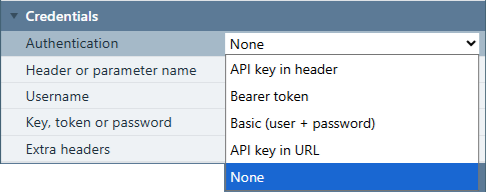
| Choice | How it signs in |
|---|---|
| API key in header | Sends your key in a named header. The header name defaults to X-Api-Key; change Header or parameter name if the other system uses a different one. |
| Bearer token | Sends the token as Authorization: Bearer. Common for modern web services. Enter the token in Key, token or password. |
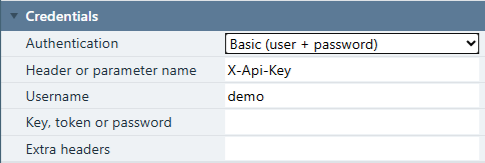
| Basic (user + password) | Sends a user name and password. Fill in Username and Key, token or password. |
| API key in URL | Adds the key to the end of the web address, using Header or parameter name as the parameter name. Standard Time® hides the key in any message it shows. |
| None | Sends no credentials. Fine for public services and for devices that only check your network. |
| Property | What it does |
|---|---|
| Header or parameter name | The name of the header (or URL parameter) that carries an API key. Used by API key in header and API key in URL. |
| Username | Used only by Basic authentication. |
| Key, token or password | The secret. It is stored once and never shown again — the field always looks blank when you reopen the record. To change it, type the new value and save. Leaving it blank on a later save does not erase the stored secret. |
| Extra headers | Any other headers the other system wants, one per line as Name: value — for example Content-Type: application/json. Do not put keys or passwords here. This field is visible to anyone who can open the record; use Key, token or password instead. |
Go / No-go
These settings are the heart of the connection. They tell Standard Time® what a good reply looks like.
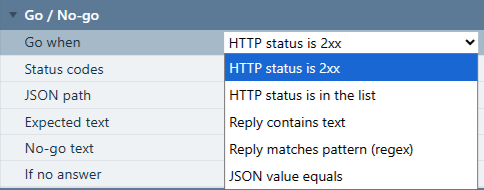
| Go when | It is a GO if… | Also fill in |
|---|---|---|
| HTTP status is 2xx | The other system replied with any success status (200 through 299). The simplest rule, and the default. | Nothing else |
| HTTP status is in the list | The reply's status number is one you listed — handy when a system uses specific codes such as 200 for “allowed” and 403 for “denied”. | Status codes — for example 200, 204 |
| Reply contains text | The reply was successful and contains your text somewhere. Upper and lower case are treated the same. | Expected text |
| Reply matches pattern (regex) | The reply was successful and matches a pattern you write. For people comfortable with pattern matching; the most flexible rule. | Expected text (the pattern) |
| JSON value equals | The reply was successful and one named value inside it equals what you expect. Best for doors and permissions because it is exact. See the picture under How the Answer Is Decided. | JSON path and Expected text |
| Property | What it does |
|---|---|
| Status codes | The list of acceptable status numbers, separated by commas, spaces, or semicolons. Used only by HTTP status is in the list. |
| JSON path | Where to look inside a JSON reply, such as data.result or results[0].status. Used only by JSON value equals. |
| Expected text | What the reply must contain, match, or equal. For JSON value equals you can list several good answers separated by a bar: granted|approved. |
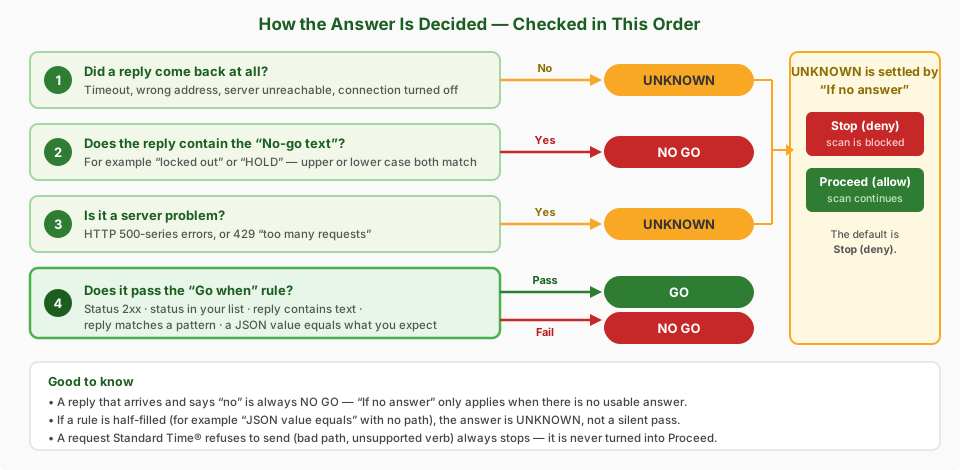
| No-go text | Optional. If the reply contains this text, the answer is NO GO, whatever else it says. A good safety net — for example locked out or HOLD. It is checked first. |
| If no answer | Stop (deny) or Proceed (allow). What to do when there is no usable answer at all. Defaults to Stop. See the next section to choose well. |
Test
| Property | What it does |
|---|---|
| Test verb | The kind of request the Test command sends: GET (the default), POST, PUT, PATCH, DELETE, or HEAD. GET simply asks for information; the others send or change information, so prefer a harmless GET for testing. |
| Test path | The part added to the Base URL for testing — for example /status. Choose something harmless that reflects whether the system is healthy. |
| Test body | Text sent with a POST, PUT, or PATCH test. Usually left blank. |
Values
| Property | What it does |
|---|---|
| Value 1, 2, 3 | Three free-text notes kept on the connection — a site code, a door number, a work-area name. A script reads them back, so one script can serve many connections, each carrying its own door or area. See the “Training check” example below. |
How the Answer Is Decided
Every call ends in one of three answers: GO, NO GO, or UNKNOWN. Standard Time® works through the checks below in order and stops at the first one that applies.
Reading one value out of a reply
Most modern systems reply in a format called JSON. With JSON value equals you point at the one value that matters and say what it must be. Everything else in the reply is ignored.
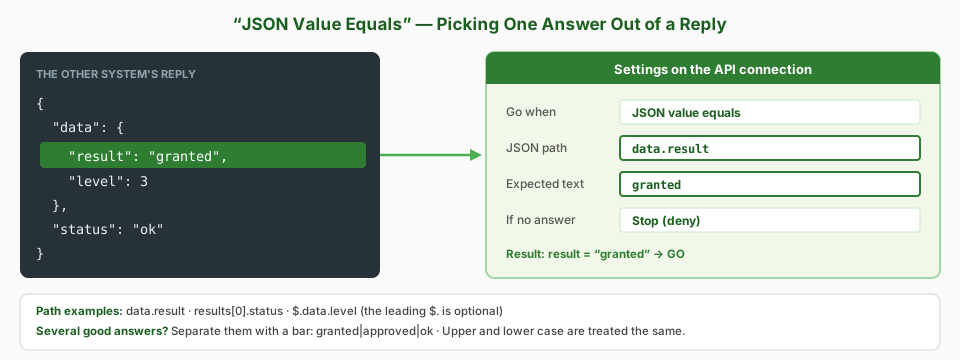
data.result finds the highlighted value; granted is the answer you will accept.Choosing Stop or Proceed
If the other system is switched off, the network is down, or the reply is an error, there is no answer to judge. If no answer decides what the scan does.
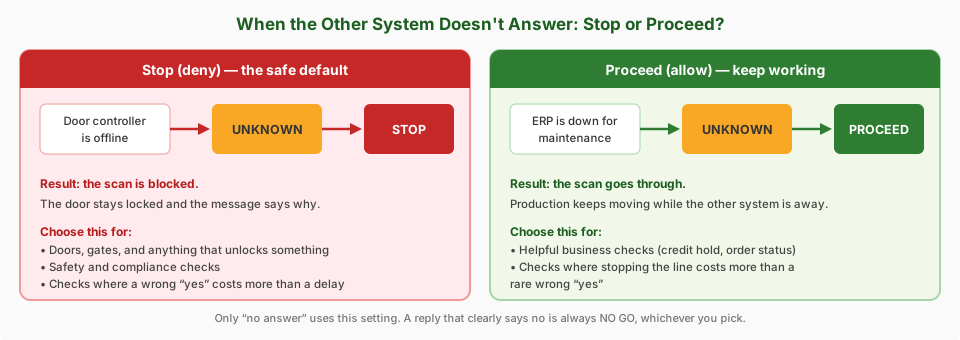
Testing the Connection
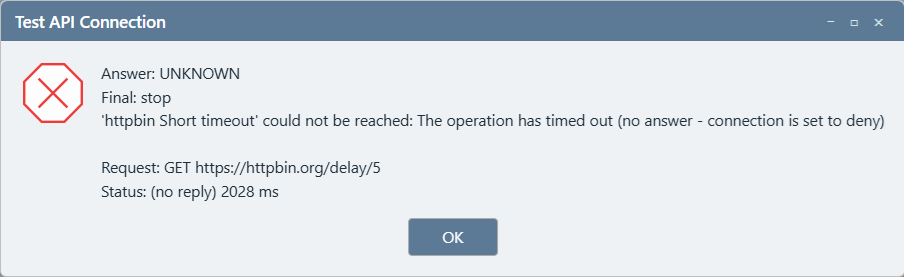
Always test before a script depends on a connection. Right-click the connection and choose Test API connection. Standard Time® sends the saved test request and shows how the rules judged the reply. The dialog tells you:
- Answer — GO, NO GO, or UNKNOWN, as the rules judged the reply.
- Final — proceed or stop, after If no answer has been applied.
- A one-line explanation, the request that was sent (with any secret key hidden), the status number, and how long the reply took.
- The start of the reply text, when there is one.
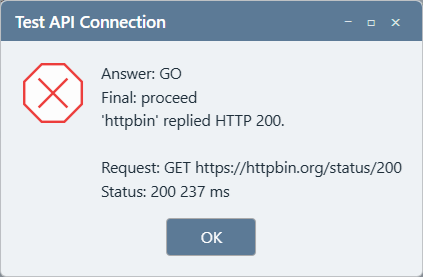
When the other system cannot be reached, the answer is UNKNOWN. Here the connection is set to Stop, so the final result is stop:
| What you see | Likely cause and fix |
|---|---|
| “No base URL is set” | Enter the other system's address in Base URL. |
| UNKNOWN — “could not be reached” / timed out | Wrong address, the other system is off, a firewall is in the way, or Timeout is too short. Try opening the same address in a browser from the same network. |
| UNKNOWN — “base URL is plain http://” | Switch the address to https://, or turn on Allow plain HTTP if the device cannot do https. |
| UNKNOWN — a setting is empty | The chosen Go when rule needs a value you have not entered, such as the JSON path or Expected text. Fill it in. |
| UNKNOWN — HTTP 500-series or 429 | The other system had a problem or is rate-limiting you. Try again later; this is not a rule problem. |
| NO GO — HTTP 401 or 403 | The key, token, or password is wrong or lacks permission. Re-enter the secret and check it with the other system's administrator. |
| NO GO — “expected …” | The reply arrived but was not what the rule accepts. Compare the reply text in the dialog with your Expected text and JSON path. |
Calling a Connection From a Script
A connection does nothing until a script calls it. Scripts live in the Scripts grid. To call connections, set the script's Type to JavaScript or C Sharp — SQL scripts cannot make API calls.
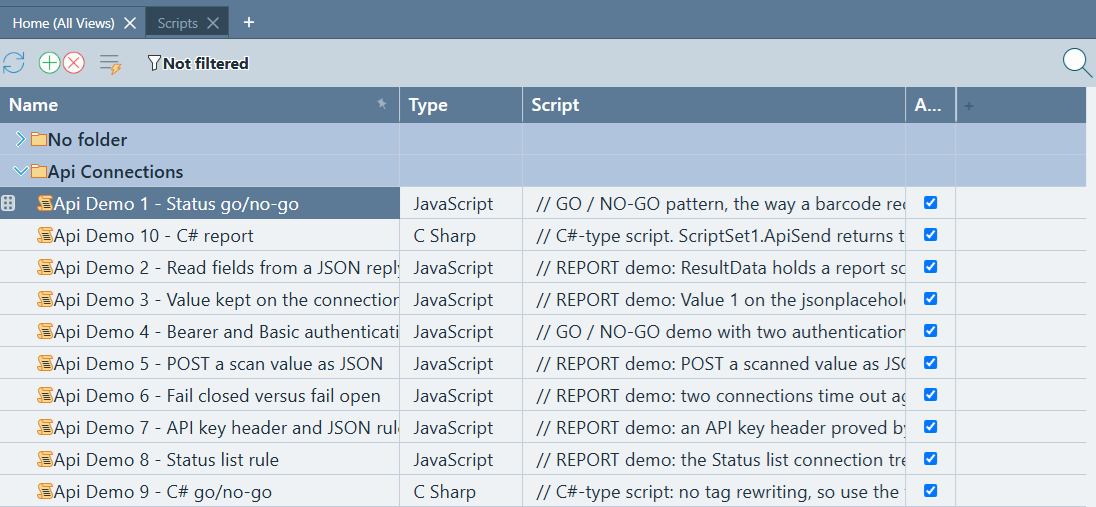
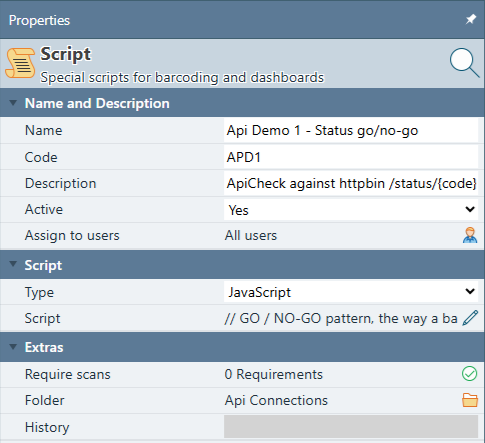
The calls a script can make
| Call | What it does |
|---|---|
| ApiCheck(connection, verb, path, body) | Calls the other system and returns true for GO (or an allowed “no answer”) and false otherwise. The everyday go / no-go call. Use "GET" to ask, "POST" to send; body can be "". |
| ApiSend(connection, verb, path, body) | Calls the other system and gives you the reply text, so your script can decide what it means. Use it to read values or to send information with no question attached. |
| ApiGetValue(reply, path) | Pulls one value out of a JSON reply, using the same path style as JSON path. Returns blank if it is not there; ApiMessage then says why. |
| ApiValue(connection, 1–3) | Reads Value 1, 2, or 3 kept on the connection. |
| ApiEncode(text) | Makes a value safe to put in a web address. Always wrap scanned or typed values in this when building a path. |
| ApiJson(text) | Makes a value safe to put inside a JSON message you are sending. Always wrap scanned or typed values in this when building a body. |
| ApiStatus, ApiMessage, ApiBody | What happened on the most recent call: the status number, a plain-English explanation, and the reply text. |
The connection is the name you gave it. The path is added to the connection's Base URL, and must be a relative path such as /doors/12/authorize — never a full web address.
The go / no-go pattern
Scripts report their answer through two values: ResultData ("1" = proceed, "0" = stop) and ResultData2 (the message shown when stopping). The standard pattern:
if (ApiCheck("httpbin", "GET", "/status/200", ""))
{
    ResultData = "1";
}
else
{
    ResultData = "0";
    ResultData2 = ApiMessage;
}
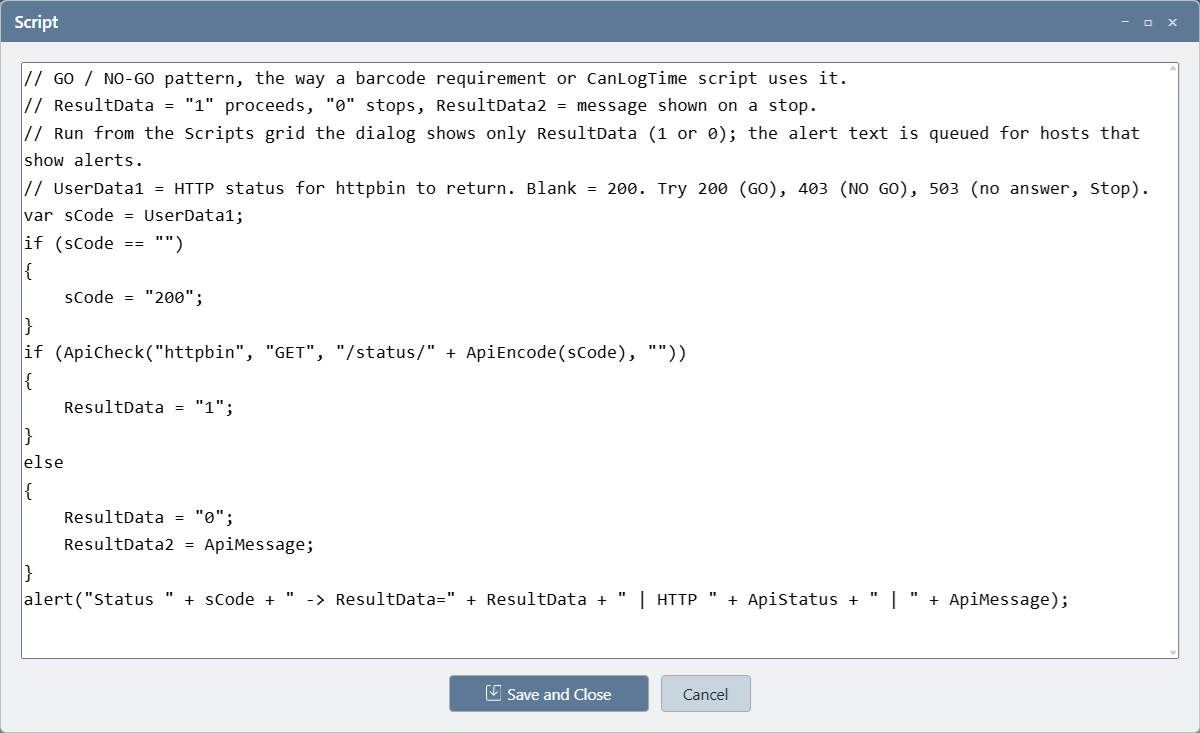
ApiCheck decides, and ResultData carries the answer back.C Sharp scripts do the same job. The only difference is that each call is written with ScriptSet1. in front of it:
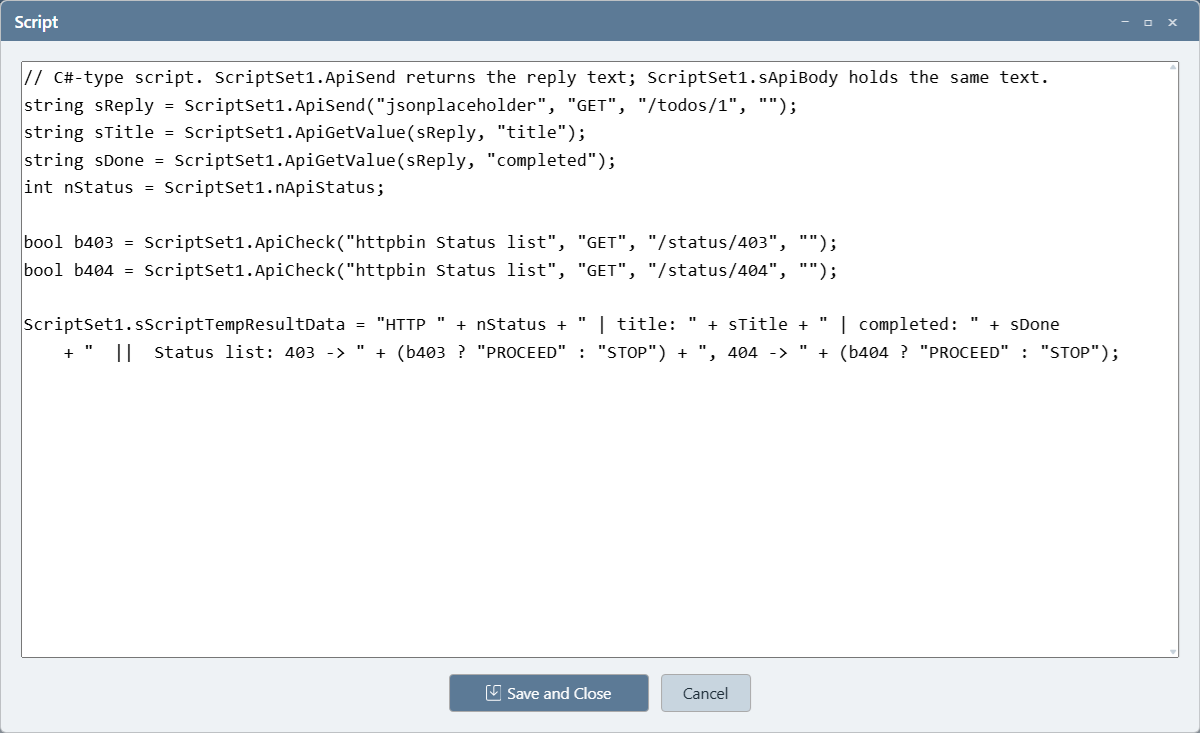
ApiCheck directly inside an if, as shown above. Storing its answer in a var first (for example var ok = ApiCheck(...)) will not work in a JavaScript script. If you need to remember the answer, store a word such as "PROCEED" or "STOP" instead.
Where scripts that use connections can run
- Barcode requirement scripts — decide whether a scanned value is acceptable (see Barcode Required Scans). The scanned value is
UserData1. - Can-log-time scripts on projects and project tasks — let an outside system approve or refuse time being logged.
- Barcode rule action scripts (see How to Use Barcode Rules) — do something when a rule fires, such as notify another system. These cannot stop the scan, and the scan that triggered the rule is
UserData4. - Scheduled scripts — call a system on a timer.
- The Scripts grid itself — run any script by hand to try it out. The run dialog shows the
ResultDataanswer (1 or 0).
Example Calls: What Could You Ask?
Once a connection exists, the question you ask is limited only by what the other system can answer. Some of these ideas ask a question and gate the scan (green); others send information out (amber). Use them as starting points and adapt them to your systems.
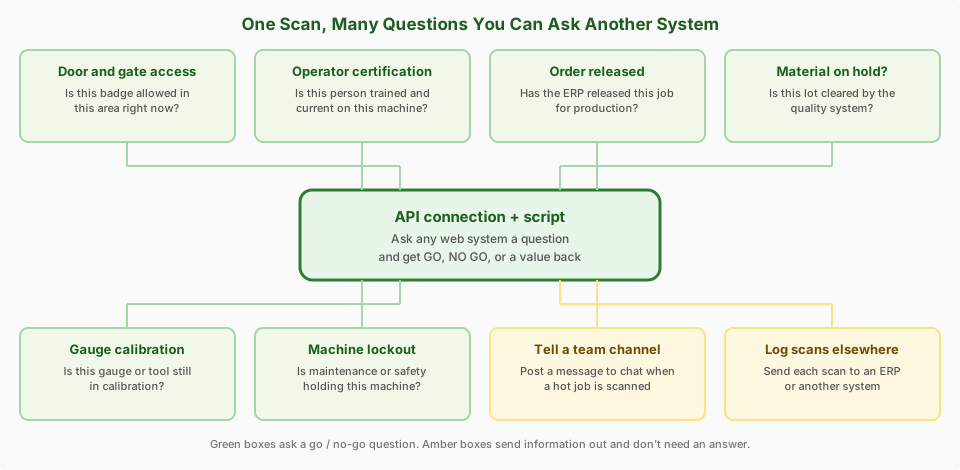
/credentials/…/authorize or data.result are made up for the examples. Every real system names these differently — check the other system's own documentation (or ask its vendor) for the real ones, and test each with Test API connection before use. Scripts here are written for the JavaScript type.
1. Door or gate: is this badge allowed in?
“Employee 4417 just scanned at the clean-room door. May they enter right now?”
A badge scan is sent to the door controller's access system; it replies granted or denied. Because this unlocks something, it stops when the system doesn't answer, and a “locked out” reply is a no-go even if the rest looks fine.
| Base URL | https://doors.example.com/api/v1 |
| Authentication | Bearer token |
| Timeout | 3 seconds |
| Go when | JSON value equals — path data.result, expected granted |
| No-go text | locked out |
| If no answer | Stop (deny) |
if (ApiCheck("Front door", "POST", "/credentials/" + ApiEncode(UserData1) + "/authorize", "{}"))
{
    ResultData = "1";
}
else
{
    ResultData = "0";
    ResultData2 = ApiMessage;
}
Why it's powerful: the same pattern works for any gate, turnstile, tool crib cabinet, or locker system that can answer a web request. Keep the door hardware's own list of approved badges as a backup — this check is for “allowed now,” not a replacement for the lock.
2. Order released: has the ERP cleared this job?
“Someone scanned job 10244 to start a timer. Has purchasing or planning actually released it for production?”
Stops employees logging hours to jobs that are still on credit hold, waiting on material, or not yet approved. Here the check is helpful but shouldn't halt the floor if the ERP is down for maintenance, so it proceeds on no answer. Two good statuses are accepted by separating them with a bar.
| Base URL | https://erp.example.com/api |
| Authentication | API key in header |
| Go when | JSON value equals — path status, expected Released|In Production |
| If no answer | Proceed (allow) |
if (ApiCheck("ERP orders", "GET", "/orders/" + ApiEncode(UserData1) + "/status", ""))
{
    ResultData = "1";
}
else
{
    ResultData = "0";
    ResultData2 = "This job is not released yet. " + ApiMessage;
}
Spin-offs: check a customer's credit status, confirm a purchase order is approved before logging expenses, or verify a work order is still open.
3. Training check: is this operator certified for this work area?
“Employee 4417 scanned onto the press brake. Is their certification current?”
Make one connection per work area — Training - Press Brake, Training - Welding — and store the area code in Value 1 of each. One script then serves every area: it reads the area code from the connection it is asked to check.
| Name | Training - Press Brake |
| Base URL | https://training.example.com/api |
| Value 1 | PB-01 (this area's code) |
| Go when | JSON value equals — path current, expected true |
| If no answer | Stop (deny) |
var sArea = ApiValue("Training - Press Brake", 1);
if (ApiCheck("Training - Press Brake", "GET", "/certifications/" + ApiEncode(UserData1) + "/" + ApiEncode(sArea), ""))
{
    ResultData = "1";
}
else
{
    ResultData = "0";
    ResultData2 = "Certification not current for this area.";
}
Why it's powerful: to add the next work area, Duplicate the connection, rename it, and change Value 1. No new script is needed.
4. Material lot: is it cleared by quality?
“This lot label was scanned onto a job. Is the lot released, or is it on hold?”
A lot that a quality system marks hold or quarantine should never be consumed. This example uses the pattern rule to accept either released or approved as the disposition, with a no-go word as a second safety net.
| Go when | Reply matches pattern — "disposition"\s*:\s*"(released|approved)" |
| No-go text | quarantine |
| If no answer | Stop (deny) |
if (ApiCheck("Quality lots", "GET", "/lots/" + ApiEncode(UserData1), ""))
{
    ResultData = "1";
}
else
{
    ResultData = "0";
    ResultData2 = "Lot " + UserData1 + " cannot be used. " + ApiMessage;
}
Spin-offs: certificates of conformance on file, first-article approval complete, customer-supplied material received and inspected.
5. Gauge or tool: is its calibration still current?
“Someone scanned micrometer MIC-22 onto an inspection. Is it in calibration?”
Some systems answer with a status number rather than a message: 200 for “current” and a different code for “overdue.” The status list rule fits that style perfectly, with no reading of the reply text at all.
| Go when | HTTP status is in the list — status codes 200 |
| If no answer | Stop (deny) |
if (ApiCheck("Calibration", "GET", "/gauges/" + ApiEncode(UserData1) + "/status", ""))
{
    ResultData = "1";
}
else
{
    ResultData = "0";
    ResultData2 = "Gauge " + UserData1 + " is not in calibration.";
}
6. Machine lockout: is maintenance or safety holding it?
“An operator scanned onto lathe 7. Is it tagged out for repair?”
Here the No-go text does the work. The maintenance system replies with a record for the machine; if it mentions lockout anywhere, the answer is NO GO no matter what else it says.
| Go when | HTTP status is 2xx |
| No-go text | lockout |
| If no answer | Stop (deny) for safety |
if (ApiCheck("Maintenance", "GET", "/machines/" + ApiEncode(UserData1), ""))
{
    ResultData = "1";
}
else
{
    ResultData = "0";
    ResultData2 = "Machine is locked out. " + ApiMessage;
}
Spin-offs: an open safety incident on the work cell, a failed daily startup inspection, a sensor flagging a guard that is open.
7. Badge level: is the person high enough?
“This task needs a level 3 or level 4 technician. What level is the person who scanned?”
When one equals-this rule isn't enough, ask for the reply with ApiSend, pull out a value with ApiGetValue, and let the script apply any logic you like — here, “level 3 or level 4.”
var sReply = ApiSend("Badge server", "GET", "/badges/" + ApiEncode(UserData1), "");
var sLevel = ApiGetValue(sReply, "data.level");
if (ApiStatus == 200 && (sLevel == "3" || sLevel == "4"))
{
    ResultData = "1";
}
else
{
    ResultData = "0";
    ResultData2 = "Level 3 or 4 required. " + ApiMessage;
}
Why it's powerful: the connection fetches; the script thinks. Combine several values — department and level and expiry — in one decision.
8. Tell a team channel when a hot job is scanned
“A rush job just started. Let the whole supervisor channel know.”
Many chat tools offer an incoming webhook address that posts any message you send it. Save that address as the connection's Base URL, use no authentication, and send a short message. Treat the address like a password: anyone who has it can post to your channel.
| Base URL | The incoming-webhook address your chat tool gives you |
| Authentication | None |
| Used from | A barcode rule action script (it announces; it doesn't stop the scan) |
ApiSend("Team chat", "POST", "",
  "{\"text\":\"Hot job scanned: " + ApiJson(UserData4) + "\"}");
Spin-offs: text the maintenance lead when a machine is scanned as “down,” alert purchasing when a critical part's stock is scanned out, or post a daily start-up line when the first job begins.
9. Log every scan in another system
“Whenever this rule fires, copy the scan to the ERP.”
Send the employee, project, task, and scan to an ERP, a data warehouse, or a custom dashboard the moment the scan happens — no waiting for a nightly export.
ApiSend("ERP", "POST", "/scans",
  "{\"user\":\"" + ApiJson(UserId) + "\",\"project\":\"" + ApiJson(ProjectId) +
  "\",\"task\":\"" + ApiJson(TaskId) + "\",\"scan\":\"" + ApiJson(UserData4) + "\"}");
Good to know: a rule action script is told about the scans completed so far, but values that were not scanned yet may show a default (for example the signed-in user) rather than blank. A failure is reported in ApiStatus and ApiMessage; the script decides whether to log it or ignore it.
More ideas to try
- License or seat check — before starting a software-controlled station, ask a license server whether a seat is free.
- Shipping dock — confirm a carrier appointment exists before a pallet is scanned to a trailer.
- Customer approval — check a customer portal for a signed-off drawing revision before work begins.
- Open ticket on the machine — look in a help-desk or maintenance ticketing system for an open urgent ticket on the equipment being scanned.
- Shift or schedule gate — ask a scheduling service whether this person is rostered on this shift or area today.
- Environment limits — read a sensor or weather service and refuse certain work (crane lifts, outdoor painting) when conditions are out of range.
- Hand-off to a robot or PLC gateway — start or release a station through a device that exposes a simple web request.
Whatever the idea, the recipe is always the same: save a connection, test it, call it from a script, and let ResultData carry the answer.
Safety Built In (and Limits)
Because a connection holds a login to another system, Standard Time® is deliberately strict about where that login can go.
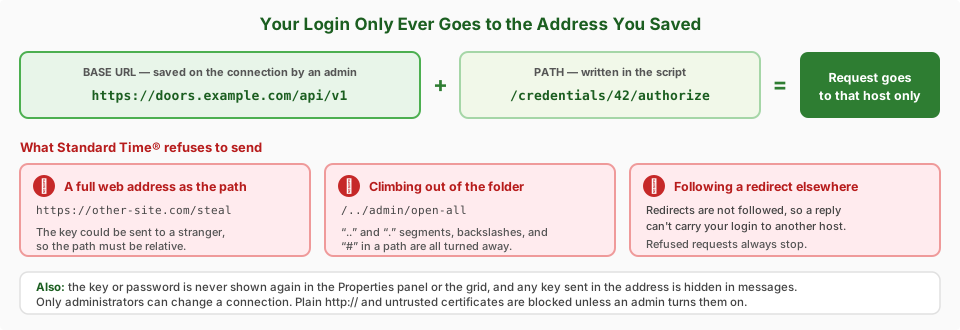
What protects you
- Only the saved address is contacted. A script supplies just the path. A full web address,
..segments, backslashes, or#in the path are refused, and redirects are not followed. - Refused is always “stop.” A request Standard Time® will not send is never turned into Proceed, even on a connection set to allow.
- Secrets stay hidden. The key or password never reappears in the Properties panel, never shows in a grid column, and keys placed in the address are masked in messages.
- Only administrators can change connections. Anyone who can edit scripts can use a connection by name, so limit script editing too.
- Secure by default. https is required and security certificates are checked unless an admin deliberately relaxes either.
- Waiting is capped. A call gives up after the Timeout (60 seconds at most), and a reply is read only up to 1 MB.
Habits worth keeping
- Wrap scanned or typed values in
ApiEncode(paths) orApiJson(messages). A value pasted in raw can add extra path pieces or message fields. - Use JSON value equals (or an anchored pattern such as
^granted$) for anything that unlocks something. Reply contains text also matches inside longer words, so “released” would match “unreleased.” - Leave If no answer on Stop for anything that unlocks, starts, or approves something.
- Never put keys or passwords in Extra headers, Test body, or Value 1–3; those fields are visible to anyone who opens the record.
- Messages that include text from the other system can contain anything it sent. Treat them as plain text.
What API connections do not do
- They call web (HTTP / HTTPS) services only, using the five sign-in styles above. They do not run an interactive “sign in with…” login.
- They do not keep a call history. A decision made at a door leaves no log inside Standard Time® to look back at, so keep the other system's own log.
- Rules compare text and values for equality, containing, or pattern. For anything numeric (greater than, between) read the value with
ApiGetValueand decide in the script. - They are one more input to a decision, not a replacement for physical safeguards. Local door hardware and machine interlocks should still protect themselves.
- Create a Scannable Script — write scripts that run from a barcode scan
- Barcode Required Scans — run a requirement script that can call a connection
- How to Use Barcode Rules — fire an action script when a scan matches a rule
- Moving Data Between Standard Time® and Your ERP — the batch and live ways to exchange data
- Webhooks — the other direction: Standard Time® tells your systems when records change
- Integrations
- FAQ: Integrations & Data