What Gets Exported
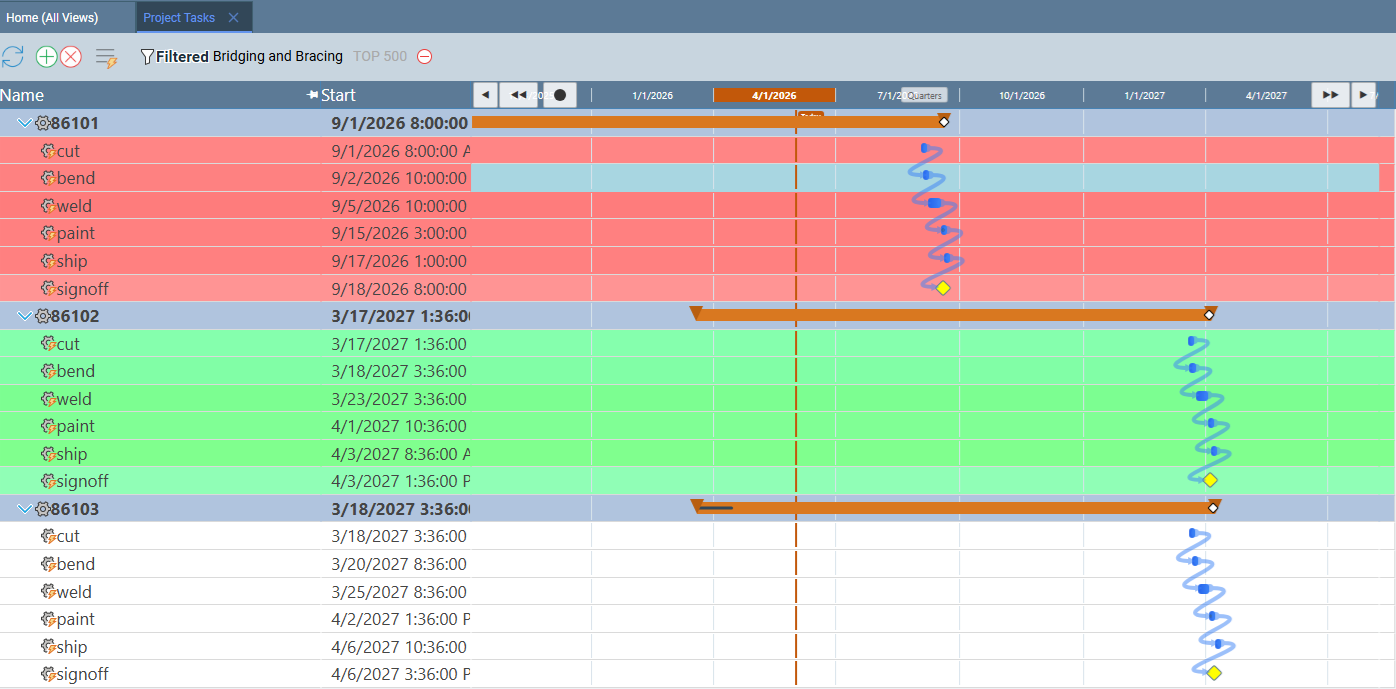
Standard Time® exports whatever is currently visible on screen — the active columns, applied filters, and current sort order are all preserved in the output file. You can export any view in the application: Time Logs, Timesheets, Project Tasks, Resource Allocation, Work Orders, and any report.
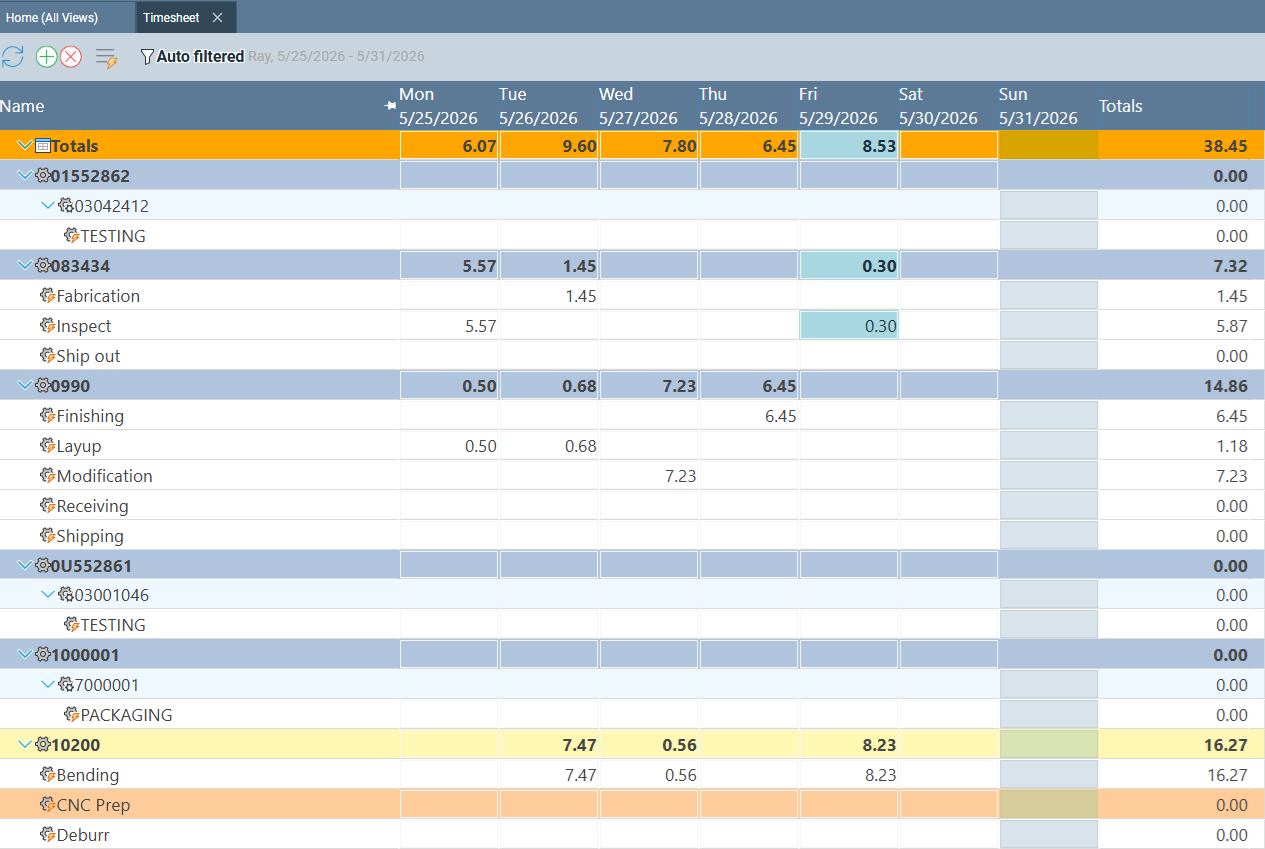
Timesheets export with all visible columns — employee names, project names, dates, hours logged, and billing codes — exactly as displayed.
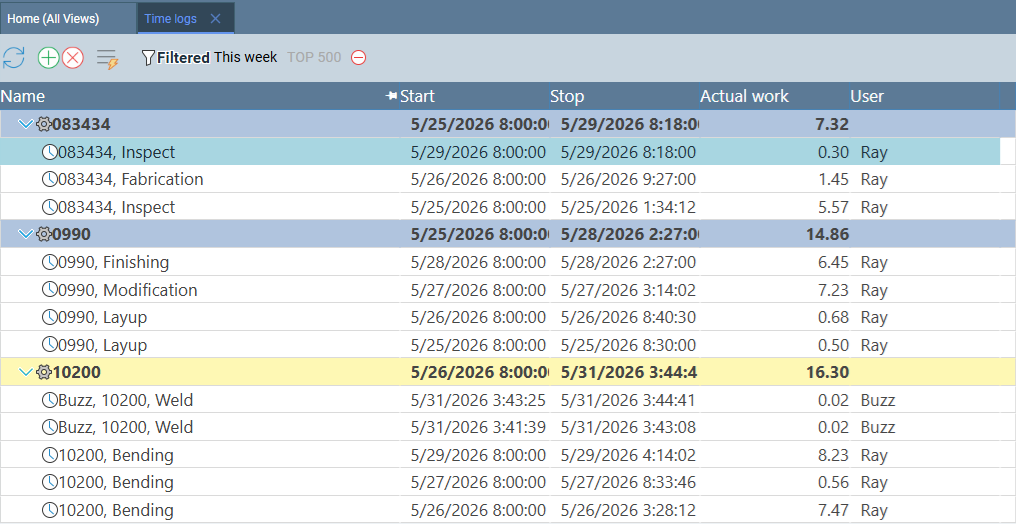
Time logs export the filtered, sorted list exactly as displayed — useful for payroll processing, billing, and job cost reporting.
Export Formats
Standard Time® supports ten export formats covering spreadsheet analysis, document generation, project scheduling tools, cloud collaboration, and automated recurring delivery. All formats are available from the same File → Export submenu.
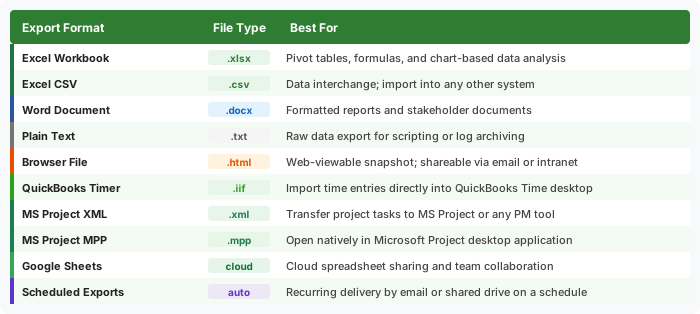
The .xlsx export is the best starting point for most users — it preserves column widths and is directly compatible with Excel pivot tables and formulas. Use .docx when the output is a formal report that will be printed or distributed. Use .xml or .mpp to hand off a project schedule to a team that works in Microsoft Project.
Any export format can be automated on a daily, weekly, or monthly schedule. Files are delivered by email or saved to a shared drive automatically — no one needs to remember to run the export. See Scheduled Exports below for details.
How to Export
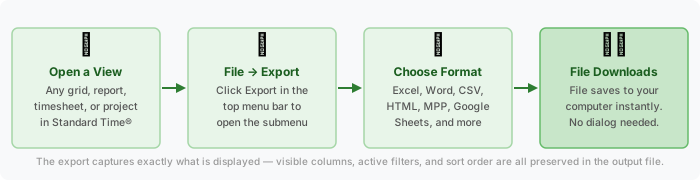
Exporting is a one-click operation from any view. There is no configuration required — the export reads the current view state automatically.
-
Navigate to the view you want to export.
Open any grid or report in Standard Time® — Time Logs, Timesheets, Project Tasks, Resource Allocation, or any other view. Apply column customizations, filters, and sorting exactly as you want them to appear in the output file. -
Click File, then Export.
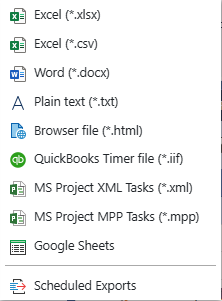
In the top menu bar, click File, then hover over Export to open the format submenu. The submenu is context-aware — it reads the currently active view and exports its data. -
Choose your format.
Select the format you need: Excel (*.xlsx) for spreadsheet analysis, Word (*.docx) for formatted documents, Excel (*.csv) for data interchange, MS Project XML or MS Project MPP for project scheduling tools, or Browser file (*.html) for a shareable web view. -
The file downloads instantly.
Standard Time® generates the file on the server and your browser downloads it immediately — no dialog box, no configuration. Large data sets display a brief "Please wait" spinner while the file is being generated.
Import from Excel & CSV
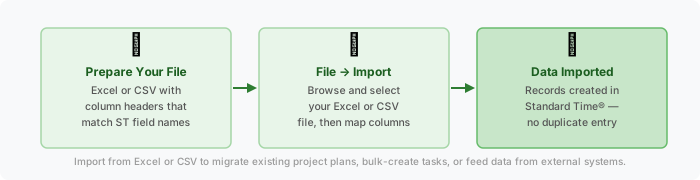
Standard Time® can read Excel (.xlsx) and CSV (.csv) files to create or update records — useful for migrating existing project plans from other tools, bulk-creating tasks or employees, or feeding data from external systems such as ERP software, quoting tools, or customer databases.
What you can import
- Projects and tasks — migrate an existing project plan from Excel or another scheduling tool
- Time entries — bulk-import historical time log data from a legacy system or spreadsheet
- Employees and users — create user accounts in bulk from an HR export file
- Work orders and job numbers — feed job data from an ERP or quoting system directly into Standard Time®
- Inventory and Bill of Materials (BOM) — import parts, components, and multi-level BOM structures from a spreadsheet or external system
Scheduled Exports
The Scheduled Exports option at the bottom of the File → Export submenu lets you configure recurring exports that run automatically — daily, weekly, monthly, or on a custom schedule. Files can be delivered by email or saved to a shared network drive without any manual steps.
Common uses for scheduled exports:
- Weekly timesheet summaries emailed to payroll every Friday afternoon
- Daily work-in-progress reports saved to a shared drive for production managers
- Monthly job cost summaries exported to Excel for accounting review
- Automated billing data sent to accounts receivable on the last working day of each month
Exported Files Are Not Import-Ready
Exported files are designed for visual reporting — they reflect what is on screen and are formatted for readability. Import files serve a different purpose: they are structured data feeds that tell Standard Time® how to create or update records, and they require specific columns that may not appear in an exported file at all.
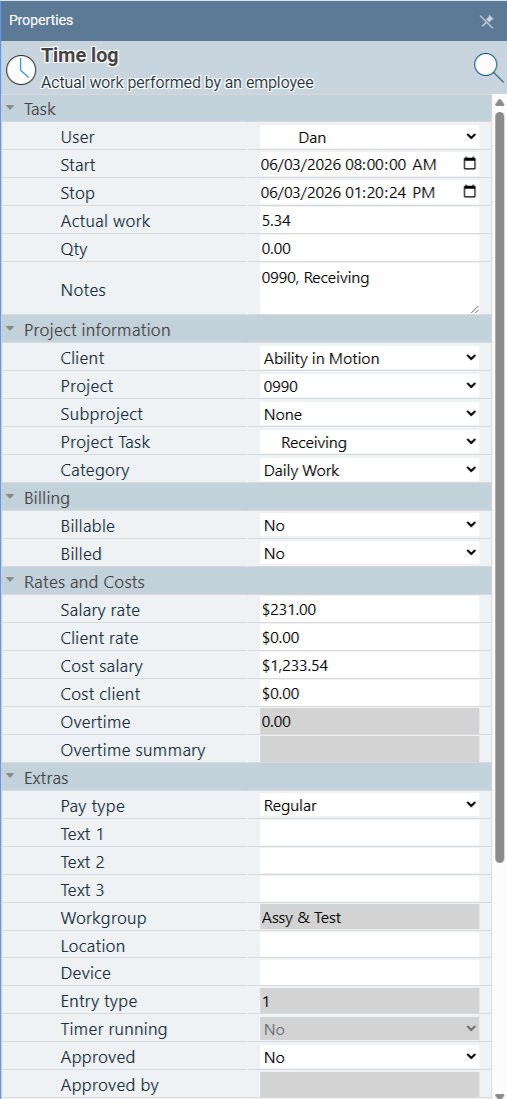
For example, a Time Logs export might show employee name, task name, date, and hours in a layout that is easy to read in Excel. But importing time entries requires a Project column so Standard Time® knows which project to assign each entry to — and that column may not be present in the export, or may be named differently than the import expects.
The same applies to project tasks: an exported task list shows durations, percent complete, and Gantt bar data for reporting, but an import file must include a project identifier on every row so tasks can be linked to the correct work order.
Back to Integrations