What Scannable Scripts Do
A script in Standard Time® is a named record that contains executable code — SQL, C#, or JavaScript. Every script has a Name property, and that name is scannable: print it as a barcode label and any employee can run the script simply by scanning it at the Scan Barcodes station.
Scripts can read and write to the Standard Time® database using SQL, or perform complex logic using C# or JavaScript. When a barcode scan triggers a script, the scan context is automatically available inside the script — you can reference the currently scanned project, the logged-in user, the last time log entry, and more through SQL tags like TAG_PROJID.
After the script runs, the value of the RETURN_VALUE column from a SQL SELECT statement is displayed on the Scan Barcodes page as a confirmation message. Use this to tell the employee exactly what was done: "Job deactivated," "Inventory updated," or any other custom message you want to display.
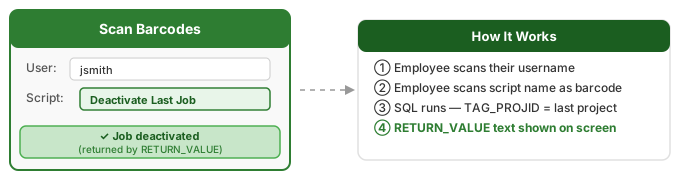
SELECT 'Your message here' AS RETURN_VALUE statement. Whatever text you put there is what the employee sees on the Scan Barcodes page after the script runs. If you omit RETURN_VALUE, the screen shows no confirmation message.
Step 1 — Open the Scripts Page
Start at the Standard Time® Home page — the tile-based dashboard that appears when you launch the application. Scripts are accessible from the Home page navigation.
- Launch Standard Time® and land on the Home page.
- Click the Scripts tile or select Scripts from the navigation menu.
- The Scripts grid opens, listing all existing scripts sorted by name.
If you do not see a Scripts tile on the Home page, check with your administrator — viewing and editing scripts requires administrator rights (User Rights > Admin Objects).
Step 2 — Create a New Script
With the Scripts page open, click the green + (plus) button in the toolbar to create a new script record. Standard Time® immediately creates a blank script row in the grid and opens the Properties panel on the right side of the window.
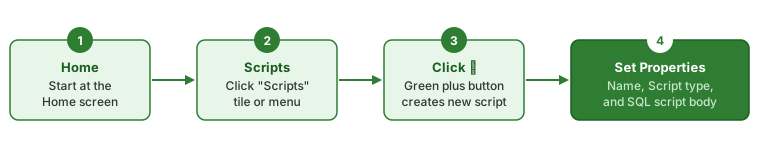
- Open the Scripts page from the Home screen.
- Click the green + button in the toolbar at the top of the grid.
- A new script row appears in the grid with a default name.
- The Properties panel opens on the right side — you will fill in the script details here.
Step 3 — Name the Script
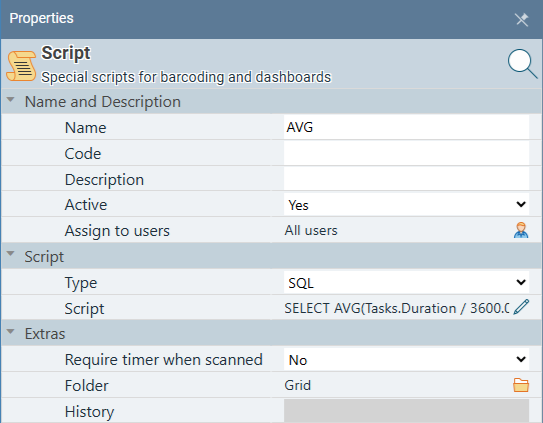
The Name field in the Properties panel is what employees scan on the shop floor. Choose a name that is meaningful, short, and unambiguous — it will be printed on a barcode label and scanned at the station. Good names describe the action: Deactivate Last Job, Mark Job Complete, or Update Inventory Count.
- In the Properties panel, click the Name field.
- Type a descriptive name such as Deactivate Last Job.
- Press Tab or click another field — the name saves immediately, no save button needed.
- Optionally fill in the Description field to document what the script does for future administrators.
DEACT-JOB) that is easier to print compactly on a label. Employees can scan either the Name or the Code to trigger the script. Leave Code blank if you only need to scan by name.
Step 4 — Add the SQL Script
The Script property holds the actual code that runs when an employee scans the script. For SQL scripts, set Type to SQL first, then click the pencil icon (✎) next to the Script property to open the multi-line script editor dialog.
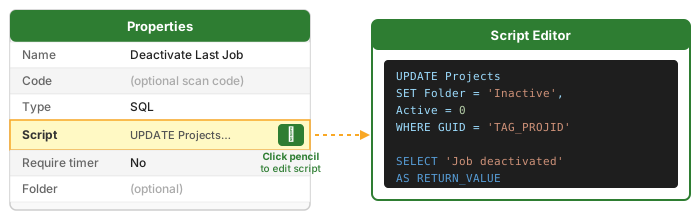
- In the Properties panel, click the Type field and select SQL from the dropdown.
- Locate the Script row in the Properties panel.
- Click the pencil icon (✎) on the right side of the Script row to open the script editor dialog.
- Paste or type your SQL script into the editor.
- Click OK or close the dialog — the script is saved automatically.
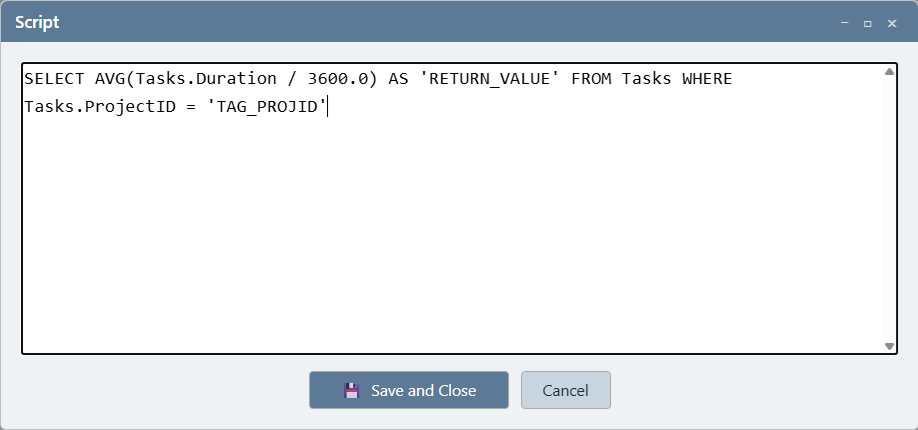
TAG_PROJID resolves to the correct record, and have a database backup in place before deploying to the shop floor. When in doubt, have a programmer review your script first.
Example SQL Script — Deactivate the Last Scanned Project
The following script updates the most recently scanned project: it sets Folder to Inactive and Active to 0, then returns a confirmation message. TAG_PROJID is automatically replaced with the GUID of the last project that was scanned at the station before this script was scanned.
SET Folder = 'Inactive',
Active = 0
WHERE GUID = 'TAG_PROJID'
SELECT 'Job deactivated and moved to Inactive' AS RETURN_VALUE
At runtime, Standard Time® replaces TAG_PROJID with the GUID of the last scanned project before executing the SQL. The SELECT … AS RETURN_VALUE line returns the text that is displayed on the Scan Barcodes page after the script runs.
UPDATE — INSERT, additional UPDATE statements, or a more complex SELECT that reads data and builds a dynamic result message. Only the last SELECT … AS RETURN_VALUE in the batch is used as the screen message.
UPDATE statement executes, the original values are gone. Standard Time® has no undo history for script-driven database changes. A single scan from the shop floor can permanently alter every record your WHERE clause matches. Always test your script against a known record first, verify the result is what you intended, and keep a database backup before deploying any script that writes to the database.
Step 5 — Scan the Script on the Floor
Once the script is saved and Active is checked, it is immediately scannable. Print the script name (or Code) as a barcode label using any label printer and barcode font, post it at the scan station, and employees can run it in seconds.
- Scan your username barcode to identify yourself.
- Scan the work order barcode of the project you want to act on — this sets
TAG_PROJIDfor the next script scan. - Scan the script name barcode (e.g., Deactivate Last Job) — the SQL runs immediately.
- The Scan Barcodes page displays the
RETURN_VALUEmessage confirming what was done.
RETURN_VALUE message appears on screen — exactly as an employee would see it on the floor.
Script Properties Reference
Every script record in the Scripts table has the following properties, visible and editable in the Properties panel. These come from ScriptSet.GetPropertyDescriptors().
Name and Description
| Property | Database Column | Type | Description |
|---|---|---|---|
| Name | [Name] |
Text (255) | The script's display name. This is also the value employees scan on the shop floor — it must be unique. Standard Time® enforces uniqueness automatically. |
| Code | Code |
Text (255) | An optional alternate scan code. If provided, employees can scan either the Name or this Code to trigger the script. Useful for shorter barcode labels on space-constrained stations. |
| Description | Description |
Text (255) | A free-text description of what the script does. Visible only to administrators in the Properties panel — not shown to employees. Document the script's purpose and any important SQL dependencies here. |
| Active | Active |
Boolean (Yes/No) | Controls whether the script is scannable on the shop floor. When unchecked, employees cannot trigger the script by scanning its name or code. Use this to disable a script temporarily without deleting it. |
| Assign to users | Assign_Property |
User assignment | Determines which users can see and scan this script. If no users are assigned, all users can access it. Assign specific users or workgroups to restrict a powerful script to supervisors or managers only. |
Script
| Property | Database Column | Type | Description |
|---|---|---|---|
| Type | ScriptType |
Integer (dropdown) | The script language. Choose from: SQL (1) — runs a SQL statement directly against the database; C# (2) — compiles and runs C# code with full access to the ScriptSet API; JavaScript (0) — legacy JScript converted to C# at runtime. SQL is recommended for most shop floor automations. |
| Script | Script |
Long text | The body of the script — the actual SQL query, C# code, or JavaScript to run. Click the pencil icon (✎) in the Properties panel to open the multi-line editor dialog. SQL scripts support all tags listed in the SQL Tags Reference section below, including TAG_PROJID for the last scanned project. |
Extras
| Property | Database Column | Type | Description |
|---|---|---|---|
| Require timer when scanned | RequireTimerForScan |
Boolean (Yes/No) | When set to Yes, the scan station will refuse to run this script unless the employee has an active running timer. Use this to ensure context-dependent scripts (like ones that update the active work order) only run when a job is actually in progress. The scan is silently rejected if no timer is running. |
| Folder | Folder |
Text (255) | An optional folder name for organizing scripts in the Scripts grid. Works the same as project folders — type any folder name to create it, and scripts in the same folder are grouped together. Useful when you have many scripts and want to separate shop floor scans from scheduled automations. |
| History | ScriptHistory |
Long text (read-only) | A running log of when the script was last executed and what the result was. Read-only — Standard Time® appends to this automatically each time the script runs. Review this field to audit script activity or troubleshoot unexpected behavior. |
SQL Tags Reference
When a SQL script runs, Standard Time® replaces these tags with live values from the barcode scan context before the SQL executes. Use them anywhere inside your WHERE, SET, or SELECT clauses. Tags that have no value in the current context are replaced with an empty string — always wrap them in single quotes so the SQL remains valid even when a tag is blank.
Barcode Scan Context Tags
These tags are populated automatically based on the barcode scan sequence that triggered the script.
| Tag | Replaced With | Notes |
|---|---|---|
TAG_PROJID |
GUID of the last scanned project | The most important tag for shop floor scripts. Set when an employee scans a work order barcode before scanning the script. Maps to Projects.GUID. |
TAG_USERID |
GUID of the scanned/logged-in user | Set from the employee's username barcode scan at the start of the session. Maps to Users.GUID. |
TAG_TASKID |
GUID of the current project task | Set when the scan sequence includes a task barcode. Maps to ProjectTasks.GUID. Empty if no task was scanned. |
TAG_TLOGID |
GUID of the most recent time log entry | Set after a timer starts. Maps to TimeLogs.GUID. Useful for scripts that need to annotate or modify the active time entry. |
TAG_CATGID |
GUID of the current category | Set from the scan context category. Maps to Categories.GUID. Empty if no category is in context. |
TAG_CLNTID |
GUID of the current client | Derived from the project's associated client. Maps to Clients.GUID. Empty if the project has no client. |
TAG_INVTID |
GUID of the scanned inventory item | Set when the scan sequence includes an inventory barcode. Maps to Inventory.GUID. Empty for non-inventory scans. |
TAG_TOFFID |
GUID of the current time-off record | Set in time-off barcode scan contexts. Maps to TimeOff.GUID. Rarely needed in shop floor scripts. |
TAG_TOOLID |
GUID of the scanned tool/asset | Set when the scan sequence includes a tool barcode. Useful for tool-checkout or asset-tracking scripts. |
User Data Tags
These tags carry values passed into the script programmatically. They are less commonly used in barcode-triggered SQL scripts but are available for advanced scripting scenarios.
| Tag | Description |
|---|---|
TAG_USERDATA1 |
General-purpose value slot 1. Can be set programmatically before the script runs or populated by the calling context. |
TAG_USERDATA2 |
General-purpose value slot 2. |
TAG_USERDATA3 |
General-purpose value slot 3. |
TAG_USERDATA4 |
General-purpose value slot 4. |
TAG_USERDATA5 |
General-purpose value slot 5. |
Dynamic Field Value Tags
These function-style tags let you read any column from the record that triggered the script — useful when the script runs in the context of a specific project, task, or time log record.
| Tag Syntax | Replaced With | Example |
|---|---|---|
FIELDVALUE(ColumnName) |
Current string value of the named column from the triggering record | FIELDVALUE(Name) → project name as a string; FIELDVALUE(Active) → "True" or "False" |
SQLDATEVALUE(ColumnName) |
Date-only value formatted as a SQL date literal (no time component) | SQLDATEVALUE(Created) → 2025-06-01 formatted for SQL WHERE clauses |
SQLDATETIMEVALUE(ColumnName) |
Full date and time value formatted as a SQL datetime literal | SQLDATETIMEVALUE(Modified) → 2025-06-01 14:32:00 for precise datetime filtering |
Filter Date Tags
When a script runs in the context of a display filter (such as from a report or dashboard), the active date range is available through these tags. Inside the parentheses, put any placeholder label — the label is ignored; only the tag name matters.
| Tag Syntax | Replaced With | Use Case |
|---|---|---|
FILTERSTARTDATE(label) |
Start date of the active display filter, formatted as a SQL date literal | Useful in report scripts that query data within the user's currently selected date range. Example: WHERE Created >= FILTERSTARTDATE(start) |
FILTERENDDATE(label) |
End date of the active display filter, formatted as a SQL date literal | Pairs with FILTERSTARTDATE to build date-bounded queries. Example: WHERE Created <= FILTERENDDATE(end) |
SELECT 'Your message' AS RETURN_VALUE. If you only have an UPDATE or INSERT with no SELECT RETURN_VALUE, the screen shows nothing after the scan — the script still runs, but the employee gets no confirmation.