21 April 2026
How to Get a Quick AI Project Analysis
Standard Time® can read any project you're looking at and give you an instant breakdown — both a brief summary and a detailed analysis — without you typing a single word of explanation. Here's how to trigger it in four steps.
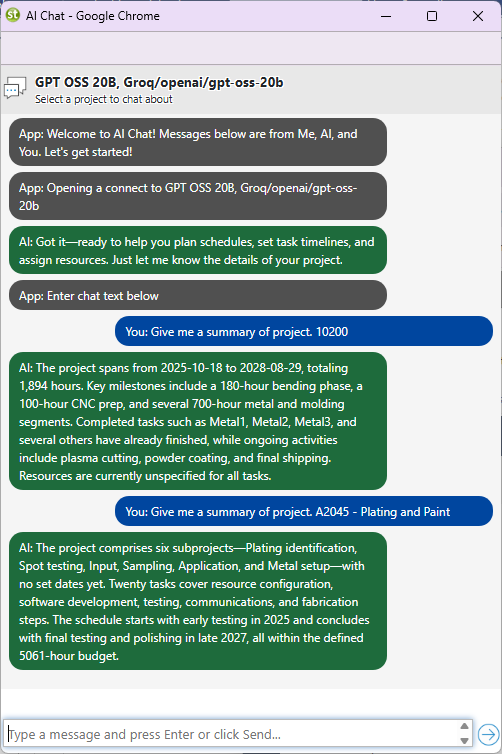
The AI Chat window in Standard Time® — ready to analyze whichever project you have open.
This example uses the Groq openai/gpt-oss-20b model. Use any AI model you like! For example: Groq (openai/gpt-oss-20b, llama-3.3-70b-versatile), OpenAI (gpt-4o, gpt-4o-mini), Anthropic (claude-sonnet-4-6), Mistral (mistral-large-latest), or a locally-installed model via Ollama.
Four Steps to an Instant Project Analysis
Standard Time®'s AI Chat is context-aware. When you have a project selected, the AI already knows what it's looking at — the tasks, the assignments, the hours logged, the budget, and the deadline. You don't need to paste in data or describe the situation. Just open the right view and let the AI do the reading.
-
Choose View → Chat with AI In Standard Time®, click View in the top menu bar, then select Chat with AI. This opens the AI Chat panel alongside your current view.
-
Open the Projects or Project Tasks page Navigate to the Projects page or the Project Tasks page — either works. These views load your full project list with tasks, assignments, and status data that the AI will use as context.
-
Click any project Select the project you want to analyze by clicking its row. Standard Time® passes that project's data to the AI automatically — no copying, no manual input required.
-
AI delivers both a brief and a detailed analysis The AI Chat window responds with two levels of insight: a concise summary at the top (status, progress, deadline), followed by a detailed breakdown covering timeline risk, resource allocation, budget burn, and any tasks that need attention.
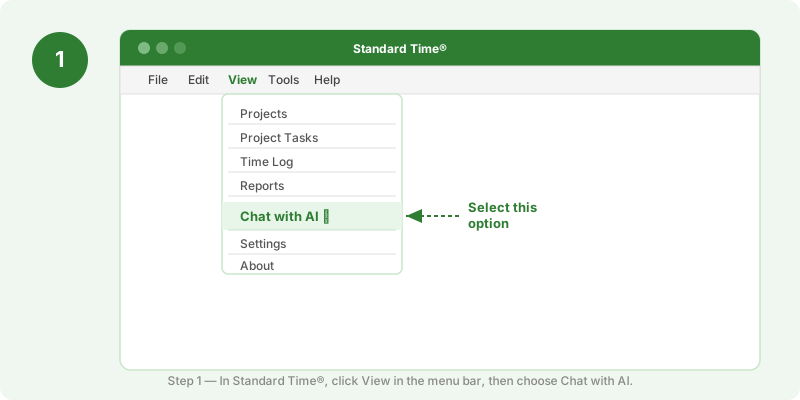
Step 1 — Click View in the menu bar, then select Chat with AI to open the AI panel.
Works on Any Project, Any Time
The analysis isn't a one-time setup — you can repeat it on any project, any time the view is open. Switch to a different project row and the AI updates its context automatically. Ask follow-up questions in plain English to drill into specific areas: "Which tasks are most at risk?" or "Who's over-allocated this week?" — the AI answers from the same project data without you having to explain anything.
This is the same AI Chat window you use to create tasks, reassign work, and ask operational questions. The project analysis feature is built into that same conversation, so there's nothing extra to install or configure.
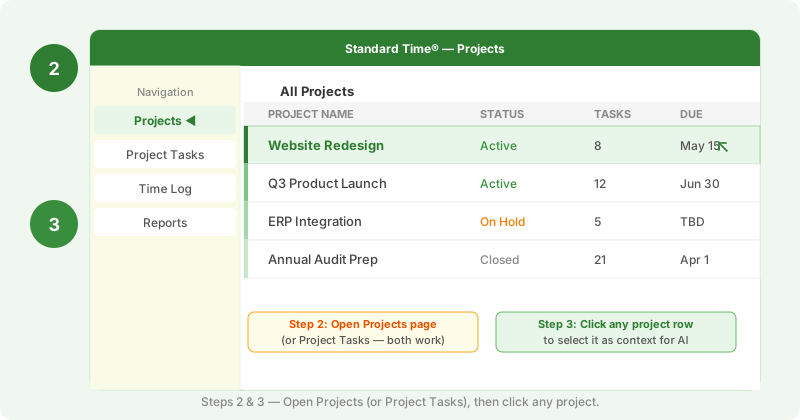
Steps 2 & 3 — Open the Projects page and click any project row to load it as AI context.
What the AI Tells You
The analysis covers the areas that matter most to project managers:
- Brief summary — project status, task completion count, and whether the deadline is reachable at the current pace.
- Timeline assessment — days remaining, projected completion date based on current burn rate, and any schedule risk.
- Resource check — who is over-allocated, who has capacity, and whether work is spread evenly across the team.
- Budget status — spend to date, budget remaining, and whether the current pace stays within budget through completion.
- Action items — specific tasks the AI flags as unstarted, overdue, or unassigned that could affect the outcome.
You get all of this from a single click, with no prompting required. Ask follow-ups to go deeper on any area the summary surfaces.
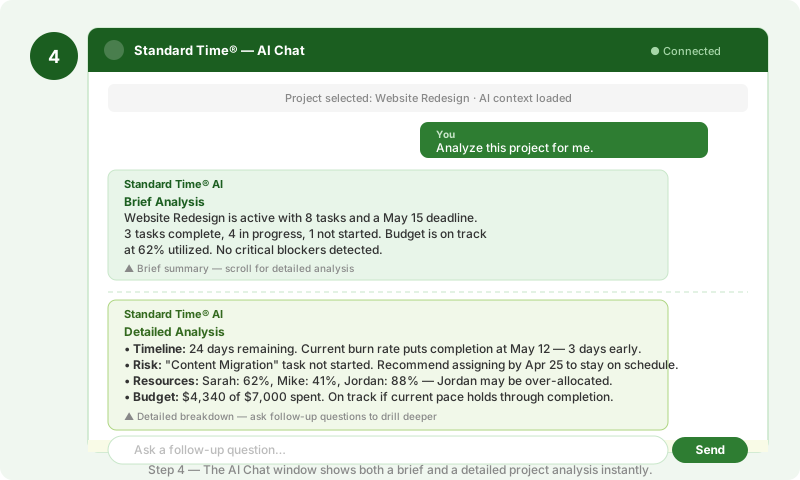
Step 4 — The AI Chat window returns a brief summary and a detailed breakdown without any manual input.
Now Chat with the AI
Once the AI has loaded your project, the conversation is open. You can ask questions to understand what's happening, or give instructions to change things directly. A few examples:
Questions about the project
- "Which tasks are most at risk of missing the deadline?"
- "Who is over-allocated this week?"
- "How many hours have been logged so far?"
- "What percentage of the budget has been spent?"
- "Which tasks have no one assigned?"
- "Is this project on track to finish by the due date?"
- "What is the longest unstarted task?"
- "Show me a summary of each employee's contribution."
Prompts to alter the project
- "Add a task called 'Final QA Review' and assign it to Jordan."
- "Move the deadline out by one week."
- "Reassign all of Mike's open tasks to Sarah."
- "Mark the 'Content Migration' task as high priority."
- "Add a note to the 'Design Mockups' task: waiting on client approval."
- "Set the budget to $9,000."
- "Close out all completed tasks."
- "Split the 'Development' task into two tasks: front-end and back-end."
Every response updates in real time. Ask a follow-up, correct a mistake, or chain multiple changes together in a single message — the AI handles each one in sequence without losing context.
Why This Saves Time on Every Project Review
Traditional project reviews involve pulling a report, checking a Gantt chart, cross-referencing timesheets, and manually tallying who's over-allocated. That process takes 20–30 minutes per project and still misses things. The AI analysis surfaces the same information in under ten seconds and flags the specific risks a report wouldn't show you unless you knew to look for them.
For managers running multiple projects simultaneously, that adds up fast. Instead of a weekly status meeting to get everyone on the same page, you open the project, read the analysis, and know exactly where each one stands — before the call even starts.
Get Started in the Next Five Minutes
If you have access to the Standard Time® cloud, the AI Chat is already available under the View menu. Open a project, try the analysis, and ask a follow-up question. If you haven't tried Standard Time® yet, the free trial includes the full AI Chat feature — no configuration required out of the box.
Don't Know Where to Start?
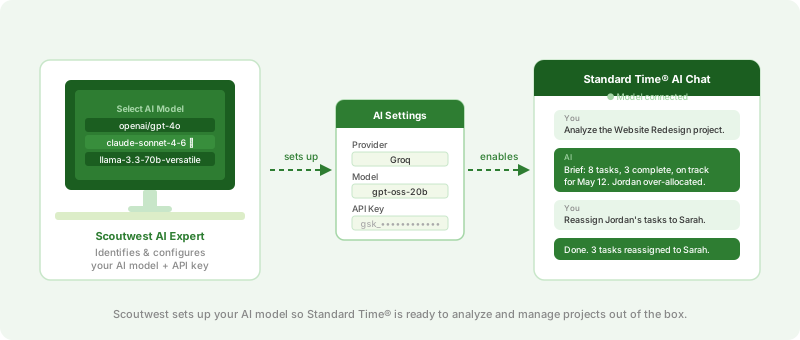
AI experts at Scoutwest can help you identify the right AI providers and models for your workflow, then configure them with your API key to enable them for use in Standard Time®. Contact us and we'll get you set up.
Related Articles
- AI Rate Limits, Tokens, TPM & RPM — Complete Reference — understand rate limits and cut token usage with Exclusion Flags
- Groq AI Model Error 429 Rate Limit Exceeded — what to do when the rate limit hits
- Managing Projects with AI Chat
- AI-Powered Manufacturing Software
- Slot Jobs for Production Scheduling