What ADDTIMERSPLIT Does
Sometimes a block of work genuinely touches more than one job, or more than one task in the same job, but there is no practical way to stop and rescan every time attention shifts from one to the next — a production run that moves from welding to metal finishing to deburring with no clean break in between, for example. Stopping and restarting a timer at each transition would be disruptive on the shop floor and the exact minute-by-minute split would be guesswork anyway.
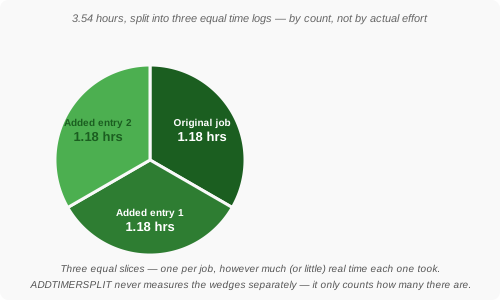
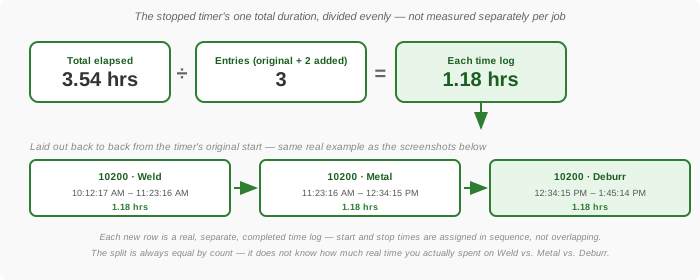
ADDTIMERSPLIT solves this differently than starting more timers. It keeps exactly one timer running the whole time. As each additional job comes up, you scan ADDTIMERSPLIT followed by that job's project (and task or category) to add it to a list attached to the running timer. When you finally scan STOP, Standard Time® takes that one timer's total elapsed duration and divides it evenly across the original job plus every job you added — creating one completed time log per job, all with equal duration.
Collecting Split Entries With ADDTIMERSPLIT
ADDTIMERSPLIT only works while a timer is already running. Scan it, and Standard Time® clears the project and category/task fields and waits for you to scan the next job — the same collection flow used by ADDTIMER. The difference is what happens once that job is scanned: instead of starting a second independent timer, the project/subproject/category/task combination is appended as an entry to the running timer's split list, and the display confirms "Job added to split timer: <job>." The original timer is completely unaffected — it keeps running, and its own elapsed time keeps accumulating exactly as before.
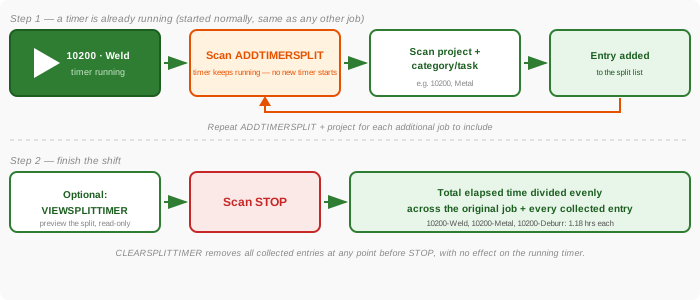
Repeat ADDTIMERSPLIT as many times as needed to add every job the work actually touched. There is no fixed limit on how many entries one timer can collect.
A Worked Example
Here is a complete run from start to finish: a timer running on job 10200's Weld category, with Metal and Deburr added as split entries along the way.
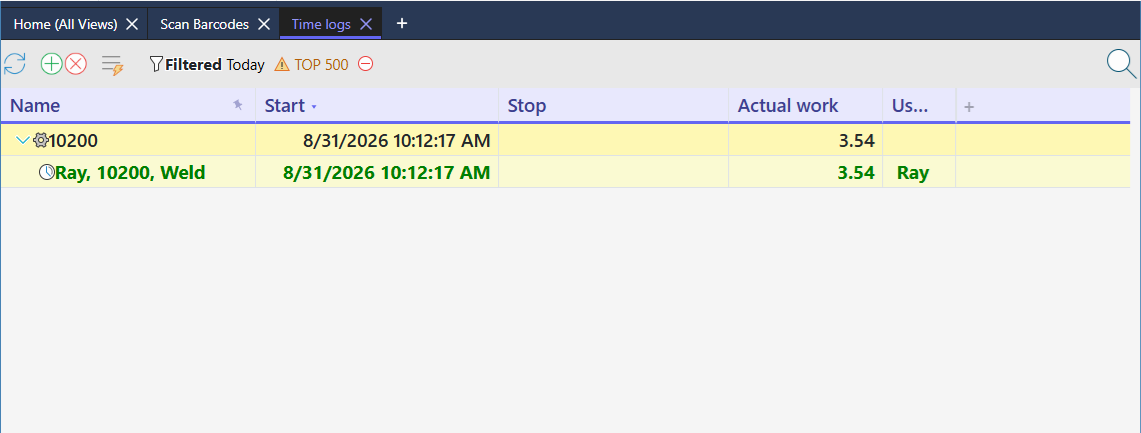
Before STOP, Time Logs shows exactly what it would for any ordinary running timer — one yellow, still-open row for 10200 · Weld, with no hint yet that two more jobs are attached to it:
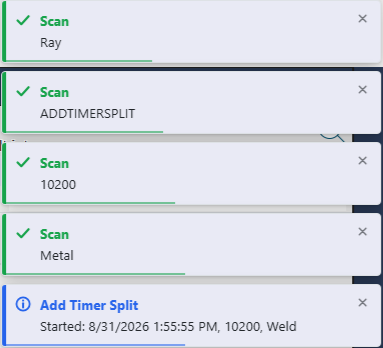
Scanning ADDTIMERSPLIT and the project confirms each entry as it's added:
Scanning STOP closes the timer and confirms the split right in the toast message:
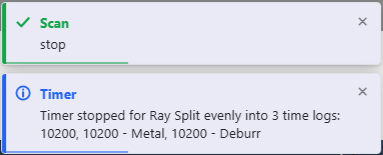
After STOP, that one timer has become three separate, completed time logs — the original entry plus one new row per job added via ADDTIMERSPLIT, each with an equal share of the original 3.54 hours and sequential (not overlapping) start and stop times:
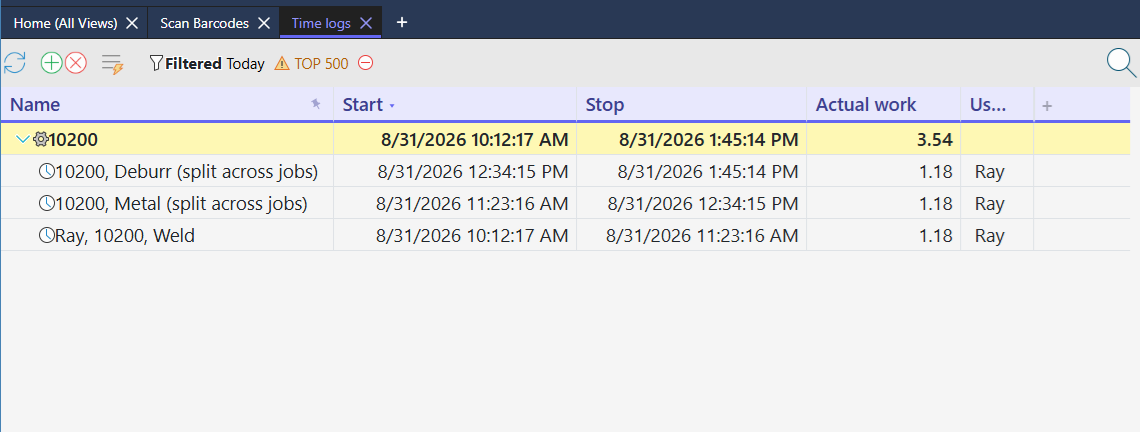
(split across jobs) in their notes, so anyone reviewing Time Logs later can immediately tell these are ADDTIMERSPLIT-generated entries rather than jobs the employee scanned and timed individually.
Previewing the Split With VIEWSPLITTIMER
Once you've added one or more entries, you don't have to guess what STOP will produce. Scan VIEWSPLITTIMER at any time to see a read-only preview: the timer's current elapsed duration, and exactly how that duration would be divided across the original job plus every entry collected so far — calculated live, as if STOP were scanned right now.
Continuing the worked example above — after adding both Metal and Deburr, scanning VIEWSPLITTIMER produces:
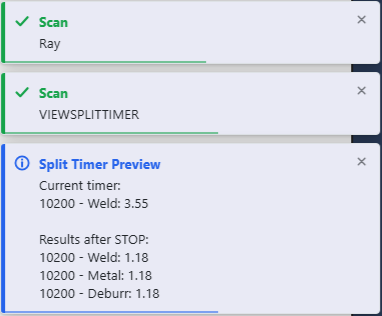
The top line, "Current timer," shows the running timer's own live elapsed time — the number that keeps climbing every minute the job stays open. The "Results after STOP" section below it is the proposed division: the same total, split evenly by the number of entries plus one.
Starting Over With CLEARSPLITTIMER
Changed your mind, or scanned the wrong project by mistake? Scan CLEARSPLITTIMER to wipe out every entry collected so far for the running timer. The timer itself is untouched — it keeps running under its original job exactly as if ADDTIMERSPLIT had never been scanned. The next STOP will simply close it out as one ordinary time log with no split at all, unless you add new entries again before then.
Stopping the Timer and Creating the Split
Nothing collected via ADDTIMERSPLIT actually changes any records until STOP is scanned. At that point:
- The running timer stops normally, exactly as it would with no split entries at all.
- Its total elapsed duration is divided evenly across the original job plus every collected entry.
- The original time log is shortened to its equal share, keeping its original start time but a new, earlier stop time.
- One brand-new, fully completed time log is created for each added entry, laid out back to back in time immediately after the original — never overlapping.
- The status message confirms how many time logs resulted and lists every job by name.
Viewing the Results in Time Logs
Open the Time Logs page after a split to see all the resulting rows side by side — the original job and every job added via ADDTIMERSPLIT, each with its own start time, stop time, and equal share of actual work.
Because each split entry becomes a genuine, independent time log row — not a note or an annotation on a single record — every downstream feature that reads Time Logs treats them the same as any other completed entry: job costing, time reports, OData/Power BI dashboards, and QuickBooks export all see three real records instead of one undivided block.
Quick Reference
| Scan | What Happens |
|---|---|
ADDTIMERSPLIT |
Clears project and category/task fields; the next project (and task/category) scanned is appended as an entry to the running timer's split list. Requires a timer to already be running. |
VIEWSPLITTIMER |
Read-only preview of the current elapsed time and how it would divide across the original job plus every collected entry, as if STOP were scanned right now. Changes nothing. |
CLEARSPLITTIMER |
Removes every entry collected so far for the running timer. The timer itself keeps running unaffected. |
STOP |
Stops the running timer and, if any entries were collected, divides its total duration evenly across the original job plus every added entry — creating one completed time log per job with sequential start/stop times. |
ADDTIMER vs. ADDTIMERSPLIT — Telling Them Apart
The names look almost identical on a barcode sheet, but they solve opposite problems. Mixing them up produces very different data, so it's worth being clear on which one fits the situation in front of you.
See the full ADDTIMER and ENDTIMER guide for running genuinely concurrent timers.
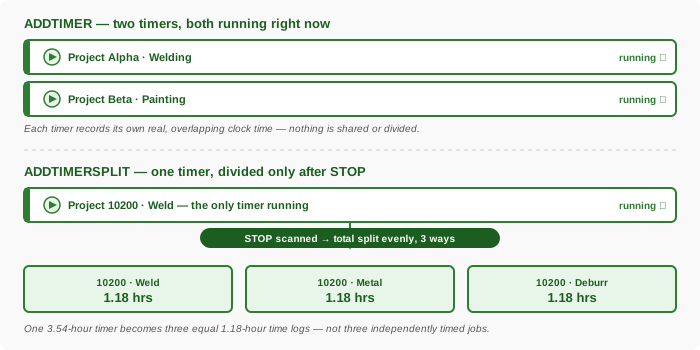
| ADDTIMER | ADDTIMERSPLIT | |
|---|---|---|
| What starts | A brand-new, independent timer — running alongside the timer(s) already active. | Nothing new starts. The one already-running timer keeps running; the scan only adds a name to its split list. |
| How many timers are running | As many as you've added — each one live and ticking at the same time. | Always exactly one, from before the first ADDTIMERSPLIT scan through STOP. |
| What each job's hours reflect | Its own real, independently measured elapsed time — start to stop, exactly as scanned. | An equal share of the one timer's total — not a measurement of how long that job specifically took. |
| When the time is calculated | Continuously, live, from the moment each timer starts. | All at once, retroactively, the moment STOP is scanned. |
| Best fit | Genuinely parallel work — a supervisor or operator truly juggling several jobs at once and wanting honest, separately-timed records for each. | One continuous block of work that drifted across several jobs with no clean point to stop and rescan — and where an even split is a fair-enough approximation. |
| Ending it | ENDTIMER stops one job at a time; STOP stops all of them at once. | STOP stops the one timer and performs the split in a single step. CLEARSPLITTIMER cancels the pending split first, if needed. |
When to Use ADDTIMER versus ADDTIMERSPLIT
The comparison table above explains the mechanics. This section is the practical version — concrete situations where one scan is clearly the right call.
Use ADDTIMER when…
- The jobs are actually happening at the same time. A supervisor watching three workstations, or a machine operator tending several machines that are each mid-cycle on a different job — real, simultaneous work deserves real, simultaneous timers.
- Accurate per-job hours matter for billing or costing. If a client is billed by actual hours worked on their job, or job costing decisions depend on knowing exactly how long each task took, ADDTIMER's independently measured timers are the only honest source of that number.
- The jobs take meaningfully different amounts of time. If one job realistically takes twenty minutes and another takes three hours, an even split would misrepresent both of them. ADDTIMER records what actually happened, whatever the split turns out to be.
- You need to end jobs independently, as each one actually finishes. ENDTIMER lets you close out one job the moment it's done while the rest keep running — there's no equivalent partial-stop in ADDTIMERSPLIT.
Use ADDTIMERSPLIT when…
- Work genuinely blends across jobs with no clean break. A production run that drifts from welding to metal finishing to deburring without a natural stopping point to rescan a new timer.
- Stopping to rescan at every transition would be disruptive or impractical. Fast-moving shop floor work where pausing to scan a new project barcode mid-task costs more in interruption than it's worth.
- An even split is a fair-enough approximation. The jobs involved are roughly comparable in effort, and nobody downstream — accounting, the client, the job cost report — needs minute-by-minute precision on how the hours divided.
- You want one simple end-of-shift step. Add each job as it comes up during the day, then scan STOP once — no need to remember which timer belongs to which job or to close several out individually.
- ADDTIMER and ENDTIMER — Running Multiple Concurrent Timers — the counterpart scan for genuinely parallel jobs, not a single job's time divided after the fact
- Things to Scan on the Shop Floor — full reference of every scannable item
- Shop Floor Barcode Scanning — How It Works — the standard single-timer workflow
- Time Logs — Where to Find Barcode Scans — reviewing and correcting scanned time entries
- Shop Floor & Time Tracking FAQ — more common questions about job timers and shop floor scanning