How Authentication Works
When Standard Time® exports to Google Sheets or manages folders in Google Drive, it calls two Google APIs: the Google Sheets API (to create and write spreadsheets) and the Google Drive API (to create folders and share files). Both APIs require an authenticated identity — and that identity is what the auth type controls.
The auth type is set once by an administrator in Tools → Google Integration. You choose between two fundamentally different models:
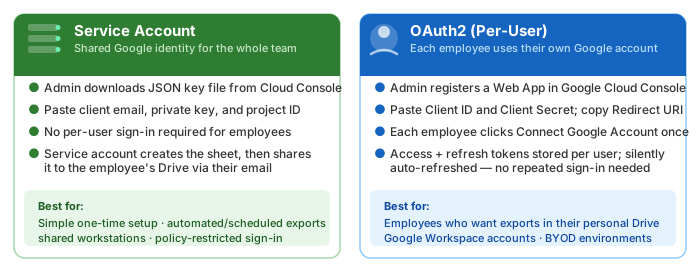
Both auth types use the same two Google API scopes and support the same export features. The difference is entirely about whose identity owns the resulting spreadsheets and how employees connect to Google.
Service Account Authentication
A service account is a special Google identity that belongs to your application rather than to any individual person. When Standard Time® uses a service account, it acts as a single organizational identity whenever it communicates with Google — regardless of which employee triggered the export.
What Credentials Are Needed
You download a JSON key file from Google Cloud Console. Inside it, Standard Time® uses exactly three values:
| Field | JSON key name | What It Is |
|---|---|---|
| Client Email | client_email |
The service account's email address (e.g. my-app@my-project.iam.gserviceaccount.com). This is what Standard Time® signs requests as, and what recipients see when a sheet is shared with them. |
| Private Key | private_key |
The RSA private key block beginning with -----BEGIN RSA PRIVATE KEY-----. Paste the entire block including the header and footer lines. This is stored write-only — Standard Time® never returns it after saving. |
| Project ID | project_id |
The Google Cloud project identifier (e.g. my-project-123456). Used to scope API requests to the correct project. |
How a Service Account Export Works
Understanding the full flow helps diagnose problems and explains why exports appear in your Drive even though the service account is doing the work:
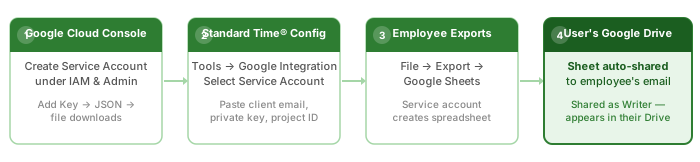
- Service account signs the API request. Standard Time® uses the private key to create a signed JWT, which Google exchanges for a short-lived access token. No browser popup or user interaction occurs.
- Spreadsheet is created under the service account's identity. The sheet belongs to the service account — not to the employee. By default, no one else can see it yet.
- Drive shares the sheet with the employee. Standard Time® immediately calls the Drive Permissions API to grant the employee's Google account email address writer access. The sheet now appears in the employee's Shared with Me folder in Google Drive.
- The sheet URL opens in the employee's browser. From the employee's perspective, the sheet is theirs — they can edit, rename, and move it. They just do not own it in the Google Drive ownership sense.
drive.file scope, pre-existing folders in the employee's Google Drive are not discoverable. If an employee specifies a folder name that does not already exist in Standard Time®'s app-created folder tree, a new folder is created — even if a same-named folder already exists in the employee's personal Drive.
OAuth2 (Per-User) Authentication
With OAuth2, each employee authenticates with their own Google account through the standard Google consent flow. Standard Time® stores the resulting access and refresh tokens per employee, so subsequent exports happen silently without any repeated sign-in.
What Credentials Are Needed
An administrator registers a Web Application OAuth2 client in Google Cloud Console. Three values go into Standard Time®:
| Field | Where It Comes From | What It Does |
|---|---|---|
| Client ID | Google Cloud Console → Credentials → your OAuth2 client | Identifies your application to Google during the consent flow. Safe to share — it is not a secret. |
| Client Secret | Same page as the Client ID | Used by Standard Time® to exchange authorization codes and refresh access tokens. Keep this confidential — treat it like a password. |
| Redirect URI | Shown read-only in Tools → Google Integration | The URL Google redirects to after the employee approves access. You copy this from Standard Time® and paste it into Google Cloud Console under Authorized redirect URIs. Must match exactly. |
The Consent Flow
After the admin saves the OAuth2 credentials, each employee connects their Google account once. The flow from first click to completed setup:
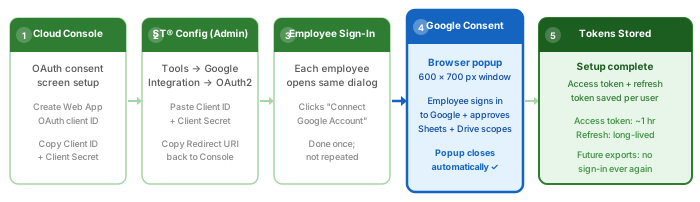
Standard Time® opens a 600×700 pixel popup browser window for the Google consent page. After the employee signs in and approves the requested scopes, the popup closes automatically and Standard Time® receives the authorization code, immediately exchanges it for an access token and refresh token, and stores both tokens against that user's account.
Token Lifecycle
Understanding how tokens work helps explain why sign-in is genuinely a one-time event:
Short-lived credential (~1 hour). Standard Time® attaches this to every Google API request. When it expires, the Google API client library automatically uses the refresh token to obtain a new one — the employee never sees this happen.
Long-lived credential with no fixed expiration. Stored per-employee in Standard Time® and used exclusively to obtain fresh access tokens. Remains valid until the employee revokes app access from their Google Account settings.
Using Both Auth Types Together
Standard Time® supports configuring both a service account and OAuth2 credentials at the same time. When Both is selected as the auth type, Standard Time® uses each employee's personal OAuth2 tokens when available and falls back to the service account for employees who have not yet completed the consent flow.
Standard Time® uses their personal OAuth2 tokens. The export runs as the employee — sheet goes directly into their own Drive, no sharing needed.
Standard Time® falls back to the service account. The sheet is created and then shared to the employee's email address — they see it in Shared with Me.
This hybrid mode is ideal for larger teams where rollout is gradual — employees who are ready can connect their Google accounts immediately, while others keep working without interruption through the service account fallback. Both credentials must be configured (all six fields across service account and OAuth2) for the fallback to work.
Required Google API Scopes
Both authentication types request exactly the same two Google API scopes. These scopes define what Standard Time® is permitted to do in Google on your behalf:
| Scope | What It Allows | Why It Is Needed |
|---|---|---|
...auth/spreadsheets |
Create, read, and write Google Sheets spreadsheets | Required to create new spreadsheets, write data rows, and apply row-level formatting (colors, bold, italic) via the Sheets API batch update. |
...auth/drive.file |
Manage files and folders created by Standard Time® | Required to create Drive folders, move spreadsheets into folders, and (for service account) share sheets with employee emails via the Drive Permissions API. |
Why drive.file and Not Full Drive Access?
The drive.file scope is intentionally narrow — it grants access only to files and folders that Standard Time® itself created. Standard Time® cannot read or list any pre-existing files in an employee's Google Drive. This is a privacy and least-privilege design choice.
The practical implication: if an employee specifies a Drive folder path like Clients/Acme in the export dialog, Standard Time® can only find that folder if it was created by Standard Time® during a previous export. A same-named folder the employee created manually in their own Google Drive is invisible to the app. In that case, Standard Time® creates a new folder rather than placing the file in the existing one.
Google Cloud Console Setup
Setup takes about ten minutes for a service account, or about fifteen for OAuth2. You need a Google account with permission to create projects in Google Cloud Console.
Step 1 — Create a Google Cloud Project
- Go to console.cloud.google.com and sign in.
- Click the project selector at the top and choose New Project. Give it a name (e.g. "Standard Time Integration") and click Create.
- With the new project selected, go to APIs & Services → Library.
- Search for Google Sheets API and click Enable.
- Search for Google Drive API and click Enable.
Step 2 — Create Credentials
Follow the path that matches your intended auth type:
- Go to IAM & Admin → Service Accounts.
- Click Create Service Account. Give it a name and click Done.
- Click the service account row to open its detail page.
- Open the Keys tab, click Add Key → Create New Key, choose JSON, and click Create.
- The JSON file downloads automatically. Open it and note the
client_email,private_key, andproject_idvalues.
- Go to APIs & Services → OAuth consent screen. Choose External (or Internal for Google Workspace). Fill in the app name and support email.
- On the Scopes step, add
.../auth/spreadsheetsand.../auth/drive.file. Save. - Go to APIs & Services → Credentials. Click Create Credentials → OAuth client ID.
- Choose Web application as the type.
- Under Authorized redirect URIs, add the URI shown in Standard Time® at Tools → Google Integration. Click Create.
- Copy the Client ID and Client Secret from the confirmation dialog.
http:// or https://), the host, the port if non-standard, and the path. A trailing slash, a port mismatch, or HTTP vs HTTPS mismatch will cause the consent flow to fail with a redirect_uri_mismatch error.
Configuring Standard Time®
Open Tools → Google Integration in Standard Time®. This dialog is the single place where all Google credential setup lives — both the admin-level credentials and the per-employee account connection.
Step 1 — Choose Auth Type and Paste Credentials
Select the auth type from the dropdown. The dialog shows only the fields relevant to your selection. Paste the values from Google Cloud Console and click Save.
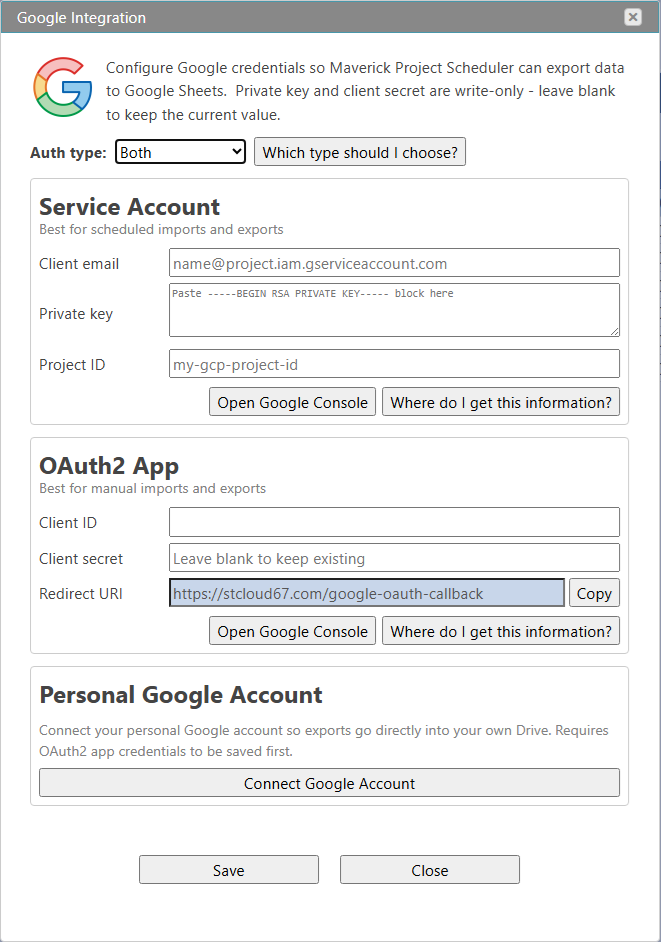
| Auth Type | Fields to Fill In |
|---|---|
| Service Account | Client Email — paste the client_email value from the JSON key file.Private Key — paste the full private_key block including -----BEGIN RSA PRIVATE KEY----- and -----END RSA PRIVATE KEY-----.Project ID — paste the project_id value. |
| OAuth2 | Client ID — paste from Google Cloud Console Credentials page. Client Secret — paste from the same page. Redirect URI — shown read-only in the dialog. Copy this value and add it to Authorized redirect URIs in Google Cloud Console before saving. |
| Both | Fill in all fields from both rows above. The service account acts as the fallback for employees who have not connected their personal account. |
Step 2 — Connect Employee Google Accounts (OAuth2 only)
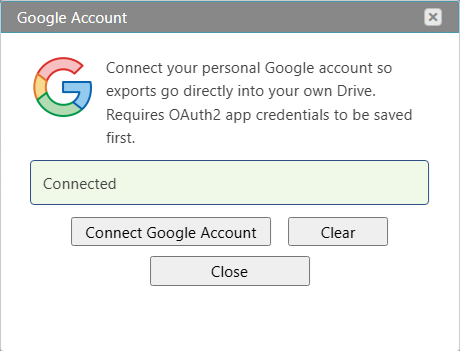
For OAuth2 and Both auth types, each employee must connect their Google account once. After the admin saves the OAuth2 credentials, employees open Tools → Google Integration and click Connect Google Account.
Step 3 — Test the Connection
- Open any project tasks grid or timesheet in Standard Time®.
- Click File → Export → Google Sheets.
- Enter a sheet name and click Export. A new browser tab should open with your data in Google Sheets within a few seconds.
- redirect_uri_mismatch — the URI in Google Cloud Console does not exactly match the one shown in the dialog. Copy it character-for-character.
- Consent screen blocked — the app is in Testing mode and the employee's email is not listed as a test user.
- API not enabled — one or both APIs (Sheets, Drive) are not enabled in the Cloud project.
- Invalid credentials (service account) — the private key was truncated or the header/footer lines were omitted when pasting.